A material learning object uses an organization's own documentation. For additional information about materials, visit Cornerstone’s online help.
- Navigate to the Material Administration page.
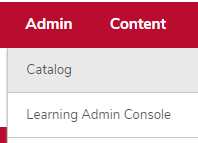
- Hover over the Admin tab.
Click Catalog.
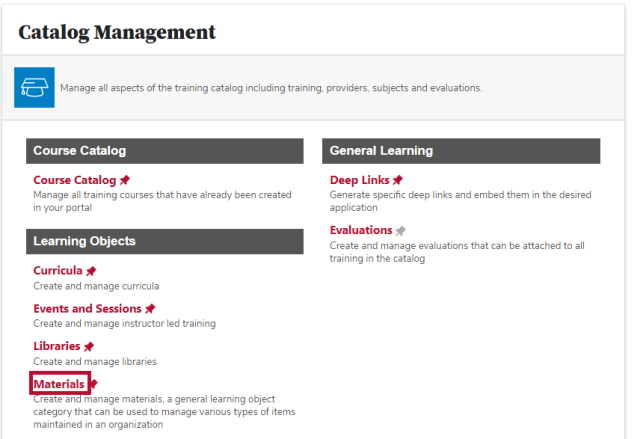
Click the Materials link in the Learning Objects section.
Click the Create Material button
to create a new material.
- Type the Title.
Select the Material Type.
Select the Provider.
- Type the Training Hours.
- Type the Description.
- Add Resources, if desired.
- Add Keywords, if desired.
- Add additional Available Languages, if desired.
- Select a Subject.
- Add Credits, if desired.
- Add a Material Image, if desired.
- Add the Material Source.
Select the location of the material.
- Add CE Credits, if desired.
- Check the Historical Data checkbox, if desired.
- Type a CE Session ID, if desired.
- Add a Prerequisite, if desired.
- Complete the On the Job Training information, if desired.
Click the Next button

.
- Select the Availability.
Click the Next button
.
Click the Save button

.