- Open the Curriculum Administration page.
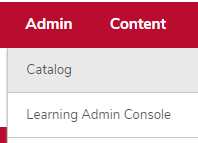
- Hover over the Admin menu.
Click Catalog.
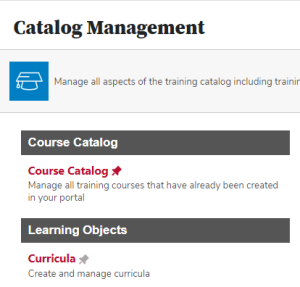
Click the Curricula link in the Learning Objects section.
Click Create A New Curriculum link.

Complete the General page.
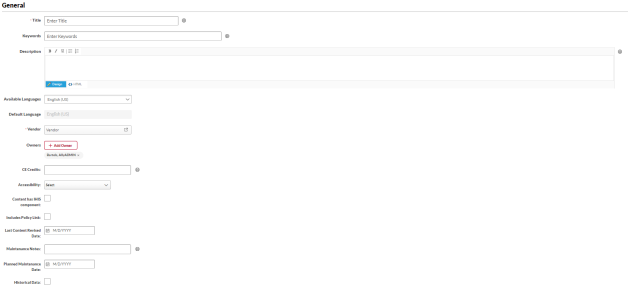
- Type the Title (required).
- Type Keywords, if needed.
- Type the Description.
- Select the Vendor (required).
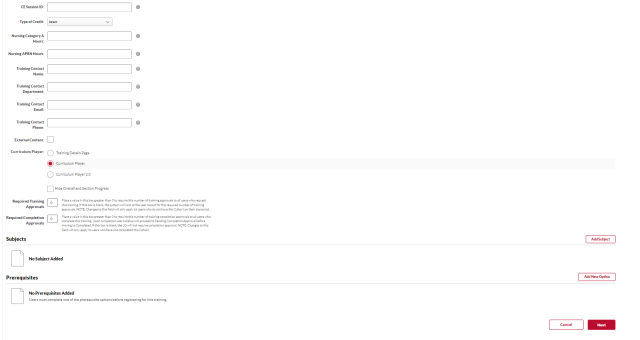
- Select a Subject (required).
- Type the CE credits, if needed.
- Type the CE Session ID, if needed.
- Check the Curriculum Player checkbox.
- Add Prerequisites, if needed.
- Click the Next button.
- Select the Availability.
- Click the Next button.
- Click the Next button on the Emails page
- Select a Price, if needed.
- Click the Next button.
- Complete the Structure page.
Select a recurrence option, if needed.

- Click the Add Section icon to create sections to your curriculum, if needed
- Click the Add Training icon to add LOs to your curriculum.
Adjust the LO sequence by changing the numbers in the boxes next to each LO, if needed.
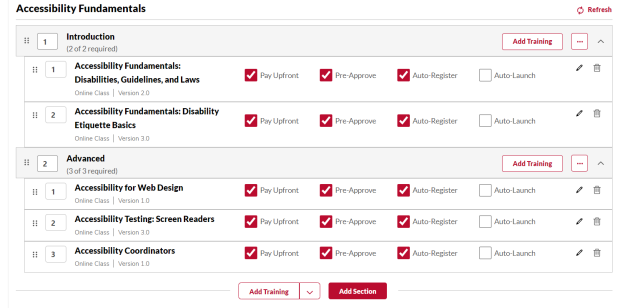
- Drag and drop LOs and sections to reorder, if needed.
Check Item Options, if needed.
- Click the Save button to save the curriculum.