About Authorized Payer
The Authorized Payer gateway to Ohio State's online web payment system for tuition and fees is a fast and secure way for someone else to pay your bill on your behalf.
Important: you, the student, are the sole owner of your My Buckeye Link account. Because of this, only you can create or modify an authorized payer account; parents, family members, or others who support you financially cannot create an account on their own.
Account Creation -Student
- Navigate to buckeyelink.osu.edu and click My Buckeye Link in the Quick Links section at the top right of the page to log into your student account. Use your Ohio State name.# and password as your log-in credentials.
- Click the Finances tile, then choose Make a Payment from the left sidebar menu.
In the “Authorize Someone Else to Pay Online” section click the Create/Manage Authorized Payer button – this will transfer you to Ohio State’s online web payment portal where you will create your Authorized Payer account.
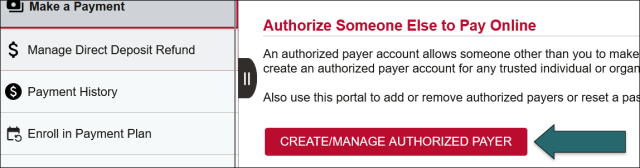
In the online web payment portal:
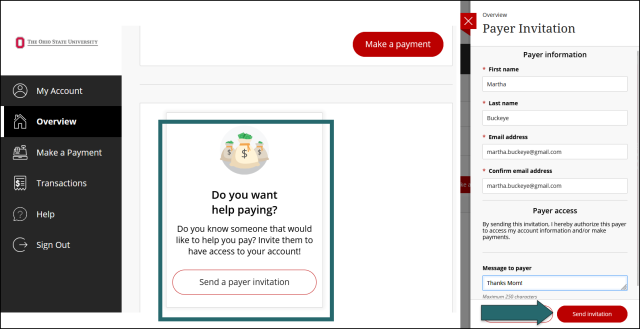
- Click the “Do You Want Help Paying?” – Send a Payer Invitation tile in the middle of the homepage.
In the Payer Invitation pop-up window that appears, complete the following fields. Note that all fields are required unless they are marked as optional.
- First Name – the first (given) name of the person on whose behalf you are creating the account.
- Last Name – the last name (surname) of the person on whose behalf you are creating the account.
- Email address – the email address of the person on whose behalf you are creating the account. You may use the same email address for more than one Authorized Payer account. See Authorized Payer Accounts for More Than One Student for additional important information about paying online on behalf of more than one student.
- Confirm email address – re-enter the email address you entered above.
- Message to Payer (Optional) – if you wish to include a short message to your authorized payer, enter it here. There is a 250 maximum character limit.
- Review and Submit – review the information you entered to ensure it is accurate. Once you are satisfied, click Send Invitation. The green checkmark on the screen following submission indicates that the process has successfully completed.
Important Information
- Authorized payers do not receive automatically notifications about account balances that are due. To ensure your authorized payer receives email communications about balances due, please add them to your Student Information Release (SIR). Learn more about the SIR.
- The only business an authorized payer can conduct through their account is submitting payment; they cannot access any other details about your student account (e.g., your grades, financial aid award package, course schedule).
- If you have designated more than one authorized payer on your account, each can review basic information about the online payment history associated with your account, including other online electronic check, credit card, and wire transfer payments; rejected online payments; and direct deposit refund transactions. Authorized payers cannot see specific payment details or saved payment methods for other users.
- Ohio State will never automatically withdraw payment for tuition and fees from your or an authorized payer’s bank account. Each payment transaction must be manually initiated.
Questions about creating or modifying an authorized payer account should be directed to Buckeye Link at 614-292-0300 or buckeyelink@osu.edu.
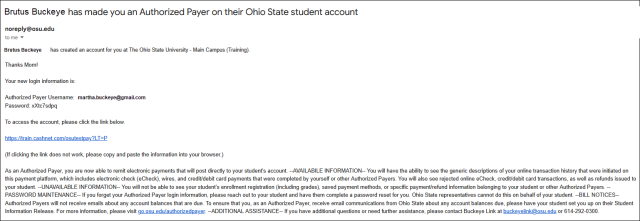
Authorized Payer invitations are sent from noreply@osu.edu with the subject line “[Name of Student] has made you an Authorized Payer on their Ohio State student account.” If your authorized payer does not receive their invitation directly to their inbox, instruct them to check their junk or spam folder.
Payer invitations contain the following information:
- A username
- A temporary password – this must be reset by the Authorized Payer upon initial login
- A direct link to the online web payment portal
Authorized payers should keep their payer invitation email for future reference.
Account Activation -Authorized Payer
Upon receiving their payer invitation, authorized payers must log in and set a new, permanent password. Share the following instructions with your authorized payer:
- Log into the Authorized Payer web payment portal at go.osu.edu/paytuition. Use the temporary password assigned in your payer invitation email.
- Set a new, permanent password. Passwords must be at least 8 characters with three (3) letters and two (2) non-letters. Click Continue.
- Congratulations! Your Authorized Payer account is now active. Confirm that your name appears in the top left corner of your account along with your student’s name in parentheses – for example Martha Buckeye (Brutus Buckeye).
- Proceed with making your payment.
Add an Authorized Payer
You may create additional authorized payer accounts to allow more than one payer to make payments on your behalf. Note that, if you have designated more than one authorized payer on your account, each can review basic information about the online payment history associated with your account, including other online electronic check, credit card, and wire transfer payments; rejected online payments; and direct deposit refund transactions. Authorized payers cannot see specific payment details or saved payment methods for other users.
- Log into your My Buckeye Link account using Account Creation – Student steps above.
Once in the online web payment portal:
- Navigate to My Account in the top left corner of the homepage.
- In the Payers section beneath your list of existing authorized payers, select Send a Payer Invitation.
- Follow the Account Creation and Account Activation steps above to create an additional authorized payer.
Remove an Authorized Payer
You may remove an authorized payer from your account at any time.
- Log into your My Buckeye Link using Steps 1-3 in Account Creation – Student above.
Once in the online web payment portal:
- Navigate to My Account in the top left corner of the homepage.
- In the Payers section, select the payer whose account you wish to remove.
- In the My Account > Payers pop-up window that appears, click Remove Payer.
- In the confirmation pop-up window, select Remove to remove the payer.
Authorized Payer Password Reset
If your authorized payer has forgotten their password, you may resend a payer invitation to generate a new, temporary password so they are able to log in and change it. Authorized payers cannot reset passwords on their own.
- Log into your My Buckeye Link using Steps 1-3 in Account Creation –Student above.
Once in the online web payment portal:
- Navigate to My Account in the top left corner of the homepage.
- In the Payers section, select the payer who should have their payer invitation resent.
- In the My Account > Payers pop-up window that appears, click Resend Payer Invitation. This will reset the payer’s password.
- Instruct your authorized payer to complete Steps 1-4 in Authorized Payer Steps – Account Activation to create a new, permanent password for their account
Authorized Payer Accounts for More than One Student
An authorized payer may be shared by more than one student (e.g., a parent paying on behalf of two students). Ensure each student sends an Authorized Payer invitation - this invitation can be sent to the same email address – then do the following:
- Accept one of the Authorized Payer invitations – follow the instructions in the invitation email; you will be prompted to establish a new password. Sign out.
- Accept the remaining Authorized Payer invitations – the temporary password will be different, but you will be prompted to establish a new password. Sign out.
- Log into the first student's Authorized Payer account (the account from Step 1) – at the top under the banner, click the View a Different Student link
- Follow the prompts to link to another student and log in with the account information from Step 3.
- Accounts are now linked!