About Adding or Changing Phone Numbers in My Buckeye Link
Keep your phone number up to date to ensure Ohio State maintains accurate student records and can contact you about important information and updates.
View Your Phone Numbers in My Buckeye Link
- Navigate to buckeyelink.osu.edu and click My Buckeye Link in the Quick Links section at the top right of the page to log into your student account. Use your Ohio State name.# and password as your log-in credentials.
- Click the Personal Information tile, then choose Contact Details from the left sidebar menu.
Important Information
- You can add or delete a phone number at any time, but you must have at least one phone number on file. If you have more than one number, you must designate one of them as preferred.
- In this area of the system, you will also see email addresses. These cannot be changed through self-service.
Add a Phone Number
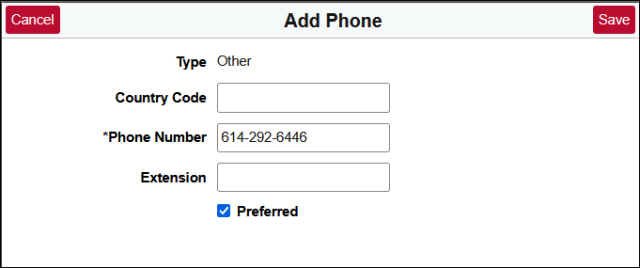
- In the Phone section, click the Add button in the top left corner – this will open a pop-up window where you can enter new a new phone number.
Info.
- Check the Preferred box to designate this as your preferred contact number. If this is not your preferred number, leave the box unchecked.
- Click Save. Your changes will display right away in the corresponding section.
Change a Phone Number
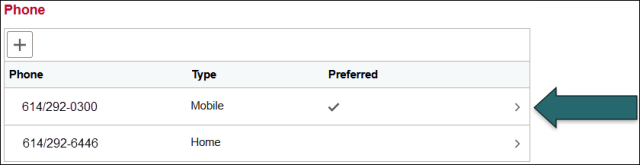
- Find the phone number that you want to change and click the arrow to its right to open it.
In the pop-up window, enter any needed changes, then click Save.
Delete a Phone Number
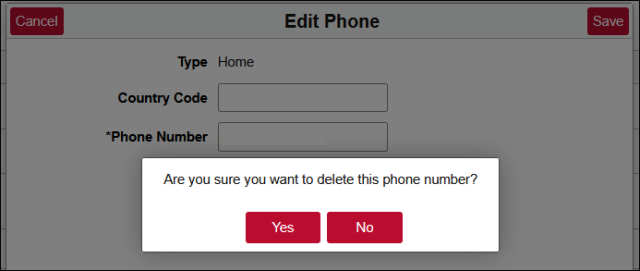
- Find the phone number that you want to delete and click the arrow to its right to open it.
In the pop-up window, click the Delete button. When the confirmation dialog box pops up, click Yes to confirm that you wish to delete the number.