About Emergency Contacts
Emergency contacts are the people the university may reach out to if an urgent situation requires notifying someone on your behalf. You can add, update, or remove emergency contacts and designate a preferred contact when multiple contacts are listed.
Review your emergency contact information regularly and update it whenever phone numbers, addresses, or personal relationships change.
Important Information
- Emergency contacts are separate from your personal address and phone number. Updating one does not automatically update the others.
View Your Emergency Contacts
- Navigate to buckeyelink.osu.edu and click My Buckeye Link in the Quick Links section at the top right of the page to log into your student account. Use your Ohio State name.# and password as your log-in credentials.
- Click the Personal Information tile, then choose Emergency Contacts from the left sidebar menu.
Add a New Emergency Contact
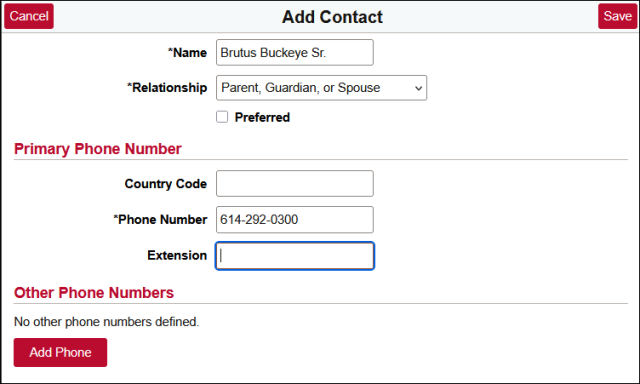
- In the Emergency Contacts list, click the Add button in the top left corner – this will open a pop-up window where you can enter new emergency contact information.
- Check the Preferred box to designate this contact as your preferred emergency contact. They will be contacted first if something happens to you.
Click Save. Your changes will display right away in the corresponding section.
Info.
Change Details for an Emergency Contact
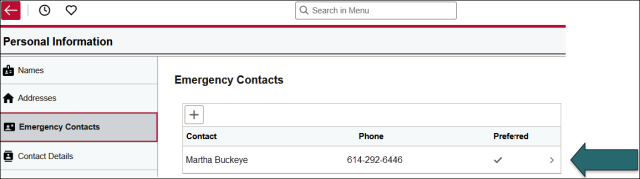
- In the list of Emergency Contacts, find the one you want to change and click the arrow to its right to open it.
In the pop-up window, enter any needed changes, then click Save.
Delete an Emergency Contact
- Find the Emergency Contact that you want to delete and click the arrow to its right to open it.
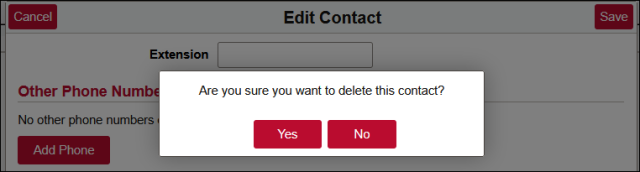
In the pop-up window, click the Delete button. When the confirmation dialog box pops up, click Yes to confirm that you wish to delete the emergency contact.