This job aid is for Canvas for Continuing Education subaccount administrators who use the Privileged Access Management (PAM) tool to troubleshoot learner issues.
The PAM tool can be used to check out a superuser account that will grant you additional access to Canvas for Continuing Education learner profile information. The most common uses for the PAM tool include correcting a typo in a name or email, updating an email, and merging user accounts.
How to Check Out the PAM Tool
- Navigate to the Privileged Access Management tool.
- Enter your OSU email into the Username field and your OSU email password into the Password field.
- Approve Login Request from DUO / BuckeyePass.
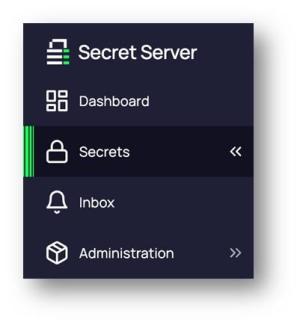
Navigate to Secrets Tab in Primary Menu
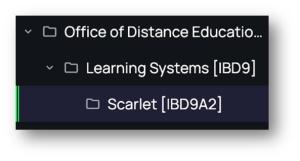
Navigate to Scarlet folder within Office of Distance Education and eLearning folder
- Check out any available User Admin account
There are 5 accounts to choose from and it does not matter which one you choose. If an account is already checked out by another administrator, then you will see that it is already checked out and will not be able to yourself.
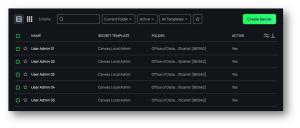
Check out any available User Admin account by clicking on the name.
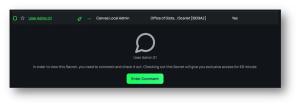
Enter a comment on why you are checking out the account
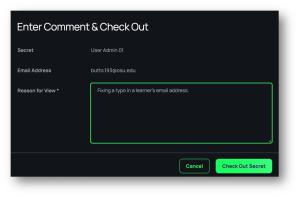
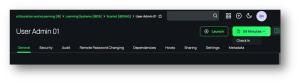
- You now have checked out the account and can access the username and password
There is a lot of information and options available on the screen, but you only need to use the username and password that are supplied for the account. The username reflects the account that you check out and the password is randomly generated each time.
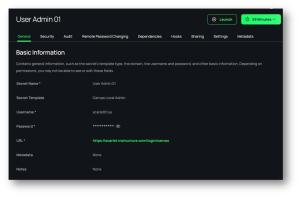
If you hover your mouse over Username and Password, you will have the option to copy each to your clipboard.
Log in to Scarlet with Superuser Account
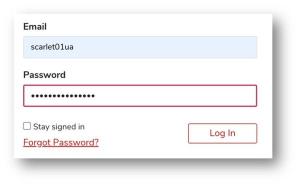
Use an incognito browser and navigate to scarlet.instructure.com and log in using the username and password from the PAM tool. Incognito browsers can be helpful because it won’t conflict with your personal login.
It is important to note that you are now logged in through the superuser account and not your personal account. When you click on the Admin link in the Global Navigation menu you will see scarlet.instructure.com instead of your subcatalog (i.e. College of Arts and Sciences). If you click on that link, it will give you access to all users on Scarlet instead of an individual subcatalog.
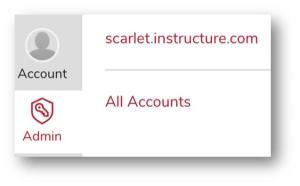
You can use the People tab to find any person with a Scarlet account. You can search by first name, last name, or email.

Learner Profile Page
The learner profile page provides information for the learner’s name and email, login information, and enrollments. Each section provides useful information based on the troubleshooting that is required.
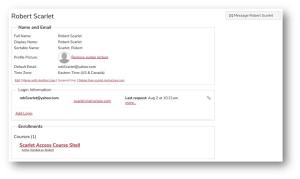
Name and Email
The Name and Email section of the user profile allows you to verify if the name, email, and time zone are correct as well as giving you options to make edits, merge, suspend, and delete a user.
Edit User Details
This option is one of the most used when troubleshooting issues regarding typos and mistakes made during registration including a user only adding their first name.
How to Edit a User’s Name, Time Zone, or Email
Merge User Accounts
If a user created an account previously and wants to connect it with their new one, you can merge their accounts for them. It is important that you are sure which email they want to use because the other one will be deleted from Scarlet.
Suspend Account
You can suspend a user account if you notice suspicious activity but don’t want to immediately delete the account. Suspending an account is helpful in this situation because you can investigate the activity further and ultimately delete the account or restore it if needed.
How To Suspend and Reactivate User Accounts
Delete Account
The “Delete from scarlet.instructure.com" will remove the user from Scarlet including their data, grades, and ePortfolios. It is important to note that this will delete them from the entire system and not just one course.
Login Information
Login Information
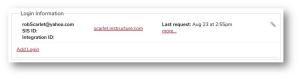
This section will display all the different logins that are available for this account as well as the last time they logged in.
How to Manage a User’s Login Information
Enrollments
Enrollments
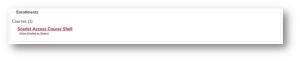
The Enrollments section will show all the courses that the user has been associated with including currently active, completed, and dropped. This section is helpful if you want to verify if a student is in a specific course.
Check In
When you are done troubleshooting you should come back to pam.osu.edu and check the account back in. The account will also automatically check back in after 60 minutes.
Contact Us
If you need tech support help for issues or questions that are beyond what you know how to address as a sub-account administrator, please send an email to PCEpartners@osu.edu.
All requests received through that email address are routed through our Service Now ticketing system and assigned to the most appropriate Canvas for Continuing Education support person.
This is the most efficient and expedient way for you to receive direct tech support as you administer your college's instance of Canvas for Continuing Education.