This job aid is for Canvas for Continuing Education subaccount administrators who need to manually add instructors into a course.
Instructors can be added by pressing the +People button located within the People tab of the course.

You can add the instructor using their email address that is associated with Canvas for Continuing Ed.
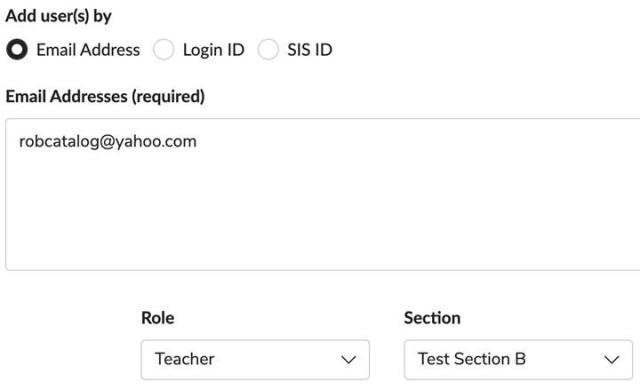
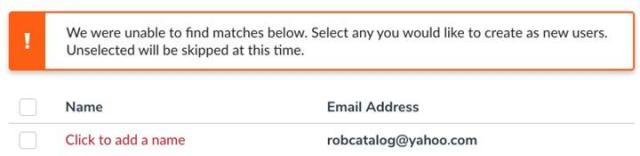
If they already have a Canvas for Continuing Ed account then you can find them via email and quickly add them to the course. If they don't have an account, you will know the email address is not registered because you will a receive prompt to add their name when you select Next. This will trigger two emails to go to the instructor. The first one to have the instructor finish registering their account and the second one welcoming them to the course.
Once the instructor has been added, navigate to the People tab within the course in Catalog, click the three dots next to the instructor's name, and then select Edit Role. From here, you can change their role from Student to Instructor. Note that the course must be active in order for a role to be changed.