How to Filter Records, Narrow Options

Filter your activities to help you find only the activities you want to see and/or export.
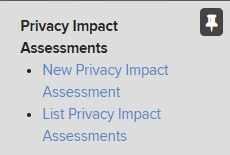
Privacy Impact Assessment menu options include New Privacy Impact Assessment and List Privacy Impact Assessments
  1. Select the List of Privacy Impact Assessments link.
Listing of Privacy Impact Assessments
  1. Select the Filter Results button  

    Filter Results button
Power Filter dialogue box includes from top:  Saved filter dropdown menu, Select filter drop down menu,operator drop down menu, select value drop down menu,add filter drop down menu,remove filter button, add filter button, and apply filters button and save button.
 

Helpful Note

Click the question mark button 

Question mark icon

to view a walkthrough of creating Power Filters.

  1. Click the Select Filter drop down menu.
  2. Select the name of the filter you want to use.
  3. Select the operator to use.
 

Helpful Note

An operator is how the system will compare items to your desired value such as equal or not equal.

  1. Click the Select Value drop down menu.
  2. Select the value you want to use.
 

Critical Note

When using the Select Value drop-down menu you can either select from a drop-down menu of options that will appear based on the filter that has been selected or use the  

Search tool

  and type a value.

  1. Select the Apply Filters button
Apply Filters button
 

Helpful Note

If you want to add an additional filter click the Add Filter button

Add Filter button

 If you want to remove a filter, click the x factor button 

X Factor button

.

By default, when multiple filters are specified, every item must match all filters to be included within the list of search results.

Use OR instead of AND to have items match only one of the filters.
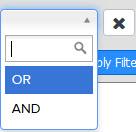
X factor drop down menu,  includes options of or and  and.
  1. Select 

    Save button

     to save the search filter and add this search to your Saved Searches list.  
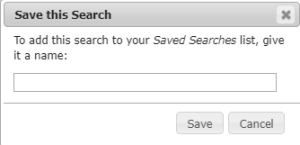
    Save this Search dialogue box . This box has the text to add this search to your Saved Searches list, give it a name. Two buttons Save and Cancel are present.
  2. Enter a name into the Save this Search dialogue box and select 

    Save button
 

Helpful Note

Use the Saved Search drop down menu at the top of the Filters menu to view saved search filters.

Filter menu with Saved Search  drop down menu.

Help

Select the PIA Help icon located at the top of the Editing PIA page to learn more about the PIA and how to prepare for and create an OSU PIA record.

Help text is available throughout the PIA Inventory tool, select the question mark icons

Question mark icon

.

If you experience any issues as you are using the tool, please email security-integrations@osu.edu or contact the IT Service Desk.