- Go to the PIA tool go.osu.edu/pia.
Select the New Privacy Impact Assessment Inventory link.
A. General Information
Complete the General Information section. The General Information section holds summary information about this particular activity.
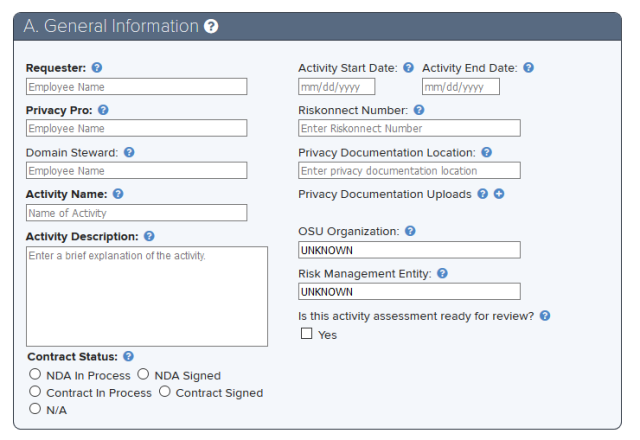
Requester
Description
The OSU employee who requested an assessment.
Action
Action: Enter the OSU employee (last name.#).
Privacy Pro
Description
The OSU employee who serves as the RME’s designated privacy professional assigned with conducting PIAs.
Action
Enter the OSU employee (last name.#).
Domain Steward
Description
The OSU employee(last name.#) who is formally designated and authorized to make decisions regarding a specific data type.
Action
Enter the OSU employee (last name.#).
Activity Name
Description
The name of the project, policy, system, application, program, process, product, or service.
Action
Enter the name of the project, policy, system, application, program, process, product, or service.
Activity Description
Description
A brief summary of the activity and its purpose.
Action
Enter a brief explanation of the activity.
Contract Status
Description
Indication of whether this activity has a Non-Disclosure Agreement (NDA) in process, a signed NDA, a contract in process or a signed contract.
Action
Select one from the following: NDA in Process, NDA Signed, Contract in Process, Contract Signed, N/A.
Activity Start Date
Description
The date when the described activity started or will start. The date is likely different from when you created this activity record.
Action
Enter the date when the described activity started or will start.
Activity End Date
Description
The date when the described activity ended or will end. The date is likely different from when you created this activity record.
Action
Enter the date when the described activity ended or will end.
Riskonnect Number
Description
If you have a Riskonnect number, enter it here.
Action
Enter the Riskonnect number.
Privacy Documentation Location
Description
An optional location for documentation about this activity. This location can be the URL of a website or the path to a local/network drive which is accessible to you and/or your team; the location need not be accessible to the general public.
Action
Enter the location for documentation which is accessible to you and/your team.
Privacy Documentation Uploads
Description
For uploading supporting privacy documentation, i.e., NDA , Privacy Notice, etc.
Action
Save your changes to the Assessment. Select the plus icon to add additional files to your Privacy Impact Assessment.
OSU Organization
Description
The OSU Organization number associated with this activity. This will default to the organization of the Privacy Pro, but can be changed.
Action
If the organization is different from the Privacy Pro enter the OSU Organization number.
Risk Management Entity
Description
The Risk Management Entity (RME) number associated to the OSU unit with this activity. Each OSU unit has an RME number assigned to address security and privacy risk.
Action
Enter the RME number associated with this activity.
Is this activity assessment ready for review?
Description
When you have fully completed the Privacy Impact Assessment form and are ready for review by the Privacy Office, Select Yes.
Action
If your Privacy Impact Assessment is complete. Select Yes.
B. Business Justification
Use the drop-down menu to select at least one Business Justification for the activity.
The Business Justification section should contain a list of what type of business function(s) the activity supports.

Examples include:
- Law, Regulation, or Contract
- Core University Process
- Other
- Unknown
- Non-Essential
When adding business functions:
Select the plus icon

at the bottom right of each section to add additional items
Select the trash icon

at the bottom left of each section to remove additional items
- If you do not know the answer, select Unknown
C. Privacy of Personal Information
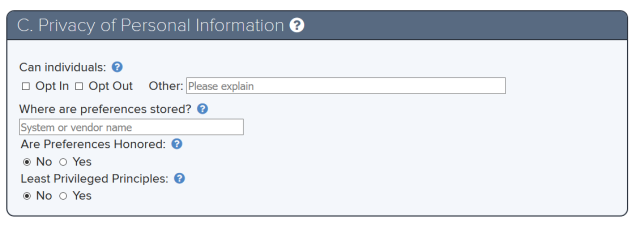
- Provide responses to the questions surrounding how privacy is being considered and handled for this activity.
- The Privacy of Personal Information section should contain responses regarding How privacy is being considered and handled for this activity.
- Select the option(s)s an individual has to be included or excluded. Can individuals Opt In, Opt Out or Other?
- Enter the location (e.g. system or vendor name) where consent preferences are stored.
- Indicate whether an individual’s preferences are honored. For example, are emails checked on the unsubscribed list.
- Select Yes or No. Is access appropriate?
- Add those groups whose personal information is collected, used or shared using the drop-down menu and the plus icon. Include an explanation with each selection.
D. Whose Personal Information

Add the group(s) that receive personal information to use or share using the drop-down menu and the plus icon. Include an explanation for each selection.
Groups
Other or Everyone
- Alumni
- Everyone
- Everyone with OSU Credentials
- Donors
- Other Types Not Listed - Enter Details
- Medical Patients
- Research Subject
- Visitors
Students
- All Students
- Graduate Students
- Masters or Doctoral Students
- Other Students
- Transient
- Non-degree
- Visitor students
- Participants
- Non-credit programs
- Non-credit certificates
- Program 60
- Non-credit workshops and seminar students
- Professional Students
- Post-graduate Law, Medicine, Vet Med, Dentistry, Optometry or Pharmacy students
- Student Applicants
- Individuals who applied to attend The Ohio State University
- Undergraduate Students
- Student currently enrolled, not yet graduated
Employees
- All Employees
- Classified Employees
- Employee Applicants
- Faulty Employees
- Other Employee Types - Enter Details
- Staff Employees
- Student Employees
E. Who Receives Personal Information

Use the drop-down menu and the plus icon to indicate the types of personal information that is collected for this activity. Provide a detailed explanation for each selection.
Groups
- Not Shared
- Not Shared
- Other
- Other
- Unknown
- Outside OSU
- Vendor
- Partner
- Other
- Inside OSU Unit
- Other OSU Unit
- Same OSU Unit
F. Types of Personal Information

Use the drop-down menu and the plus icon to indicate the source(s) the personal information for this activity come from. Provide a detailed explanation for each selection.
Personal Data
- First and Last Name
- Data of Birth
- Street Address
- Phone Number and /or Email Address
- Social Security Number
- Employee or Student ID
- Federal Tax ID
- State ID
- Driver’s License
- Health Plan Beneficiary
- Health and Medical
- Certification License
- Academic/Enrollment Data
- Employment Information
- Criminal Information
- Biometric Identifier
- Vehicle Identifier
- Financial Information
Other Information
- Research
- Other
G. Sources of Personal Information

Where is the personal information collected for this activity located or stored? Is the data stored within the University or outside the university, such as stored within the cloud or otherwise stored by an outside party like a vendor?
Use the drop-down menu and the plus icon to indicate the storage location of personal information. Provide a detailed explanation for each selection.
Source Types
Directly from the User
- In-person
- Online
- On paper
From a System
- EDM (OnBase)
- Local Files
- Local Database(s)
- PeopleSoft
- Tableau
- TAZ
- Workday
- Other
Other Location
- Other Location
H. Storage Location of Personal Information
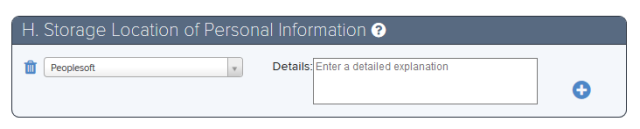
Groups
Inside OSU
- EDM (OnBase)
- Local file(s)
- Local database(s)
- Server with Department/Unit
- PeopleSoft
- Server outside of Department/Unit
- Other OSU Location
Other
- Other
- Unknown
External to OSU
- BuckeyeBox
- BuckeyeLearn
- Carmen/Canvas
- DocuSign
- Workday
- Other External Location
I. Privacy Office
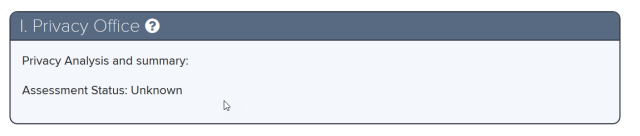
Select Save when complete.
Privacy Impact Assessment Inventory Help
Select the PIA Help Icon

located at the top of the New Privacy Impact Assessment page to learn more about the PIA; tool and how to prepare for and create an OSU PIA Record.
Help text is available throughout the PIA Inventory tool, select the question mark icons

.
For questions and assistance with the PIA tool email security-integrations@osu.edu or contact the IT Service Desk.