Providing user access to your Ohio State AWS account should be done using the university’s Group Management Service (GMS), instead of AWS IAM (Identity and Access Management). GMS allows you to manage users into and out of the two OCIO-defined AWS Roles for the Ohio State AWS service:
- CIO-Developer - Full administrative access via AWS console
- CIO-Read-Only – View
What Is Group Management Service (GMS)?
The Group Management Service (also known as GMS) is a service for centrally managing groups, memberships and other access management information. Ohio State’s Group Management Service also provides the necessary controls that align to the university’s security requirements around access management.
Why Is Group Management Service Being Used with Ohio State AWS?
- Empower the right people to self-manage access
- Increase transparency and auditability - who can access what
- Securely manage user access to AWS accounts by:
- Requiring BuckeyePass (DUO) authentication.
- Supporting “point in time” audit of all changes made in the system.
- Communicating the GMS data to AWS via the Web Single Sign On channel.
Who Can Manage Users for Default Ohio State AWS Roles?
Ohio State AWS account owners (and their designated backup) will have the ability to manage users into an out of the two default, defined AWS Roles (per above).
Instructions
Prerequisites
- You will need the Ohio State username (name.#) of the user to be added or removed.
- Access the Group Management Service and log in using your Ohio State credentials and BuckeyePass (Duo).
Add a User to a Default AWS Role
Once logged into the Group Management Service, select My Groups from the navigation pane (upper left).
The list of your groups will appear. Here is an example of the AWS roles you should see. The highlighted section indicates the AWS account to which the group belongs.
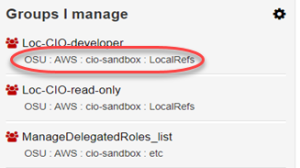
- Loc-CIO-developer: Members of this group have full AWS account access
- Loc-CIO-read-only: Members of this group have view only AWS account access
- ManageDelegated Roles_List: Members of this group can delegate management of the two groups to others (requires name.#).
Click on the group name for which you want to add the user.
The screen below should appear. Click on +Add members button.
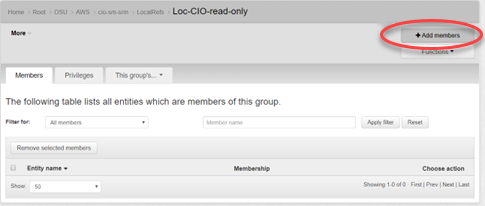
Type the name.# of the user you want to add to the group into the Member name or ID.
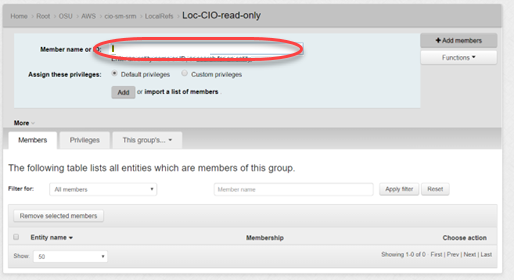
Leave Assign these privileges set to Default privileges.
Click the Add button. System will display a confirmation if user was added successfully.
The new user can now access the selected Ohio State AWS account via go.osu.edu/awsconsole using their Ohio State log in credentials and BuckeyePass.
You can also import a list of name.#s using the “Import a list of members” (right of the ADD button).
Remove a User from a Default Role
Once logged into the Group Management Service, select My Groups from the navigation pane (upper left).
The list of your groups will appear. Here is an example of the AWS roles you should see. The highlighted section indicates the AWS account to which the group belongs.
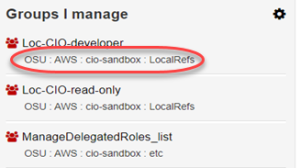
- Loc-CIO-developer: Members of this group have full AWS account access
- Loc-CIO-read-only: Members of this group have view only AWS account access
- ManageDelegated Roles_List: Members of this group can delegate management of the two groups to others (requires name.#).
Click on the group name for which you want to remove the user.
Locate the name of the user you want to remove from the group.
Choose Revoke membership from the Action button drop down menu.
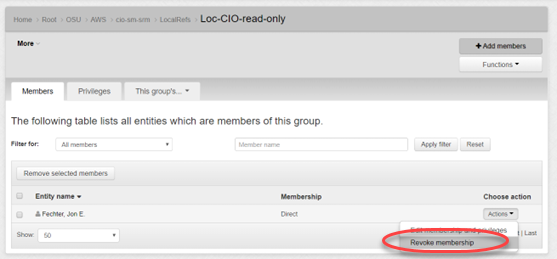
System will display a confirmation if user was removed successfully.
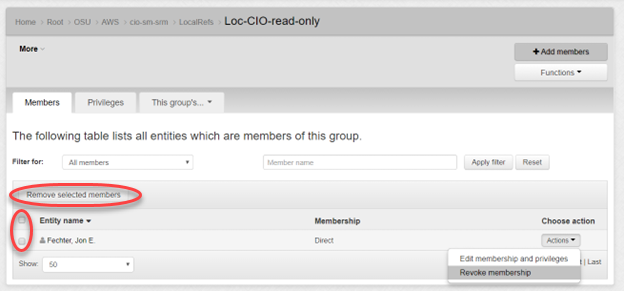
If more than one user is being removed, you click the check boxes on the left column and then click the “Remove selected members” button at the top of the column.
Getting Support
If you have questions or issues using the Group Management Service with Ohio State AWS, please contact the Service Desk at 614-688-4357.
Important Information
Only the two defined roles listed can be managed by Ohio State AWS account holders. Any additional roles created in AWS will not be manageable through Group Management Service at this time.
AWS IAM should be used to create and manage service accounts.