Congratulations on joining a growing Ohio State Amazon Web Services community! Now that you have your Ohio State AWS account for university business, below are a handful of critical, technical things to know that support the Ohio State AWS End User Agreement you have agreed to follow. Be sure to bookmark this page as a reference. It will be updated as major technical tips are identified.
1. Protect University Data Using ISCR Required Controls
All Ohio State colleges and departments are responsible for implementing strategies to manage information risk. As an Ohio State AWS account owner, you are now responsible for protecting the university data that you put into AWS in accordance with the Information Security and Privacy Control Requirements (ISPCR). This means:
- You must work closely with your department or college IT staff and Security Coordinator(s) on all use cases before you implement them in AWS. They will help you understand the risk classification of the data you are using, ensure the proper security controls are put in place within your AWS account to reduce risk, and assist you with completing any required third-party security risk assessment(s) before you put data into your AWS account.
- Ensure any additional users to which you give access to your account are operating in accordance with the ISCR and Ohio State AWS End User Agreement.
- Fully understand the AWS services you want to use before using them, including service requirements, service limitations, service pricing, best practices, and service security. These resources and others can be found by searching on the Amazon Web Services website.
2. Take Immediate Action If You Believe Your Account Is Compromised
As with any security incident you identify, if you believe your Ohio State AWS account is compromised in any way, you must take action by contacting Ohio State’s Enterprise Security Team at 614-688-5650. You should also open a support case with AWS from within your Ohio State AWS account.
3. Monitor and Manage Your Usage, Resources, and Spend
OTDI is not monitoring or managing the usage, resources, or spend for your Ohio State AWS account. You are responsible to monitor and manage the usage, resources, and spend for your account to eliminate any overages or negative impacts. You are also responsible to address any overages with your college or department’s fiscal team.
AWS provides several tools you should use to monitor and manage usage, resources, and spend so that they do not get out of control:
4. Get Support
If you are unable to log in to your Ohio State AWS account, contact the Service Desk for assistance at 614-688-4357.
- Your college or department IT team and Security Coordinator are critical resources. Work closely with them to understand any college or department-specific requirements, restrictions, or support they can provide to you.
- Use AWS Enterprise Support. Enterprise Support resources for any AWS-specific issues that you encounter. Example issues are account (non-log in), billing, service limit increases, and technical issues. To use Enterprise Support, open a case from within your Ohio State AWS account. Please do not use the “Business Critical-System Down” option when opening cases. This option is reserved for university-wide outages only. Learn more about Enterprise Support and AWS response and resolution times to address issues.
- Online resources and communities available through the Amazon Web Services website. These resources may contain the information to your AWS question or issue.
- Two AWS resources are assigned to Ohio State: Solutions Architect (SA) and Technical Account Manager (TAM). These resources can meet with you and/or your team to talk thru uses cases, perform well-architected reviews, help estimate costs, and share architecture, security, performance, and cost efficiency best practices. AWS holds drop-in office hours every other Tuesday in Pomere Hall, Room 172.
5. Set Email for Important AWS Communications
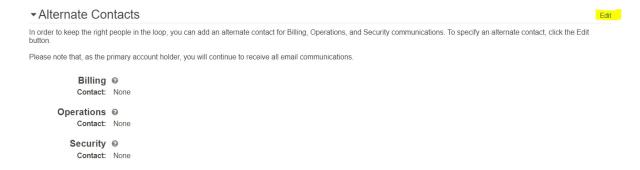
You should set up three email addresses in your account to ensure you receive important email notifications about operations, security, and billing related activities specific to your account. Set all three emails to your Ohio State email address.
Log into your Ohio State AWS account, go to My Account, click Edit and set the three email addresses as shown below:
6. Select The Right AWS Region
There is an AWS region in Ohio. When using AWS services consider setting up your services in the US East (Ohio) region if doing so supports your use case. The AWS Region you select can impact service pricing and latency (the delay in transferring data). When using AWS services choose an AWS region that:
- Provides the services you need and
- Is closest to where you (or the customers of your application) are located.
7. When To Use AWS Virtual Private Cloud (VPC)
Your Ohio State AWS account is configured with a default virtual private cloud (also called VPC) address.
- Always use the preferred model for private and public subnets.
- Use the smallest necessary subnet to reduce overlap with other AWS accounts.
- Ensure your VPC architecture is modular and scalable.
If you plan to integrate your account or AWS services with the university’s data center or interact with other VPCs, you must contact your local IT staff in advance to ensure the correct network information is provided for your use case.
8. Manage User Accounts Using GMS
AWS provides a service called Identity and Access Management (IAM) that enables you to create and manage AWS users and groups, and, to set permissions to allow and deny their access to AWS resources.
For service accounts (non-user accounts) use the AWS IAM.
For all other user accounts, Ohio State AWS account owners must add and remove users to their account using the university’s Group Management Service (GMS). Account owners can use GMS to provide or revoke access to their Ohio State AWS account. Currently, users can only be added or removed for the two default, defined roles the OTDI has established. Any custom roles created in AWS will not sync with GMS. By end of calendar year 2019, the solution will accommodate user management for custom AWS roles you create.
Ohio State AWS account owners should contact the Service Desk to request the GMS instructions for Ohio State AWS.
9. Account vs. Application Logging
By default, your Ohio State AWS account only has AWS CloudTrail enabled. CloudTrail is an AWS logging service that captures activity performed within your account, who performed it, and when. CloudTrail does not perform application logging.
You can access the CloudTrail logs for your account through your AWS Console. You can also configure your own instance of CloudTrail logging if needed.
Ohio State AWS does not provide application logging for your account. If application logging is needed for your account, you will need to determine the best application logging solution for your needs and configure it to work within your Ohio State AWS account.
10. Use Available Billing Resources
Each month, AWS generates one monthly bill for all of Ohio State’s AWS usage. Access to billing details specifically for your account are accessible as follows:
AWS Account Owner - Use the AWS Billing Dashboard within the AWS Console. The billing data for your account can be printed to pdf and saved to a destination of your choosing. In addition, you have access to Cost Explorer, which provides a real time usage and cost view, trending (13 months data retention), forecasting, and several canned reports to help with cost management.
Your college or department fiscal team should access billing details through the OTDI Administrative Web Interface (AWI). If your fiscal team does not have access to the AWI, they should contact the Service Desk at 614-688-4357 for assistance.