How to View a Class Roster
Navigation
Self Service - Faculty Center- Class Roster
Helpful Note
To download a class roster to Excel, please see step 5 .
- Navigate to the Faculty Center page.
By default, this page displays all classes scheduled in the current term.
Select
beside any class to view its roster.
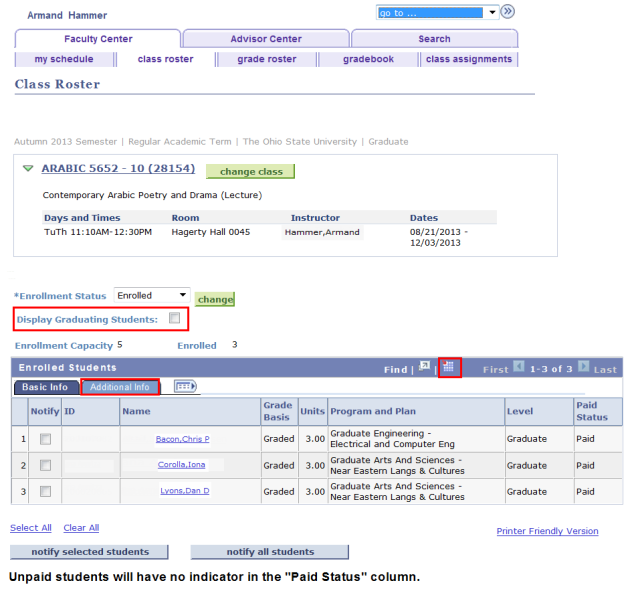
Critical Note
Unpaid students will not have an entry in the Paid Status column.
- By default, the Class Roster displays only students with a status of "Enrolled".
To view a different Enrollment Status, select an alternate status from the drop-down menu and select

- Waiting - waitlisted students
- All - enrolled, dropped, and waitlisted students
- Dropped - dropped students
- If you wish to view only students who have applied to graduate this term, check Display Graduating Students.
Helpful Note
Selecting the Additional Info tab will allow you to see students who are members of a Special Population (A= Athlete G= Graduating H= Honors S = Scholars)
- Select Printer Friendly Version to view a printer-friendly version of this page.
- Print the resulting page using your web browser's standard print function.
Helpful Note
To export the Class Roster to an Excel spreadsheet, hold down the Control (Ctrl) key while selecting the Download icon
on the roster. The Class Roster will appear as a separate page, so verify that your Pop-up Blocker is turned off.
- Select notify selected students or notify all students to send notifications to students.
Helpful Note
The Preferred Name will appear on the Student Services Ctr (Student), Class Roster and Grade Roster pages in the Student Information System (SIS). All other pages within the SIS will reflect the Primary Name.