Select Term
The order of steps will vary depending on the link you use to enroll or add a class, as well as whether multiple terms are available for enrollment when you attempt to add a class. In most cases, you will select a term at some point in the process using the Select Term page.

If you see the Select Term page at any point, select the term in which you wish to enroll or add a class and click

- Proceed based on the link you clicked to enroll or add a class:
- If you clicked Add a Class from Buckeye Link or the Student Center's Academics section, skip to the Add Classes page (step 4, below).
- If you clicked Open Enrollment Dates in the My Buckeye Link Enrollment Dates box, skip to the Add Classes page (step 4, below).
- If you clicked Details in the My Buckeye Link Enrollment Dates box, you will continue to step 2.
- The Enrollment Dates page will appear.

Select

To select a different term, select

and select an alternate term on the Select Term page.
- The Add Classes page will appear.
Add Classes

- Select an option to add classes:
Search for Classes
Select
. The Class Search page will appear. Refer to the Search for a Class procedure for more information on searching for classes.
Enter Class Nbr (Number)
Enter the Class Nbr (Number), if known, and select
to bypass searching for classes.
Schedule Planner Search
Select
to bypass searching for classes and use the Schedule Planner class scheduling system to create your schedule.


- Select a Course Subject.
- Type a Course Number.
- Select or confirm the Course Career.
Select


- Select the Section link for more information on that specific section. The Class Detail will appear.
It is important to check the class detail for every class in which you enroll, so you can understand what you are signing up for--and ensure that the class will be what you expect. Under "Instruction Mode," you will find information that indicates whether a class is taught "In Person" (in a classroom with an instructor), or by "Distance Learning," or incorporates some other mode of learning--"Clinic Field Experience," for example.

Note the Instruction Mode, which is outlined in red in the example above. This takes the place of the current letter designation after a course number. Available Instruction Modes include:
- Clinic Field Experience
- Computer Taught
- Distance Learning
- Flexibly Scheduled
- In Person
- Video Taught
- Workshop
The following two examples depict Class Details with Instruction Mode of "Distance Learning" and "Clinic Field Experience", respectively (outlined in red).


If desired, use the Mode of Instruction in Additional Search Criteria to limit your search results to a specific Instruction Mode.
- Review search results for the course you wish to add.
Select

.
- Next steps will vary depending on whether this class is connected to an associated section (for example, a lab that is connected to a lecture). Connected sections will be grouped together in the search results.
- If the class is not connected to another section, you will skip directly to the Enrollment Preferences page as detailed in step 19.
- If the class is connected to multiple sections (e.g. one lecture has multiple lab sections), you will skip to the Select classes to add - Enrollment Section page as detailed in step 16.
- If the class is connected to only one other section, you will proceed to the Select classes to add - Related Class Sections page as detailed in step 13.
- If there is only one associated section, you will see a page similar to the following.

- Optionally, you can select the Section link to view that section's Class Detail.
Select
to skip to step 19.
- If there are multiple associated sections, you will see a page similar to the following.

- Select an associated section.
Select
- Review the Enrollment Preferences.
- This page will display connected sections for which you are enrolling, if applicable.
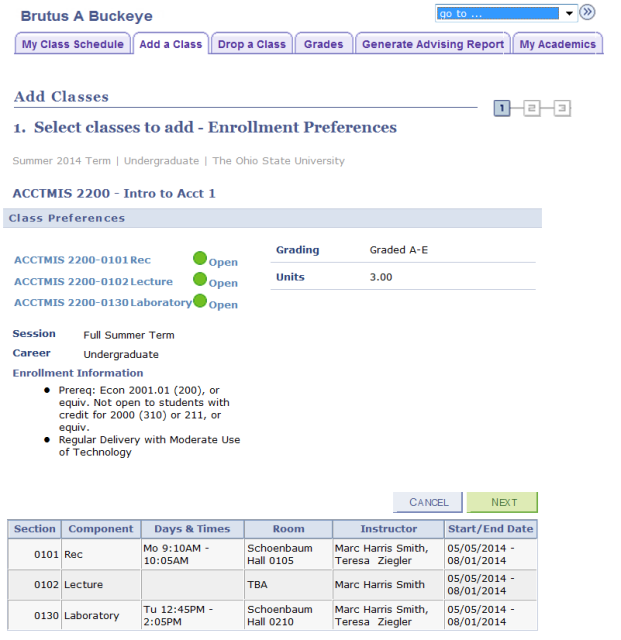
Select
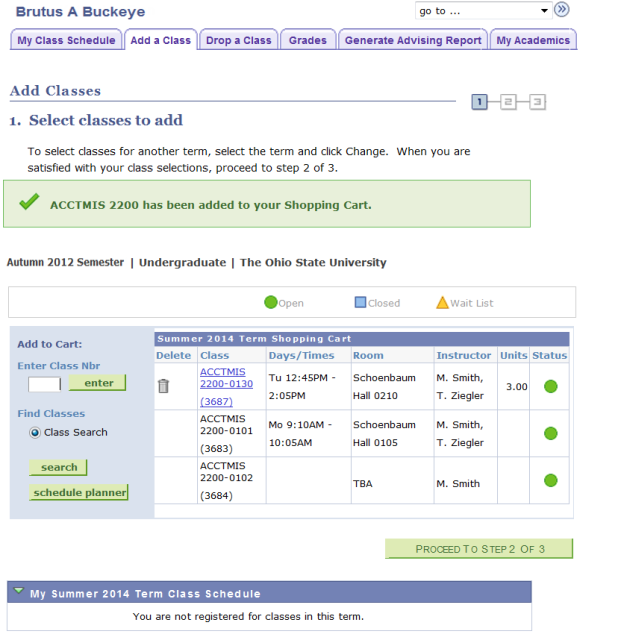
To add additional classes repeat Steps 4 through 20


Select


Confirm the class was added.
- If the add was unsuccessful, you will see a message detailing the reason. The example below shows an error due to exceeding a time conflict.

Select

to see more information or to resolve the issue.
Select


- Review your class schedule for the selected career and term.