
Microsoft updates rolling out over the coming months focus on streamlining collaboration in Teams, enhancing project coordination with Planner, and modernizing core Microsoft 365 experiences like SharePoint and Outlook. These changes also include retiring legacy tools, reducing unnecessary notifications, strengthening security and compliance controls, and expanding access to AI-powered capabilities such as Copilot. Together, these updates reflect Microsoft’s continued effort to deliver a more connected, intuitive, and secure digital workplace.
Microsoft Teams Updates
Refreshed in-meeting experience with simpler controls and a smarter share panel
As Microsoft Teams has added meeting capabilities over time, the meeting controls and share panel have become crowded, contributing to mis-clicks between highimpact actions like Share, Leave, and Raise hand. This can lead to accidental shares of unintended content. Drawing on extensive customer feedback, Microsoft is introducing two coordinated updates: simplified meeting controls and a redesigned share panel. This applies to Teams for Windows desktop, Teams for Mac desktop, and Teams for the web.
What to expect:
- Meeting controls will be in the center, with microphone, camera, and share grouped together.
- The Leave button will be separated to reduce accidental exits.
- Actions that are used infrequently will move into a reorganized “More” menu.
- Personalize meeting controls by pinning, unpinning, and rearranging controls using drag and drop.
- The redesigned share panel will include:
- Live previews of screens and windows.
- A tabbed layout (Screens & Apps, Interactive Files, More options).
- A two step share confirmation to reduce accidental sharing.
HOW TO: The new experience is enabled by default.
- During rollout, users may opt in early and can temporarily return to the previous experience from Teams settings.
- Existing meeting app pinning policies will continue to be honored.
- New meeting app pinning policies will support up to two apps pinned to the main meeting controls, with additional apps available in the More menu.
WHEN: Roll out will be completed by end of August 2026.
New chat sections for muted and meeting chats
Microsoft Teams is introducing two new system chat sections called Muted chats and Meeting chats. These sections allow users to organize their chat and channels list by grouping muted conversations and meeting chats into dedicated sections that users can turn on or off.
HOW TO: The new setting will appear under Settings > Chats and channels
WHEN: Roll out was completed in May 2026.
Connect Teams meeting to existing Planner Plans
Microsoft Teams is introducing a new capability that allows users to connect Microsoft Teams meetings to existing Microsoft Planner plans. Currently, Teams meetings automatically create separate Planners for meeting-related tasks, which can result in spreading tasks for the same initiative across multiple plans. This update enables users to link meetings to an existing plan so tasks can be tracked in a single location, improving organization and continuity across ongoing work.
HOW TO: The new experience is enabled by default.
WHEN: Roll out will be completed by end of August 2026.
Retirement of Together mode
Microsoft Teams is retiring the Together mode meeting view in Microsoft Teams. This retirement reduces the number of available meeting layouts and allows Microsoft to focus development on the Teams gallery. The gallery is the default meeting view across Teams clients and will remain the primary multi-participant layout for meetings.
HOW TO: The new experience is enabled by default.
WHEN: Roll out will be completed by end of June 2026.
Disabling Teams meeting recording notification emails
To reduce notification noise and improve signal quality, Microsoft will disable Teams Meeting Recording (TMR) expiration notification emails. Customer feedback indicates these emails generate high volume with minimal engagement. Only the email notifications are being removed; recording expiration and deletion behavior remains unchanged.
HOW TO: The new experience is enabled by default.
WHEN: roll out will be completed by June 1, 2026.
AI meeting recap without transcript to meet compliance policies
Microsoft Teams will offer AI meeting recaps without saving transcripts or recordings. Recap without saving transcript provides an optional way for Copilot to generate a meeting summary using live meeting context, without saving a meeting transcript or recording This feature will be available to users with an M365 Copilot (Premium) license across platforms, including desktop (Windows and Mac), web, and mobile.
HOW TO: Meeting organizers with a Copilot Premium license can enable or disable “Recap without saving transcript” in meeting options under “Copilot and other AI” before the meeting. Organizers or participants with a Copilot Premium license can manage the AI toggle during the meeting through the AI mode dropdown (top‑left indicator).
- During a meeting, organizers and participants with a Copilot Premium license can enable or disable this option.
- When enabled, Intelligent Recap will generate an AI summary even if recording and transcription are not turned on.
- No transcript or recording is saved as part of this experience.
WHEN: Roll out will be completed by July 1, 2026.
Meeting notes available for instant meetings
Teams meeting Notes, powered by Loop, is being added to instant calls and meetings, including those started from Meet now and calls started from chat. Meeting notes are Loop components in Teams meetings and chats that allow users to collaboratively build agendas, capture notes, and create action items. Once added, they stay in sync and can be shared and edited in the Loop app in your web browser.
HOW TO: the new setting will appear under Settings > Chats and channels: “When writing a message, press Enter to…”
WHEN: Roll out was completed in May 2026.
Identify external bots joining your Teams meetings
AI‑powered meeting assistant bots—such as transcription and summarization services—are increasingly used to enhance productivity in online meetings. While these tools can be valuable, some bots may access meetings without the knowledge or consent of the meeting organizer or the hosting tenant, which can create data security, privacy, and compliance risks.
To help organizations protect meeting content and increase visibility into automated participants, Microsoft Teams is introducing a new capability that detects external meeting assistant bots as they attempt to join meetings. This update gives organizers greater awareness and control and provides administrators with clear controls to manage how detected bots are handled in meetings hosted across the organization.
What will happen
- Teams will detect external meeting bots as they attempt to join meetings hosted by your organization.
- When detected, bots will be clearly labeled in the meeting lobby experience.
- Note: There might still be bots that are undetected by the system due to their intrinsic behavior
- Organizers will be able to:
- Approve or deny detected bots from the meeting lobby.
- Clearly see which participants have been identified as bots.
- Remove detected bots during the meeting if necessary.
- These organizer controls are designed to help ensure that bot participation in meetings is an intentional and informed decision.
WHEN: Rollout will be completed by the end of June 2026.
Planner tab support for Shared and Private Channels in Microsoft Teams
Microsoft Planner tabs will be available in Microsoft Teams Shared and Private channels, allowing users to create or add plans within these channels. Only basic plans are supported initially. Planner inherits channel permissions and stores data in the channel’s SharePoint.
HOW TO: The new experience is enabled by default.
WHEN: Rollout will be completed by the end of July 2026.
General updates
Microsoft 365: Outlook Mobile Follow a meeting option
Outlook Mobile added a "Follow" option for meeting RSVPs starting mid-May 2026, allowing users to stay informed without attending. This option appears for meetings with two or more participants and replaces "Maybe" in the RSVP menu.
HOW TO: The new experience is enabled by default.
WHEN: Rollout was completed in May 2026.
Microsoft 365: Modern web page redesign for SharePoint online
Microsoft has rolled out a new SharePoint experience that includes a redesigned SharePoint app bar, a refreshed SharePoint start page for finding sites, content, and news, and support for AI-assisted creation, management, and discovery features. The new experience applies when viewing Teams sites via SharePoint online.
Updates include:
- Updated App Bar buttons – Discover, Publish, Build, OneDrive (Provides quick access to files)
- Updated page, news, library, and list experiences with improved content visibility
- Neutral theming applied across SharePoint product surfaces (site-level branding remains unchanged)
HOW TO: Review changes to the SharePoint navigation experience, including the new app bar at SharePoint App Bar
WHEN: Rollout was completed in May 2026.
Retirement of Exchange Web Services (EWS) in October 2026
Exchange Web Services (EWS) in Exchange Online will be retired starting October 1, 2026. Organizations must migrate active EWS applications to Microsoft Graph, Power Platform, or Copilot Declarative Agents. Deprecation of Exchange Web Services in Exchange Online details. Any application that uses EWS will need to be updated by the vendor or replaced with a similar product not using EWS. Applications using EWS after October 2026 will stop functioning.
OTDI is reaching out to application owners that can be identified to make them aware of the deprecation.
WHEN: EWS reaches end of support in October 2026.
Retirement of Evolution email client use due to Exchange Web Services (EWS) in October 2026
Exchange Web Services (EWS) in Exchange Online will be retired starting October 1, 2026. Organizations must migrate active EWS applications to Microsoft Graph, Power Platform, or Copilot Declarative Agents. Applications using EWS after October 2026 will stop functioning.
If you currently use the Evolution mail client, you will need to switch to a Microsoft-supported email application to continue accessing your email. Supported email applications include:
- Outlook (Windows)
- Outlook for Mac
- Outlook Mobile (iOS or Android)
- Outlook on the web
Once the legacy method is disabled, Evolution will no longer be able to access your mailbox.
WHEN: EWS reaches end of support in October 2026.
Retirement of Microsoft Office 2021 LTSC in October 2026
Microsoft Office 2021 LTSC will no longer be supported after October 2026. People can continue to use it with its current functionality until then.
WHEN: Office LTSC 2021 reaches end of support in October 2026.
Retirement of Microsoft Publisher in October 2026
Microsoft Publisher will no longer be supported after October 2026. People can continue to use it with its current functionality until then. Support for the perpetual version of Publisher will end in October 2026. No action is required at this time, Microsoft is exploring ways to achieve common Publisher scenarios across other applications.
WHEN: Support for the perpetual version of Publisher will end in October 2026, when Office LTSC 2021 reaches end of support.
Retirement of Microsoft Sway Desktop
Microsoft has retired the Sway Windows desktop application (Win32 client) effective June 1, 2026. This change aligns with Microsoft efforts to simplify app management and encourage use of the web-based version, which offers the same capabilities with improved accessibility and support. People can access all current and future Sway features, as well as their content, through the browser interface at sway.cloud.microsoft.
WHEN: Retirement was on June 1, 2026.
Prepare for Retirement of VBScript in August 2027
Microsoft has announced that VBScript in Windows is being deprecated. It is in its first deprecation phase, available through features on demand (FODs) and enabled by default on Windows 11, version 24H2. If you have any applications or scripts that rely on VBScript, you need to identify and remediate it before the next deprecation phase. In phase 2 VBScript will be disabled by default in Windows. Phase 3 the VBScript feature will be removed from Windows at a later date that has not yet been set.
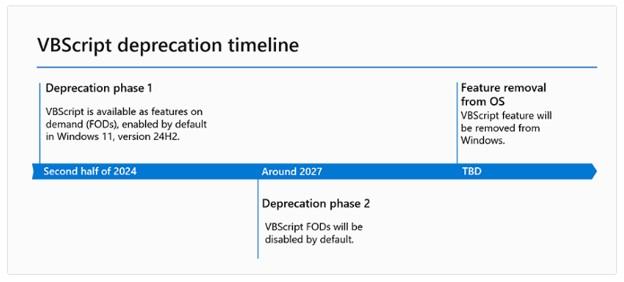
HOW TO: For more details refer to VBScript deprecation: Timelines and next steps and VBScript deprecation: Detection strategies for Windows.
WHEN: Microsoft VBScript in Windows is currently in its first deprecation phase. Phase 2 will be completed August 2027. Dates for Phase 3 are TBD.
New Outlook for Windows not supported
Currently the New Outlook for Windows is available for use, but it is not Ohio State’s supported version. We are not supporting this new version because the application is still missing features and has issues that Microsoft needs to work through before we can fully adopt the software.
HOW TO: For more details, log in to the Administrative Resource Center to read more in the New Outlook for Windows article.
WHEN: The New Outlook for Windows is available for use now, but it is not Ohio State’s supported version. More information will be shared as it is available.
Retirement of Project Online
Microsoft has announced the retirement of Project Online. This decision reflects Microsoft’s focus on delivering solutions that are modern, scalable, and future-ready—enabling you to take advantage of the latest innovations in AI, automation, and collaboration. By moving to the next-generation platforms, you’ll benefit from enhanced productivity, deeper integration with Microsoft 365, and new capabilities designed for the way people work today and tomorrow.
This update is exclusive to Project Online and does not affect Project desktop, Project Server, or Planner (which brings together Project for the web, Planner in Microsoft 365, and To Do). To ensure a smooth transition and continued success, Microsoft is providing three clear paths forward:
- The New Microsoft Planner: For organizations seeking a modern, cloud-first, and AI-powered project management experience, the new Planner brings together the best of To Do, Planner, Project for the web, and Copilot. It’s designed for flexibility, collaboration, and scalability—empowering teams to manage everything from simple tasks to complex projects in one unified platform. The premium features of Planner included in our Planner and Project Plan 3 and Planner and Project Plan 5 licenses, offer advanced features such as portfolios, baselines, dependencies, and Gantt charts.
- Project Server Subscription Edition: For organizations with advanced project and portfolio management (PPM) requirements, or those needing a short-term solution before moving to the cloud, Project Server Subscription Edition offers comprehensive tools for planning, scheduling, and resource management—built on the latest SharePoint Server technology.
- Project Operations: For Dynamics ERP customers, especially those focused on timesheets and resource scheduling.
HOW TO: You will need to determine which solution fits your unique needs, plan and execute your transition before the retirement date.
WHEN: Retirement end of September 2026, after which time you will no longer be able to use Project Online or retrieve any data.
New Planner updates
In early 2026, Microsoft will begin rolling out a new major update of the Planner app in Teams desktop and web as well as Planner on the web. This update will come with several new enhancements, and we will also be retiring several features at this time. See each section below for more detail on the timing.
New features in the upcoming Planner update:
- These changes will be available with the new update, which we expect to begin rolling out between mid-January 2026 and mid-February 2026.
- Tasks chats in basic plans will allow team members to collaborate directly on tasks using rich text formatting and @mentions, making it easier to discuss work and notify teammates about what needs attention.
- Custom templates will allow you to create reusable, pre-designed plan layouts tailored to your organization’s needs, ensuring consistency and saving time. They provide the ability to standardize content while allowing easy customization for specific scenarios.
- Project manager agent will now be available in all plans for M365 Copilot licensed users, including basic plans.
Features in Planner that will be retired:
- The following changes will take effect as this build rolls out to your organization:
- A new Task chat experience will replace the prior comments experience for basic plan tasks:
- As noted above, the previous task comments experience will be replaced by a new task chat feature that supports messages about the task that can include @mentions and rich text formatting, in response to a longstanding top customer request. Due to customer feedback on our notifications experience, the new chat feature only sends an email/Teams notification to a colleague that’s been @mentioned in the message.
- The task chat experience will be available on Planner in Teams web/desktop and the Planner web experience, and the old experience for viewing comments will no longer be directly visible on a task. Instead, the task details pane will show a link to open a page in Outlook where task comments can be seen.
- Users can continue to use and see the previous task comments experience in the iOS Planner app, Android Planner app, and Planner in Teams mobile. New task chat messages will not be visible in the mobile experience at this time.
- There are no changes to email notifications for the existing task comments experience, meaning that an email notification will be sent to all group members associated with the plan when a task comment is added.
- There is no change to the premium plan conversations feature at this time.
- The whiteboard tab for premium plans will be retired.
- This feature automatically created a whiteboard for premium plans in Planner and allowed users to create tasks in Planner from that whiteboard's sticky notes.
- The whiteboard tab will be unavailable on the premium planafter retirement of this feature.
- Users will be unable to create tasks from a whiteboard as a result.
- Any existing whiteboard content will remain available via the Whiteboard app.
- There is no replacement for this feature at this time.
- A new Task chat experience will replace the prior comments experience for basic plan tasks:
Features outside of Planner that will be retired without replacement:
- Planner integration in Viva Goals.
- Viva Goals will be retired on December 31, 2025, as previously announced. Refer to Viva Goals retirement for more information.
- When Viva Goals is retired, the entry point in Viva Goals for use with Planner will no longer be available.
- iCalendar feed integration retirement.
- This feature will be retired between mid-January 2026 and mid-February 2026.
- This feature allowed users to subscribe to their Planner tasks as an iCalendar feed that could be viewed in iCalendar-compatible applications like Outlook.
- After this feature is retired, users will not be able to create new iCalendar feeds for their tasks or plans, and they will stop seeing their tasks in the iCalendar feeds they previous created.
- There is no replacement for this feature at this time.
- Planner component retirement in Loop pages.
- This feature will be retired between mid-January 2026 and mid-February 2026.
- Loop pages support various options for capturing task information.
- This control, which could previously be inserted by typing /planner in a Loop workspace, was one of the available options.
- We recommend the Task List Control in Loop to capture tasks.
- After the retirement of this control, which is expected to begin in January 2026 and will roll out independent of the Planner update rollout, it will no longer be possible to add a new component of this type in a Loop workspace.
- Workspaces where these components were already present will display the Planner plan URL where the component was previously located.
- Tasks previously entered in these components will remain available in Planner.
WHEN: Roll out was completed at the end February 2026
Retirement of Microsoft Store installation for Microsoft 365 apps
The ability to install Microsoft 365 apps (Word, Excel, PowerPoint, etc.) using the Microsoft Store is ending. We recommend upgrading to the Click-to-Run installation type for Microsoft 365 Apps.
HOW TO: For more details refer to Microsoft Store Installation Type end of support for Microsoft 365 Apps.
WHEN: New feature updates were discontinued in October 2025 and security updates ended in December 2026.
Microsoft 365 apps: Support will retire for 32-bit Microsoft 365 apps on Windows Arm-based PCs
Microsoft is retiring support for the 32-bit edition of Microsoft 365 apps for Microsoft Windows Arm-based devices. New feature updates will stop in October 2025 and security updates will end in December 2026. We recommend upgrading to the 64-bit edition for Microsoft 365 Apps. For more details refer to 32-bit Windows Arm-based devices end of support for Microsoft 365 Apps.
WHEN: New feature updates will stop after October 2025 and security updates will end in December 2026.
Copilot Updates
Microsoft 365 Copilot release notes page
A new centralized Microsoft 365 Copilot release notes page is now available, consolidating all Copilot-related updates across various platforms. It includes platform-specific filters and is updated bi-weekly. People can bookmark, share, review, and provide feedback on the page for better planning and awareness of Copilot updates.
HOW TO: To learn how to use the notes page, reference the Microsoft 365 Copilot release notes.
WHEN: Available now.