
Beginning April 15, Microsoft began rolling out changes to where Copilot Chat (basic) appears across Microsoft apps. The basic version of Copilot, formerly called Copilot Chat, is paid for by the university and provided to all staff, instructors and students. One big change is that Copilot Chat will no longer appear on the toolbar ribbon directly inside the following Microsoft apps:
- Word
- Excel
- OneNote
- PowerPoint
This change applies to both desktop and online versions of these apps. You can continue to use Microsoft Copilot Chat through its standalone web experience.
**These changes do not affect users with an M365 Copilot (Premium) license.
Expanded Copilot Features and Capabilities
While Copilot Chat will no longer appear inside Office document apps, Copilot’s capabilities in Outlook are expanding. In Outlook, Copilot will be able to answer questions about your email, calendar, and meetings and take limited actions directly in Outlook. Microsoft rolls out these updates to users incrementally, so some users may not yet be able to see these features.
Here are a few examples of what you can ask Copilot in Outlook:
- “Summarize my emails from the past week related to [project name].”
- “When is my next 1:1 meeting?”
- “Draft an email summarizing this week’s customer issues.”
- “Schedule a meeting with my manager.”
- “Flag all unread emails from my supervisor.”
- “Set an automatic reply for next Friday.”
Copilot Chat in Outlook can now look across your entire inbox, calendar, meetings, and related enterprise data—not just individual email threads—even for users without a Microsoft 365 Copilot Pro license. This makes it easier to find key updates, stay on top of meetings and action items, and quickly triage email tasks like replying, flagging important messages, or accepting invites.
How to Continue Using Copilot with Office Documents
In other apps like Microsoft Word, Microsoft Excel, and Microsoft PowerPoint, Microsoft 365 Copilot now offers more advanced, task-focused AI agents, turning ideas into complete documents, spreadsheets, and presentations. Instead of just answering prompts, Copilot can draft, organize, format, and refine content through back-and-forth chat—handling things like structure, data analysis, and visual layout—so you can quickly create polished, high-quality work with less manual effort. For the best experience, go online and choose the app you are using under “Agents” on the sidebar menu.
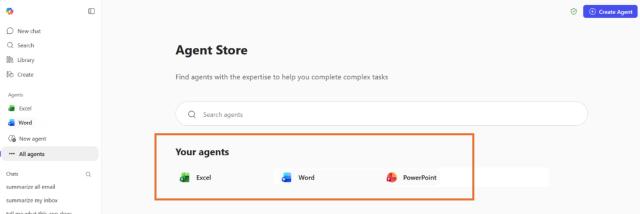
You can still use Copilot to help with documents—such as reviewing writing or suggesting edits—by using Copilot on the web. Here’s an example of how to get feedback on a Word document.
- Go to Microsoft Copilot on the web and sign in with your Ohio State credentials.
- Use the agent appropriate to your file – Excel, Word or PowerPoint.
- Enter your prompt (for example: “Review this document for grammar, reading level, and clarity for a university research audience.”)
- Select the + (Add content) option.
- Choose Work content to select a document stored in OneDrive or SharePoint or to upload a file from your computer.
- Hit Return to submit and have Copilot review the document.
As these changes roll out incrementally to users, you can continue to take advantage of Copilot’s capabilities through the Copilot web experience and expanded features in Outlook. Together, these options ensure the Ohio State community can keep using Copilot to work more efficiently—even as where it appears in Microsoft apps continues to evolve.