Remote Desktop connection to a lab computer can be accomplished using OCIO Remote Lab Access Powered by Guacamole. This will allow you to access a lab computer through a web browser if access has been granted. You may receive a different lab computer each time that you login and you should not expect to see the same computer each time this service is used.
Recommended Browsers:
- Google Chrome
- Internet Explorer 11
- Microsoft Edge
To connect start by opening your web browser and navigating to the Remote Lab Access site and log in using your Ohio State Username (lastname.#) and password. If you are having trouble with your password, you can reset it at the Identity Management site or contact the IT Service Desk at 614-688-HELP (4357).
Once you successfully log in you will need to authenticate using BuckeyePass. To learn more about BuckeyePass or to register a device please see BuckeyePass.
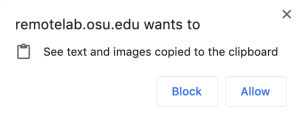
Depending upon your browser you may see a message about the browser needing to see text and images copied to the clipboard. Click Allow to move forward.
When you are successfully connected you will be presented with a screen that will allow you to connect to the designated computer lab you have been granted access to.
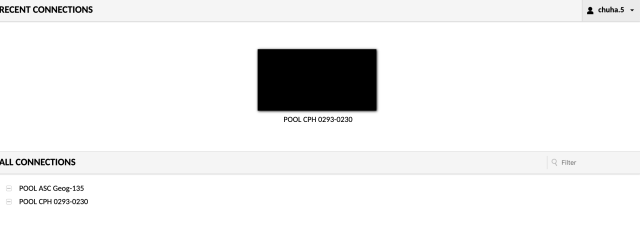
Click on the connection you would like to make.
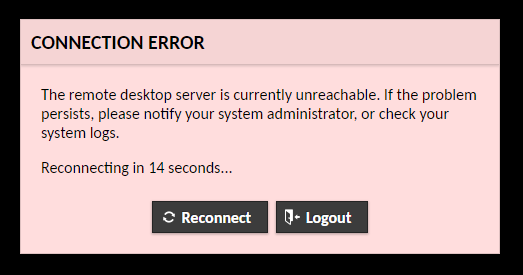
If you have an assigned connection but the connection fails you will receive an error messaging.
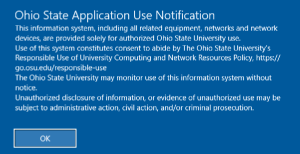
Once a connection is made you will be presented with the Ohio State Application Use Notification. Click ok to complete your connection.
Options
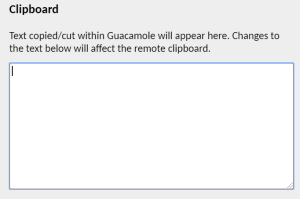
The connection interface does have options available to you through a hidden panel. On a PC press the keys Ctrl + Alt + Shift or on a Mac press the keys Ctrl + Option + Shift to display the panel on the left side of the screen. You can control how you interact with the environment using the settings that appear on the panel. The first section is the remote clipboard to assist in copy and paste functions.
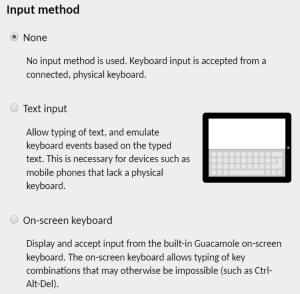
The Input Method section controls how you input information into the remote connection. This is useful when connecting from a mobile device to allow touch screen input.
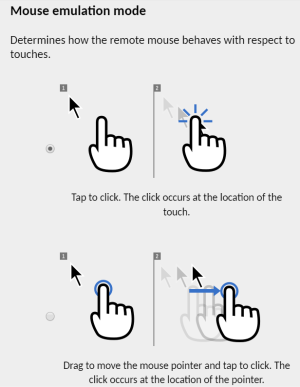
Mouse Emulation Mode allows you to control how the onscreen mouse pointer responds to your interactions.
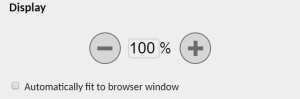
Display allows you to zoom in and out on the remote computer. The check box at the bottom will allow you to set it so the remote desktop automatically adjusts to your screen window size.
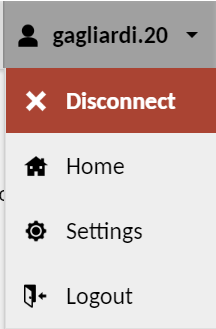
The upper right corner of the panel displays the name of the user currently connected. Clicking on the down pointing arrow will display a menu that allows you to disconnect your current session, return to the home page to choose a different connection, settings and logout for your current connection.
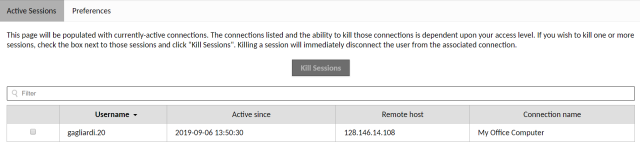
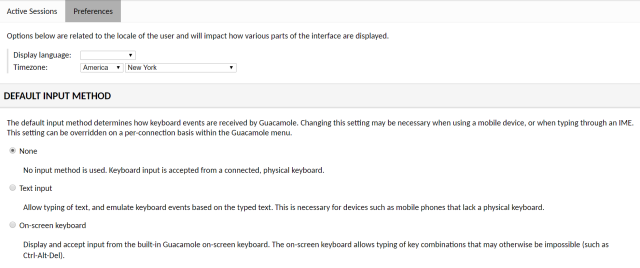
Settings provides you the ability to see all of your current sessions and “kill”, meaning end, any of the connections you choose. Additionally, the preferences panel will allow you to set defaults for most of the settings shown on the hidden panel such as input method and mouse emulation.