This article will walk you through connecting to eduroam on an iOS based machine.
You must be connected to the internet to authenticate to eduroam. On the Ohio State campus, you can connect to the guest network WiFi@OSU if you do not have a cellular network or personal hotspot to connect to.
- Open a web browser and access the Ohio State eduroam site or you may use the Connect to eduroam button available on the OSU Wireless site. (If you connect to WiFi@OSU, a page may pop up that will allow you to connect to eduroam.)
- Choose Sign In and log in with your Ohio State Username (name.#) and password, followed by multifactor authentication BuckeyePass/DUO prompt.
- Select the JoinNow button and follow the on-screen instructions, which includes navigating to your Settings to proceed with the profile that was downloaded.
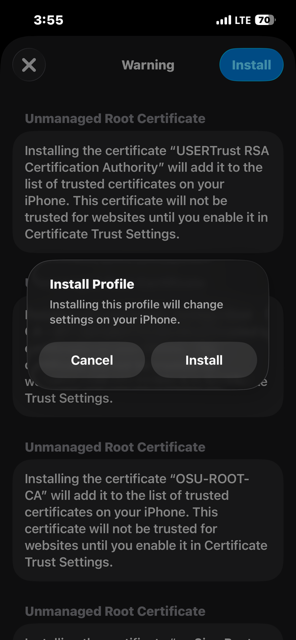
Open iOS Settings, select Profile Downloaded, and follow the prompts to install the secure network profile. Your device will
display a warning that "Unmanaged Root Certificates" will be installed. That is normal and necessary for installation.
- After installation, go to Settings > General > VPN & Device Management to verify the installed eduroam configuration profile.
My device does not have internet access!
If you need internet access you will have to connect your device to the wireless network called WiFi@OSU. This will launch a captive portal window that will walk you through the rest of the connection. The captive portal launches automatically, and it could take a moment to open. The window will show two buttons that you may click on.
Click on Connect to eduroam.
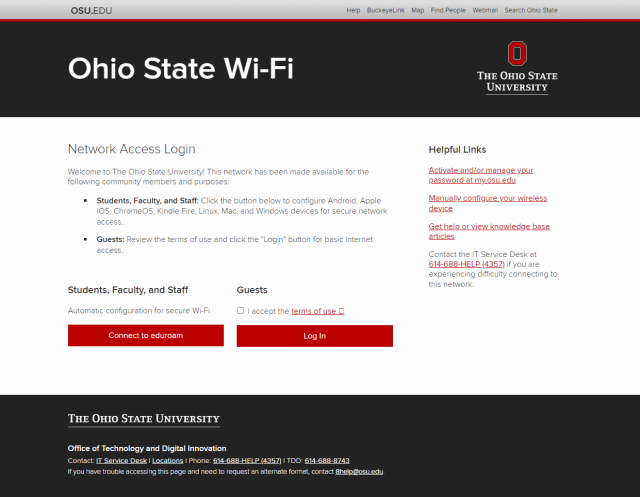
- Select the JoinNow button and follow the on-screen instructions.
- You will be prompted to run a profile configuration file that will prompt you for your Ohio State username (lastname.#) and password, followed by an additional authentication via BuckeyePass/Duo.
- The tool will then install a device certificate for authentication, and finish configuring a wireless profile to connect to eduroam. Mac OS X and iOS will be prompted with a "Verify Certificate" window during the configuration process. Within the window, select Show Certificate and verify that the server’s name is wireless.osu.edu AND is marked as “Valid”. If this is true, select continue or accept to complete configuration.
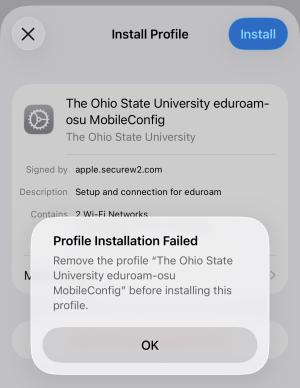
Profile Installation Failed message
During a certificate update, if the user does not re-enroll their device with eduroam before the update occurs they may lose wireless connectivity. The issue is the saved profile is out-of-date. Remove the previous profile and then install the new one.
iOS devices will experience a slightly different re-enrollment process depending on the device model and operating system version they are using.
Instructions
- Go to Settings > General
- Scroll down to VPN & Device Management
- Choose the configuration profile, which should be named similar to "The Ohio State University eduroam-osu MobileConfig"
- Select Remove Profile
Still not working?
If these instructions are not working for you, you can configure eduroam manually following the instructions on this page.