This article will walk you through connecting to eduroam on an Android based device. You must be connected to the internet to authenticate to eduroam. If you have internet access on your device already you can follow these instructions:
- Open a web browser and access the Ohio State eduroam site or you may use the Connect to eduroam button available on the OSU Wireless site.
- Download the SecureW2 JoinNow application from the Google Play store, select the JoinNow button within the open web browser, and follow the on-screen instructions.
- You will be prompted for your Ohio State username (lastname.#) and password, followed by an additional authentication via BuckeyePass/Duo. The tool will then install a device certificate for authentication, and finish configuring a wireless profile to connect to eduroam.
My device does not have internet access!
If you need internet access, you will have to connect your device to the wireless network called WiFi@OSU. This will launch a captive portal window that will walk you through the rest of the connection. The captive portal launches automatically, and it could take a moment to open. The window will show two buttons that you may click on.
Click on Connect to eduroam.
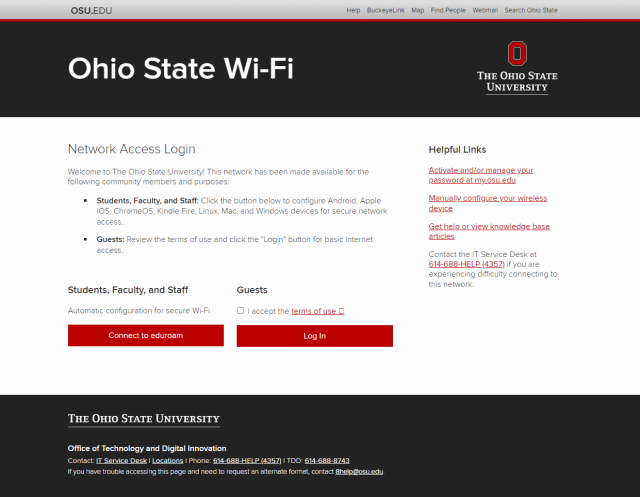
- Download the SecureW2 JoinNow application from the Google Play store, select the JoinNow button within the open web browser, and follow the on-screen instructions.
- You will be prompted for your Ohio State username (lastname.#) and password, followed by an additional authentication via BuckeyePass/Duo. The tool will then install a device certificate for authentication, and finish configuring a wireless profile to connect to eduroam.
Still not working?
If these instructions are not working for you, you can configure eduroam manually following the instructions on this page.