In order to work efficiently and effectively with your email client you should spend time organizing the content. Within the Outlook environment, you can set either Retention policies or Archiving policies. Depending on the interface you may see the word "tag" or "label" instead of policy. A policy can be set on a folder or an object. By default, all objects inherit their parent object's policy. So in your inbox, all items inside the inbox follow the inbox policy. The university does not set a default retention or archiving policy. You are responsible for ensuring you are following your area's retention policies pertaining to your type of work. When you clean up your mailbox by deleting unnecessary files to free up space, you must remember to also EMPTY the recycle bin/deleted items folder as well to actually free up the space. Your recycle bin counts towards your mailbox size.
University Libraries has extensive information on managing emails. These guidelines can be helpful because not all records are equal in value or retention period. The retention period for each message is based upon the content and informational value of the message, not the technology through which it is transmitted or stored.
Retention Policies
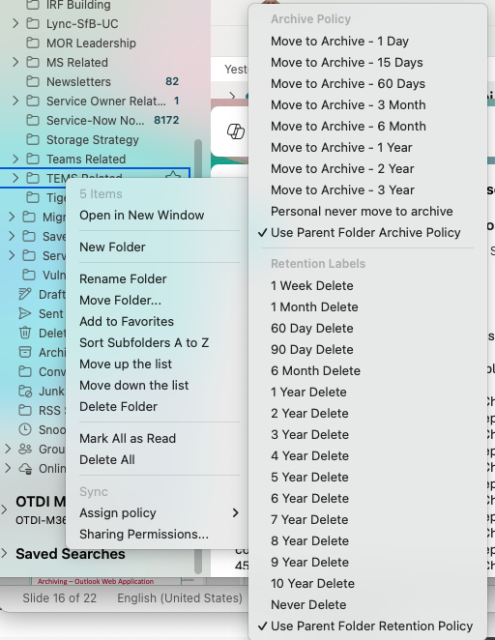
To set a retention policy start by finding the folder or object you would like to work with, and control-clicking on the object. This will open an action menu for that item and you will see Retention. This will open another menu showing the different retention options. The options are:
- 1 week Delete (1 week)
- 1 Month Delete (30 Days)
- 60 Day Delete (60 Days)
- 90 Day Delete (90 Days)
- 6 Month Delete (6 Months)
- 1 Year Delete (1 Year)
- 2 Year Delete (2 Years)
- 3 Year Delete (2 Years)
- 4 Year Delete (4 Years)
- 5 Year Delete ( 5 Years)
- 6 Year Delete (6 Years)
- 7 Year Delete (7 Years)
- 8 Year Delete (8 Years)
- 9 Year Delete (9 Years)
- 10 Year Delete (10 Years)
- Never Delete (never)
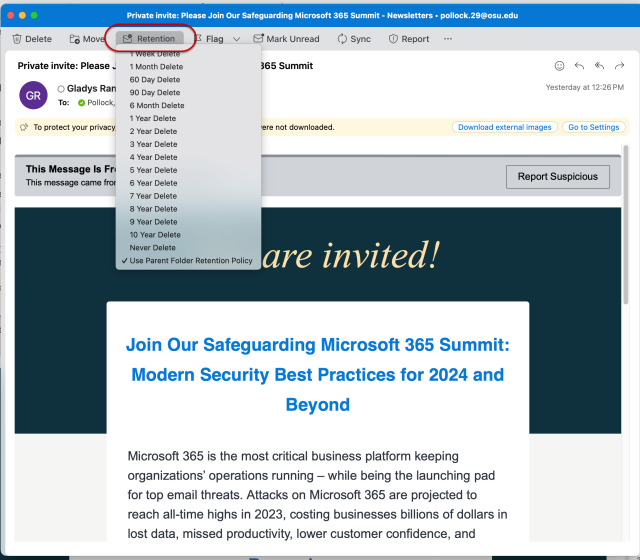
Additionally, when you want to set a retention policy on an individual email item, when the email is open, you will see a Retention tab. Click the tab and you can set a retention on the single email. When you clean up your mailbox by deleting unnecessary files to free up space, you must remember to also EMPTY the recycle bin/deleted items folder as well to actually free up the space. Your recycle bin counts towards your mailbox size.
Archiving Policy
An archiving policy tells Outlook it is okay to archive the folder or object after a certain time frame. An Archive is an online location where your items are stored, but not immediately accessible to your client. It would need to be downloaded to your device to see it. This helps keep your inbox size smaller. Outlook for Mac allows you to set Archiving labels or policies from the desktop application or you can use the OWA to set them.
Please see Setting Retention and Archiving in Outlook Web App (OWA) for complete details.
Remember the university does not set a default retention or archiving policy. You are responsible for ensuring you are following your area's retention policies pertaining to your type of work.