To follow a SharePoint site, log into the OSU SharePoint service with your OSU name.# credentials. Next, navigate to the site you would like to connect to via Globus and click the star icon on the site to follow.
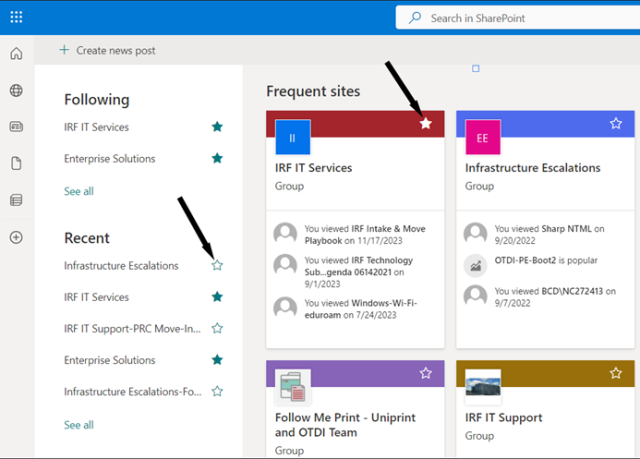
Finally, return to Globus and click the “up one folder” button until you can see the “Shared libraries” folder and the SharePoint site will now be available.
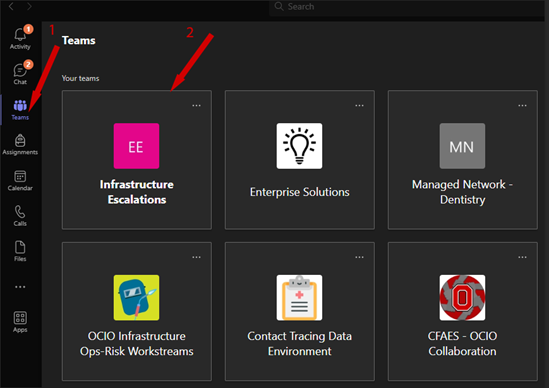
To follow a Site from within Teams, (1) click on “Teams”, (2) select the tile on the right you wish to follow.
Once the Team is opened (1) click on “Files” then (2) “Open in SharePoint”.

When the SharePoint site opens you will see the Following icon in the top right corner. Click to change it to “Following”.

Once you return to the OneDrive collection you will be able to see the Team you just followed.