Send Documents

  1. Log into eSignature.
  2. Select template.
    1. Click the Start button on the eSignature homepage.
    2. Select Use a Template from the dropdown list.

      the start menu expanded
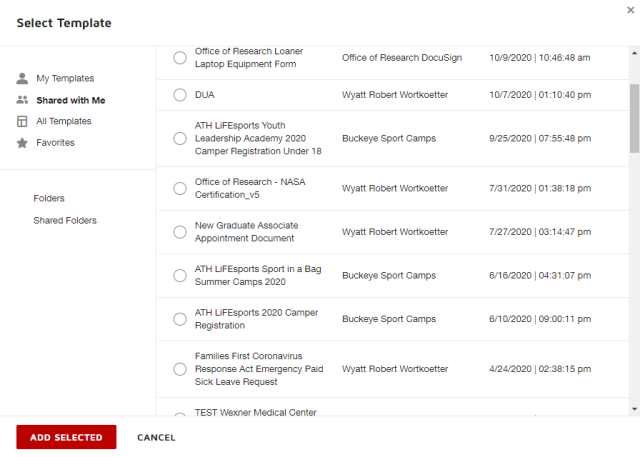
    3. Click the Shared with Me option in the menu.
    4. Select the radio button for the template or templates you want to send.
    5. Click the Add Selected button 

      add selected button

      .

      the templates shared with me page
  3. Add recipients.  

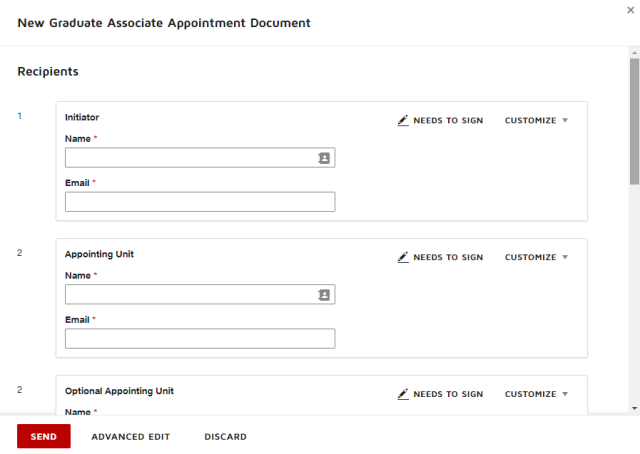
    the recipients section
    1. Replace the Name and Email for each recipient with your recipients’ information. 


      Critical Note

      For Ohio State employees, including Wexner Medical Center and student employees, you must use their lastname.#@osu.edu email address to ensure they are properly authenticated by eSignature when signing documents.

      Ohio State-related emails other than those ending in osu.edu, including osumc.edu and buckeyemail.osu.edu, are considered external emails, and signers are unable to be properly authenticated using those addresses. In addition to providing authentication, if a data breach were to occur, Ohio State can limit the breach for those who logged in using an osu.edu email address. With a document sent to an external email address, Ohio State is unable to limit the data breach.

    2. If needed, select an authentication method for non-Ohio State signer. 


      Critical Note

      If your recipients have osu.edu email address, no extra authentication is required and you can skip this step.

      If your recipients do not have an osu.edu email address, you must select an authentication method to verify their identity. SMS, or text, is the preferred method for authentication. If you cannot use the SMS option to authenticate the signer, select the Add access code option.

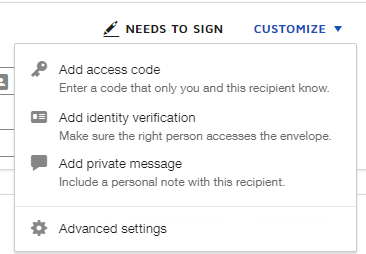
      1. Click the Customize dropdown. 

        the customize menu expanded
      2. To use SMS authentication, select Add identity verification, then select SMS from the dropdown. Type the recipient’s cell phone number. 
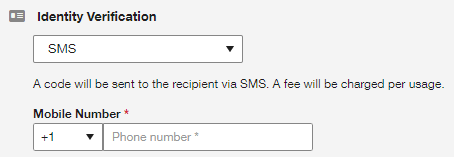
        the SMS authentication options
      3. To use an access code, select Add access code. Type an access code, being sure to write it down. You must send the a You must send the access code to the recipient by some method other than email, such as over the phone. 
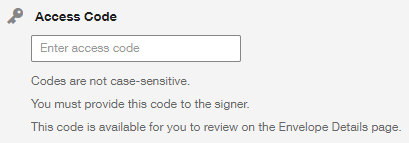
        the access code options
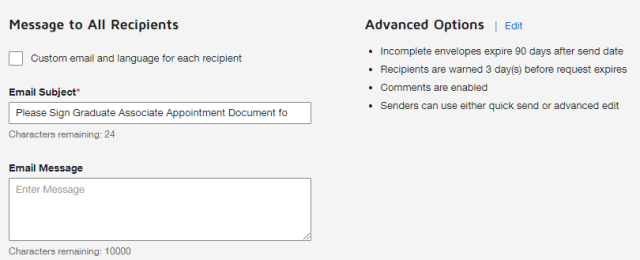
  4. Review email message.  

    the email message


    Helpful Note

    To send a different message to each recipient, check the Custom email and language for each recipient box, then change the email subject and message as needed. 

  5. Click the Send button  

    send button

    to send the document.