You can change many preferences. Be sure to save any changes by clicking the Save button

when you are done on each page. The most common preference changes are listed below.
View Your Preferences
To manage and review your preferences, click the My Preferences link in the Profile menu.
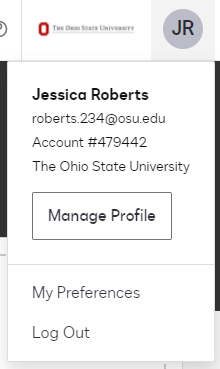
Review your preferences.
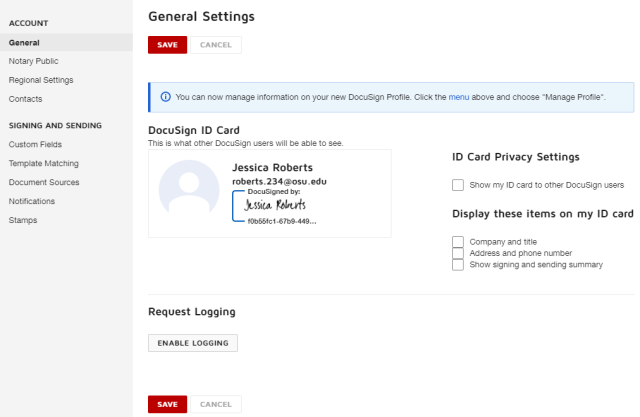
Add a Contact
- To add a contact to your address book, click the Contacts link in the menu.
Click the Add Contact button

.
- Type your contact's full name and email, which are required.
Type your contact's company and phone number, which are optional.
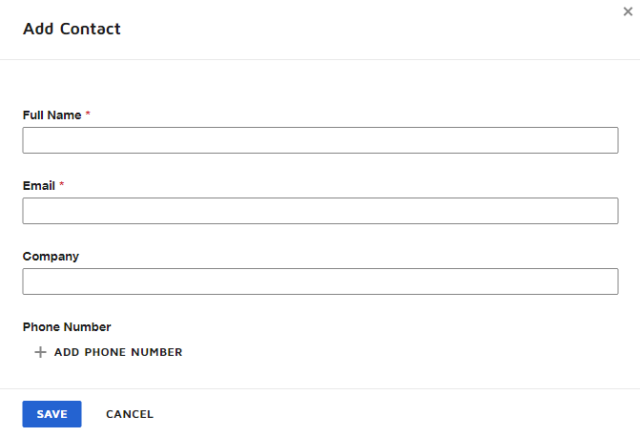
Click the Save button

.
Notifications
By default, all notifications in eSignature are turned on.
- To change your notifications, click the Notifications link in the menu.
Check or uncheck the box next to each notification.
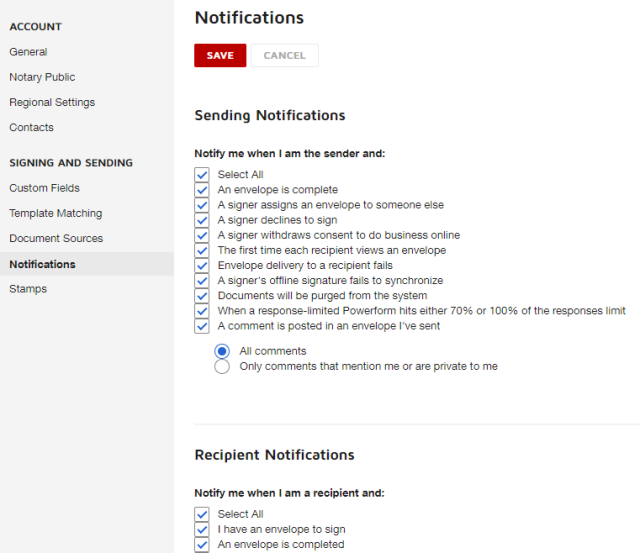
Click the Save button
to save your changes.