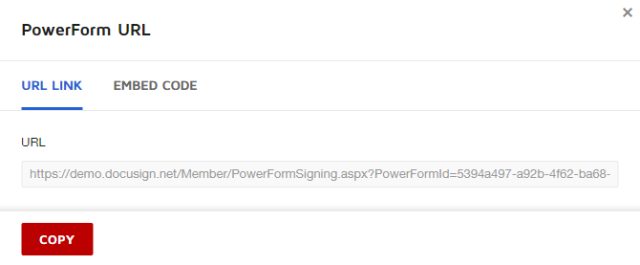
PowerForms in eSignature are extensions of templates that allow eSignature authors with the PowerForms role to create a link to share forms with end users instead of sending out individual documents to be filled out and signed.
- Select a template.
- Click the Template link to open the template page.
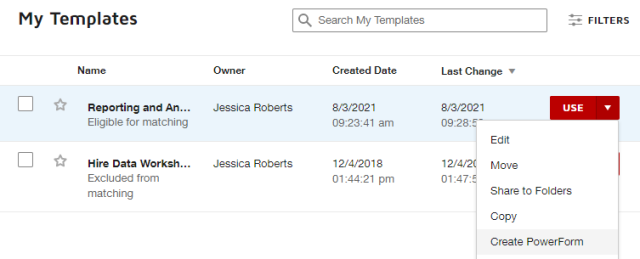
Click the down arrow

on the dropdown menu on the same line as the template you want use to create a PowerForm.
Click Create PowerForm.
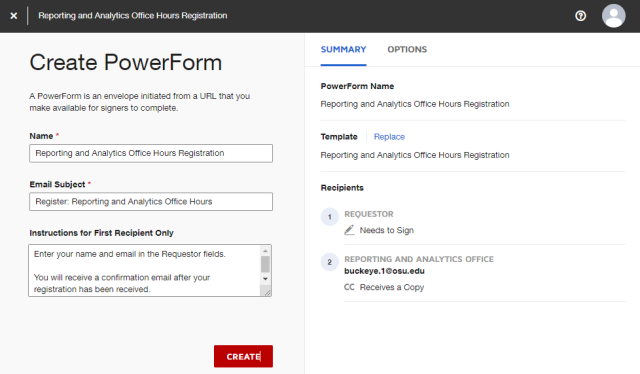
- Edit the Name, if needed
- Edit the Email Subject, if needed.
Type Instructions for First Recipient Only, if needed.
Edit Options.
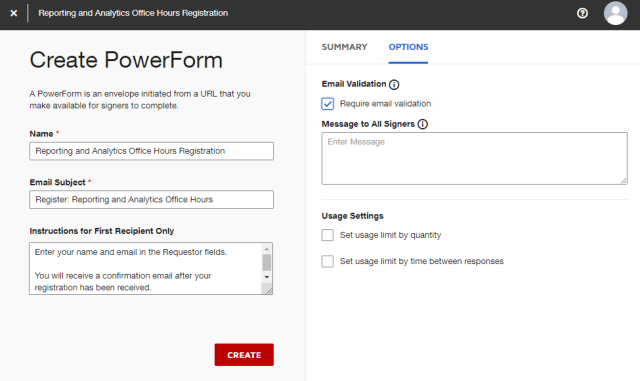
- Click the Options link.
- Check the Require email Validation checkbox.
- Edit the Message to All Signers, if needed.
- Select Usage Settings, if needed.
Click the Create button

to create the Powerform.
Copy the link to share as needed.