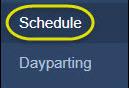
Once your layout has been designed you can schedule the layout to run on any display that you have been granted access to. The easiest way to schedule and remove a layout is to use the Schedule option. Start by clicking Schedule on the left side of the screen.
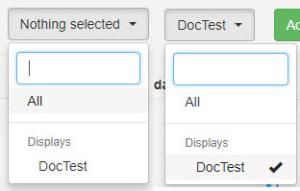
This will open a calendar to the current month. At the top of the page you will see fields that allow you to control the Display you have access to and add events to them. The first field is a drop down field that allows you to select which Display you would like to see the schedule for. Any Displays you have been granted access to will be listed here.
Click on the drop down arrow to the right of the field to open the list. Click the Display you would like to see the schedule for. A check mark next to the name means you can see that Display’s schedule. Alternatively, you can select All to see the schedule of all of the Displays you have access to.
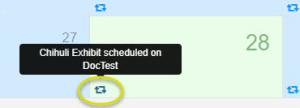
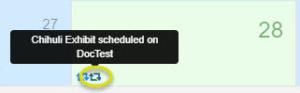
Once a Display is selected than that Displays calendar will appear. Icons representing the type of schedule will appear. In this example, on the 28th, there is one layout scheduled and it is an “Always” type of schedule, meaning the layout will always run on the display until you stop it. This is indicated by the chasing arrows in the lower left hand corner. Hovering your mouse over the icon will show you exactly what layout is scheduled on which display.
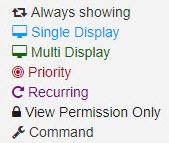
There are different icons that mean different things and there is a legend at the bottom of the page to help decipher their meanings.
There are also buttons available to modify the display of the calendar on screen. By default you are looking at a one month calendar. The buttons allow you to view a Year, Month, Week, Day or an Agenda layout of the calendar.

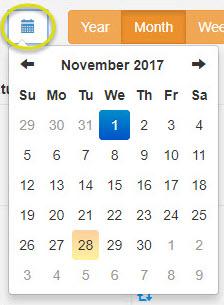
The Calendar button allows you to navigate to a different time frame. Clicking the button opens a calendar that you can use to navigate forwards and backwards through the year and to different years.
To schedule your layout to run start by clicking the green Add Event button at the top of the page.

This will open the Event Window allowing you to specify details of the event you would like to schedule.
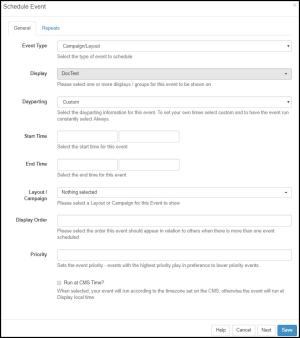
- Event Type: Will be set to Campaign/Layout for a typical signage display.
- Display: This is where you choose the name of the Display (screen) you would like the signage to be displayed on. You will only see displays that you have permission to display on.
- Dayparting: This is the timeframe that you would like the layout to display. These can be predefined blocks of time set by your organization or you can use Always to have a continuous nonstop display, or use Custom and set your own start and stop date and time.
- Start Time and End Time: These are used when Custom is set for dayparting. Set a date in first field and a time in the second field.
- Campaign/Layout: This is the field where you will choose which layout or campaign you would like to have run on the display.
- Display Order: Controls the order events will run on a display if more than one event is scheduled on the display
- Priority: Is used in conjunction with Display Order. Higher priority will play in preference to lower priority. This is critical if there are two events that are scheduled for the same date and time.
Once all necessary fields have been filled click the Save button in the lower right hand corner to save the event to the system.
To remove an event from the Display click the icon representing the Event in the calendar. This will allow you to edit the event.
In the lower right hand corner, you will see a Delete button. Click Delete to remove the event from the calendar. It does take a few minutes for the display to update but the event should no longer play on the display.
