With the introduction of Xibo v3, a new structure has been added called Folders.
To hide/show the Folders area, click on the icon of a folder to the right

.
By design, you will only be able to see folders that you and your team have been given access to. Additionally, only the content type that matches the section that you are in will be displayed in the results pane.
For example, if you are in the Layouts section, you should not expect to see Media assets in the list anywhere, and vice-versa, even though both assets co-exist in the same folder.
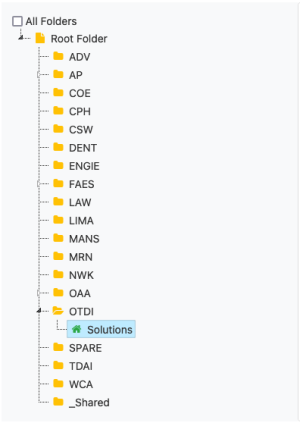
Briefly looking over the Folder interface, we can say a few things about it:
At the very top of the list is the Root Folder. This folder is not to be used in our shared environment, however it is helpful to know where it is, if referenced.
Above that folder is a checkbox for All Folders, which quickly shows you everything you have access to for that content type, across all folders that you have access to. This works for all sections where the Folder structure is found. This is very helpful if you are having trouble locating an item in the system.
Under the Root Folder, each group in the CMS is assigned their own directory. In cases where many smaller groups make up a larger organization, a subfolder is assigned instead. The green icon for the house

represents your home folder. This is where you want to place everything—all of your layouts, files, media, playlists, etc. Keep in mind that these directories are shared with your team, so we recommend setting aside some time to routinely clean up any old files that are no longer needed.