This article will walk you through an example of creating a Digital Signage Campaign. This is only to provide an example of a complete campaign.
Creating a Digital Signage campaign requires that you first create a layout. A layout will contain Regions. You then add your content to the regions and use the region properties and object properties to control how, when and how long something will display. You will then schedule your layout, or a campaign which is a collection of layouts.
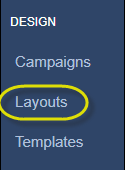
Begin by navigating to the Design > Layouts section in the CMS
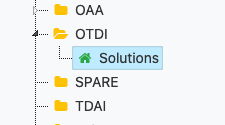
In the Folders area, ensure that you are in your home directory, indicated by the green house icon.
Click on the Add Layout button in the upper right-hand corner of the browser window
When the button is clicked, an Add Layout modal will pop up on your screen. On the first page of the window, you will be prompted to select a default Template.

Since we want to demonstrate the building blocks of a layout and how it all comes together, you will be using the Blank template. However, once you are familiar with designing layouts, you can leverage templates to provide structural consistency and expedite the initial layout design setup.
Select Blank, then click Next
On the second page, you will be asked to fill in specifics about the layout.

Notice that there are two tabs at the top of the form: Organise and Settings. Define the following within the Organise tab:
- Name – We highly recommend using a naming convention for all of your Layouts and Media to help keep them organized and easily distinguishable from others on your team. Not only does this make things easier to search for and sort, but we can also use it to anticipate what displays the layouts will be scheduled on, as well. In our case, we prefix everything with OTDI-. If you are unsure, you can always reference either the Folder or the Display name and go from there.
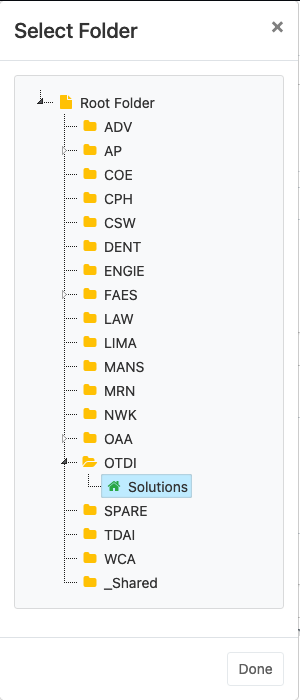
- Folder – Do not save layouts or media to the Root Folder at the top. The system will sometimes default to this location. When given the option, please remember to change this value to your Home directory. We will be using Root Folder > OTDI > Solutions, for this example:
- Resolution – Select 1080p HD Landscape. See the Design section for more info
- Description – Put a sentence or two if you’d like to describe the purpose of the layout [optional]
- Tags – This can be used to categorize your layout(s). When setting tags, use either a Name, or Name|Value format [optional]
From the Settings tab, let’s check the box for:
- Automatically apply Transitions? – This is useful if you want each of your slides to automatically fade into one another. This option, as well as the transitions themselves, can also be applied manually within the Layout Editor

Click Save.
You will then be taken to the Layout Designer where all of the creativity happens!
In this layout, you will be adding three regions, three images, a clock, and some text.
Since you are starting from a Blank template, there are no Regions defined by default, so you will need to add them the to the layout before you can begin adding content.
In the center of the screen is the Preview window. Towards the bottom left of that window, you will see two icons:
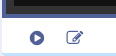
Select the one with the pencil.
You are now in the Region Edit mode. When you’re in this mode, you can only interact with Regions. You cannot make changes to the content on your layout. To exit this mode, click the back arrow in the top left of the Preview window:

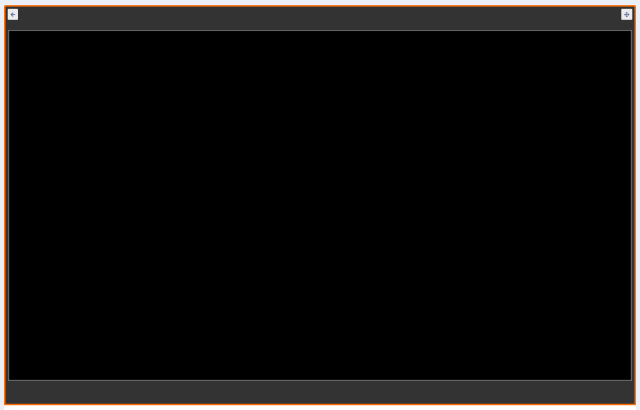
When no Regions are selected, the Preview window, as shown, will just have an orange border around it and any existing Regions, will switch from orange to grayed out. To deselect any Regions, either click on a selected Region in the Preview or the Timeline, or click on the dark gray area just above or below the Preview region. The layout settings can then be modified on the right side of the interface.
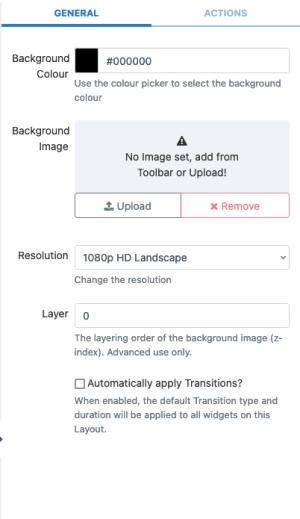
Here, you have the option to specify a Background Image, which will show when no other content is on top to cover it. For this example, do not upload anything and instead just rely on the Background Colour setting to fill in the gaps.
Below the Preview window in the bottom left, where you initially clicked on the pencil icon to enter Region Edit mode, you will now see a plus icon.

Click the icon to add your first Region.
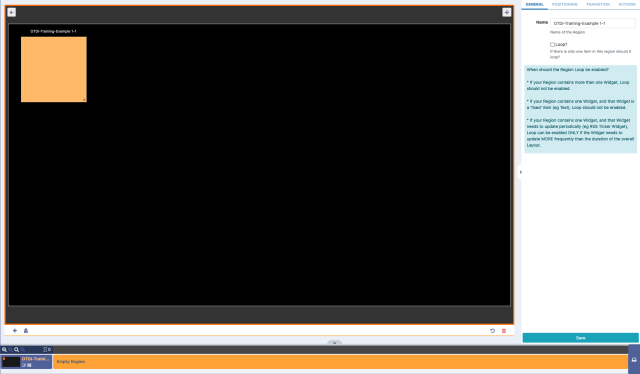
You now have a small orange box and an item in your Timeline at the bottom. If you want to manually resize the Region, click and drag its bottom right corner in any direction. For more precision, you will need to adjust the settings in the panel on the right.
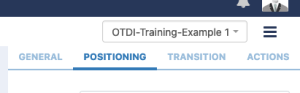
Select the Positioning tab at the top.
In this section, click on the button below Layer.
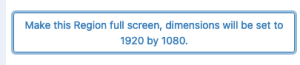
Alternatively, set the following values:
- Top: 0; Left: 0;
- Width: 1920; Height: 1080;
- Layer: 0
Your Layout should now look like this:
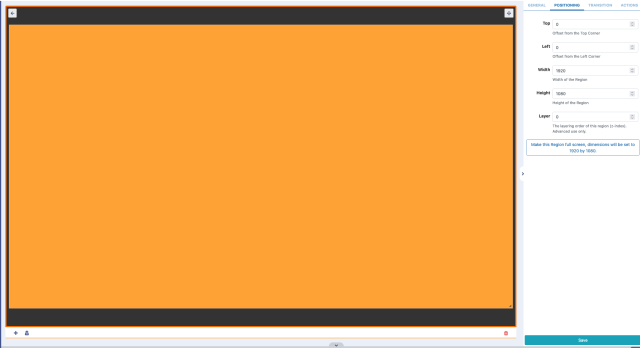
In the bottom right, click Save.
Now click on the Back arrow in the top left of the Preview to exit Region Edit mode and switch back to the Content Edit mode
Now that you are back in Content Edit mode, you will upload and assign three images to the newly created Region.
On the left-hand side, locate the Library Image Search button and click on it:
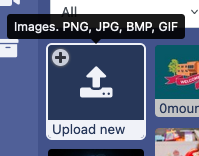
You are now browsing the Media Library, but only for uploaded Images. The first item in the list should always be Upload new.
Click the + icon in the top left corner of that item.
Click on the new Region you want to assign it to, and an Upload media window will pop up.
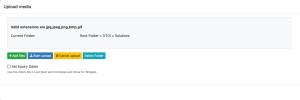
Select Add files.
While holding down CTRL (⌘) select the images that you want to upload, then click Open.

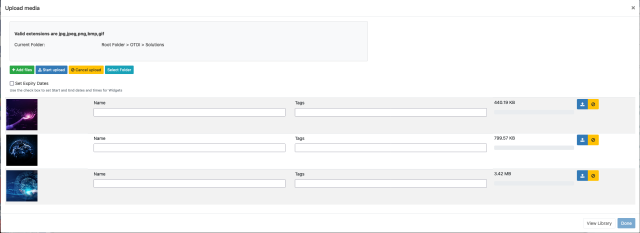
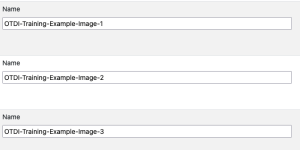
If no name is specified in the form, the filename will be used instead.
Set the Names appropriately.
Click the Start upload button and wait for the uploads to complete.

Click Done.
You will be brought back to the main Designer Layout page where all 3 images have been added to the Timeline, in order from top to bottom, at a default duration of 10 seconds each.
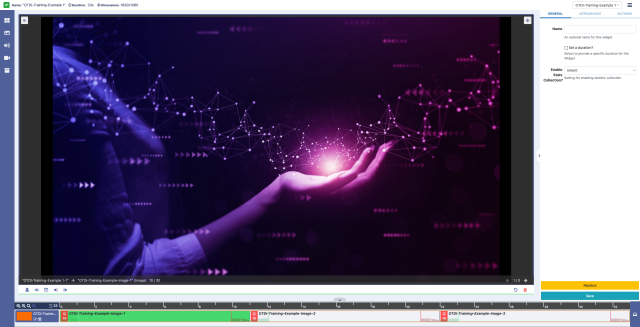
If the image that you’ve uploaded is not the exact size as the timeline, you have a couple of options to automatically resize it.
Additionally, now that there is content on the timeline, a total duration of the layout is defined at the top.

While you can adjust the duration of slides individually, the total layout duration is automatically calculated based on the content.
You can adjust both the image size and duration of the slide from the Settings pane on the right.
Select the first image from the Timeline. The panel on the right will allow you to change properties.
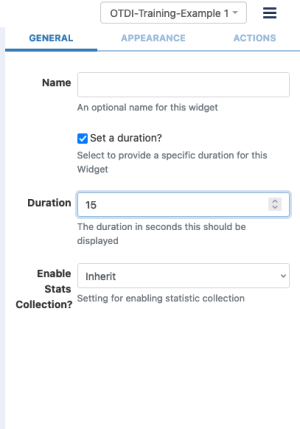
Check the box for Set a duration? and set it to 15.
Click on the Appearance tab, and change the Scale type to Fit.
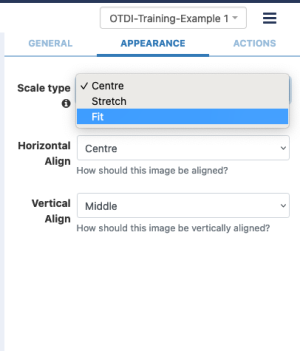
Select Save at the bottom.
Notice how the total duration increased by 5s and the image was zoomed in to fill the resolution (1920x1080) of the layout, without stretching or affecting the aspect ratio of the image.
Repeat these same steps for the remaining two images on the Timeline.
Now let’s take another look at the total duration.

By now, you may have noticed that if each slide is 15s that it would add up to 45s, not 48s. So where did the additional duration come from? Transitions.
Since you checked the box to Automatically apply Transitions?, it added 3s to the total duration of the layout.
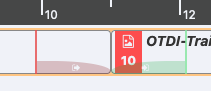
There are two types of Transitions: In (green) and Out (red)
Transitions on the Timeline can appear in one of two ways, depending on the size of the screen that you’re designing the layout with.
And without:
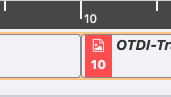
To modify a Transition, either click on it directly within the Timeline, or click on the image in the Timeline and then click on either the In or Out icon:

Next, we will add a clock to the layout.
Add another Region to the layout, and use the following settings:
- Top: 50; Left: 50;
- Width: 450; Height: 100;
On the left, click on the Layout Designer widgets icon:
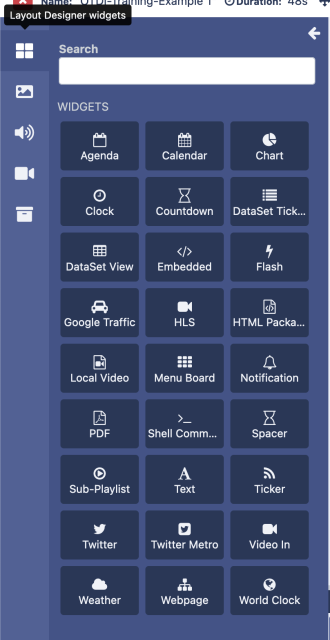
Hover over the left half of the Clock widget, and select + (Add).
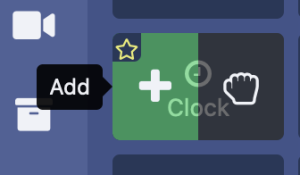
Then click on the new Region that you created.
You should now see an Analogue Clock on the Preview window.
Click on Appearance.
Change Clock Type to Digital, then click Save.
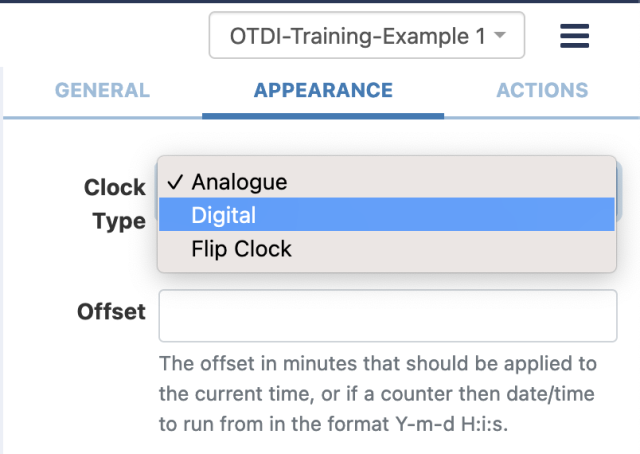
You should now see a Digital Clock.
Click on the Editor tab, then click the button for Visual Editor at the top to turn it On.
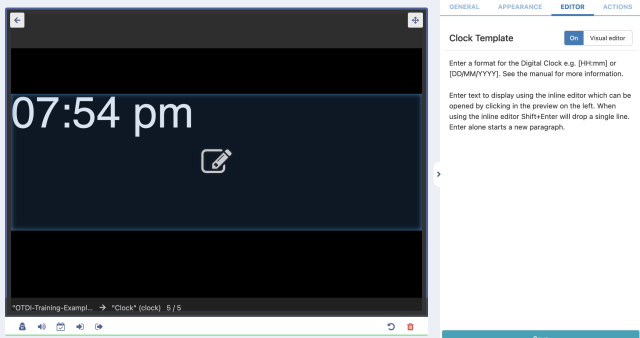
To adjust the font and other settings of the clock, click on the time in the Preview to bring up the Inline Editor.
Select the text, then begin to make changes to the clock. In this example, we set the text to bold, centered the alignment, changed the font to Arial and the size to 80.
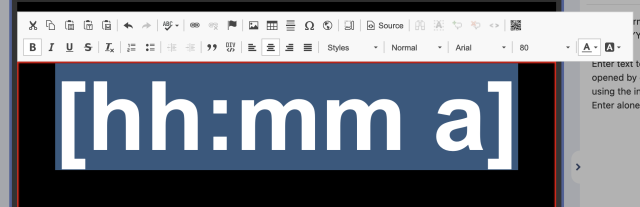
Click anywhere outside of the Preview pane to commit the changes, then Save at the bottom when done.
Your Clock should be visible now and looking much better.
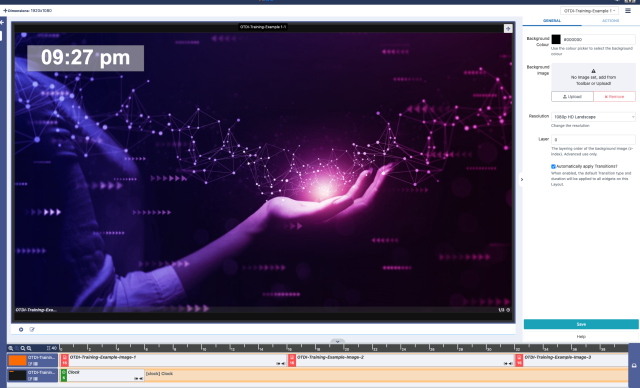
Lastly, you will wrap-up this example by adding some basic Text.
Create another Region in the layout with the following settings:
- Top: 980; Left: 0;
- Width: 1920; Height: 100
Like we did with the Clock, open the Layout Designer widgets panel.
Locate the Text widget, hover your cursor over the left half of the widget and click on the + icon, then click on the new Region.
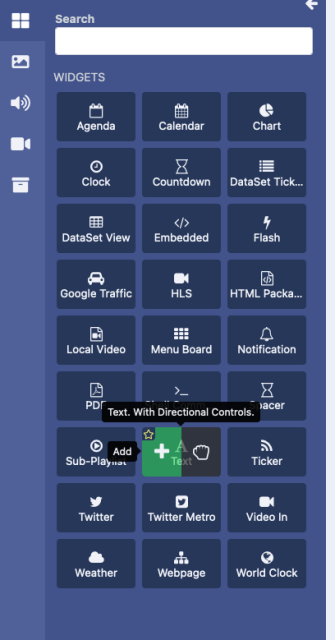
Your timeline should now look similar to this.

Click on the Inline Editor with the pencil icon in the middle of the Preview window to Edit the Text field.
Type in some text that you would like to display, then highlight the text and change it to your liking. We found that for a Region that has a height of 100px, a text size of 88px looked pretty good.

When done, click anywhere outside of the Preview window to commit the text.
In the Text settings panel on the right, click on the Effect tab, and use the following values:
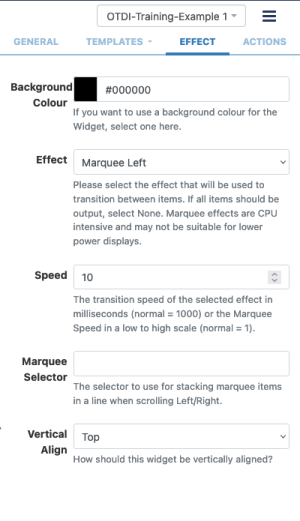
Click Save at the bottom, and back out of the Text widget editor to the full layout view.
You may have noticed earlier in this guide that there is another button next to the Region Edit button, located in the bottom left-hand corner of the Preview window.
Click the Play button and Preview your layout.
How did you do? Did you see a scrolling marquee across the bottom? Any transitions?
Unfortunately, the Preview is not perfect and has its limitations, but you should get a pretty good idea. The only real way to know how the final layout is going to look, however, is to assign it to your display!
From the top right of the Layout Designer, locate the hamburger menu, click on it, and select Publish Layout:
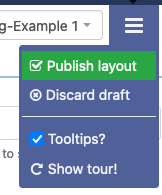
Then click Publish.
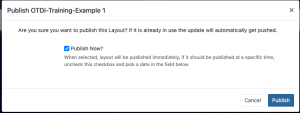
Click Exit in the top left corner, and this time go to the Schedule section.
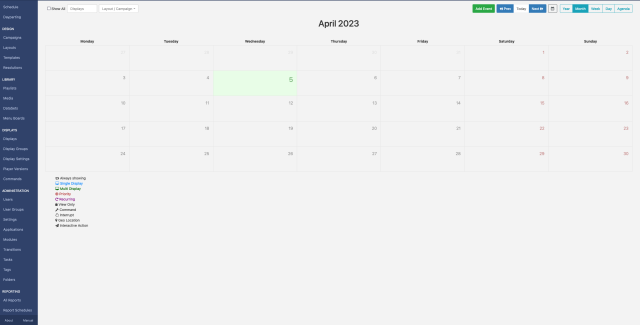
In the top left of this window, begin typing the name of your display or display group in the Displays text form.
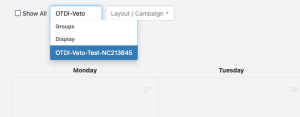
And then select it to filter the calendar view to just that of your display.
Click the Add Event button and fill out the Schedule Event similar to this:
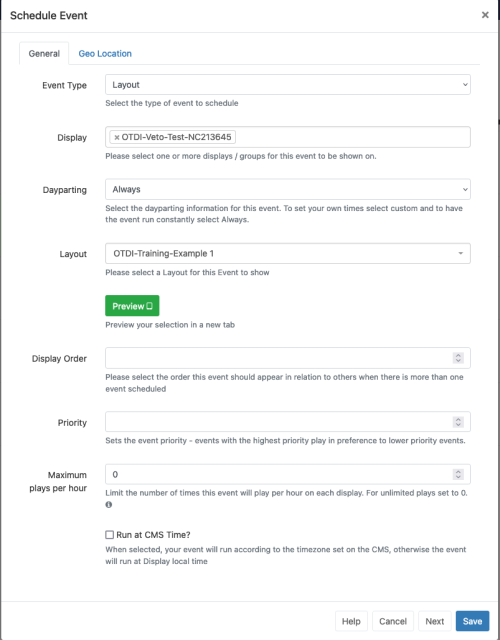
By setting the Dayparting to Always, it will keep looping the layout over and over again at all times on the display. If this is not desired, change it to Custom and define your own window.
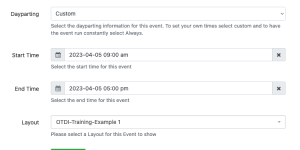
Click Save. The layout is now assigned.
In a few moments, if the Dayparting window is active, your player should begin playing the content on the device.
Congratulations! You have completed your first layout!
Now that you have familiarized yourself with the process and workflow of Xibo, we encourage you to try creating another one on your own!