Campaigns are a collection of one or more Layouts.
To create a new Campaign, simply click on the Add Campaign button in the upper right-hand corner of the browser window:

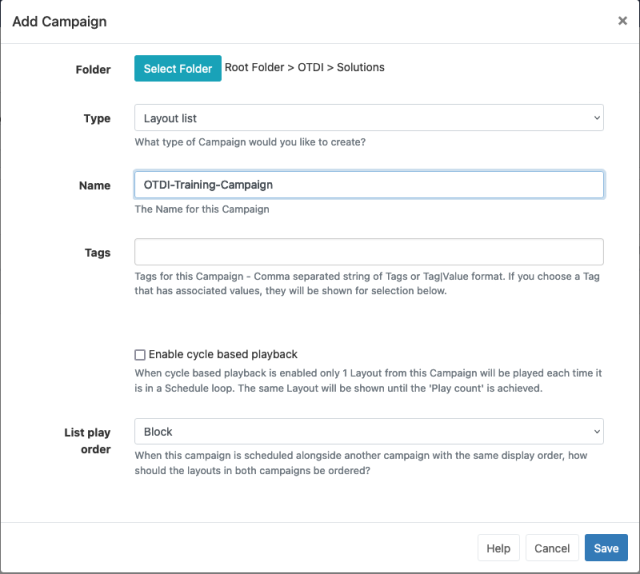
List play order:
- Round-robin - Layouts from each Campaign with the same Display Order will play interleaved.
- Block - Layouts will play in their entirety from the Campaign before moving onto the next. We recommend using this one first unless a different order of layouts is desired.
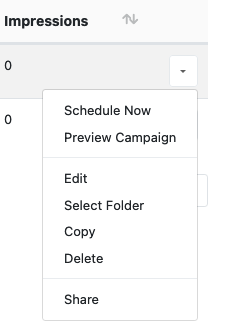
Once you press Save, the window will briefly close and then reopen as an Edit Campaign for you to add in the layouts. If this does not happen automatically, or if you need to edit an existing Campaign, select the Edit option from the Row Menu options:
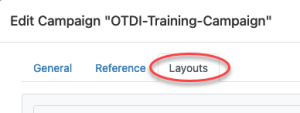
To add your layouts, from within the Edit Campaign window, first select the Layouts tab at the top:
Locate the layout you want to add and then click on the + sign

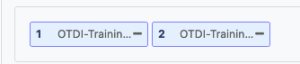
To adjust the order of the layouts, drag and drop the layout either before or after other layouts to rearrange. The number on the left indicates the play order:
Once you are done, click Save. This Campaign is now ready to be scheduled just like a layout.