Once a region has been created and placed you will want to add content to the region. To add content to a region you will first open the Region action menu by clicking the arrow in the upper right hand corner of the region that is displaying the region's current size.
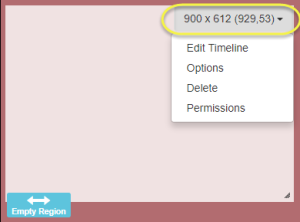
Within the Region menu you will see that you can:
- Edit Timeline – Used to add content and set duration
- Options – Manually specify dimensions and location coordinates for the Region. Additionally add names to regions and set transitions as it moves on and off the stage
- Delete
- Permissions
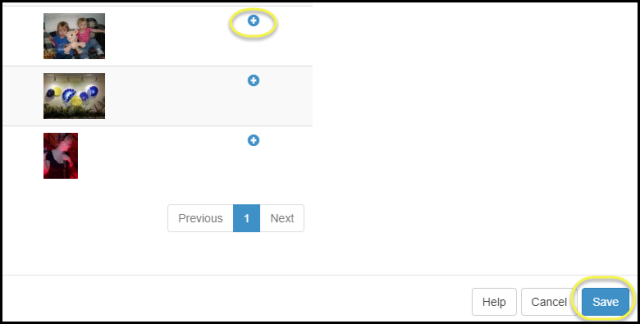
Choose Edit Timeline to add content to the region. The Region Timeline window will open. Along the left side of the window, you will see categories of the different content types that are acceptable such as Flash, Text, tickers and your media library. Choosing Library provides access to the items you already added to the Media library while choosing the other options will allow you to upload the item to the library and then add it to the region. Once you have selected the item click the plus sign to the right of the item and then the Save button in the lower right hand corner to move to the next screen.
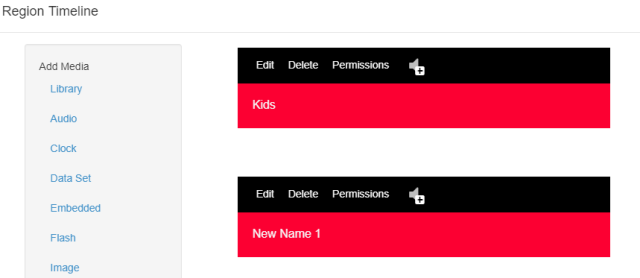
The next screen shows the items that have been added to the timeline. Multiple items will appear in their own section so they can be edited individually. You may Edit the item, Delete the item, set the permissions of the item and add sound to the item.
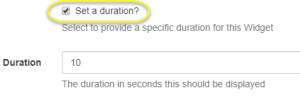
Clicking Edit will open the Edit Item window. Depending on the item there will be things you can change about the item. You can provide a name for the object to differentiate it from other items in the region. You can set the Scale of the object, set the alignment within the region, etc. The most important thing you will want to do in here is specify a duration for the item to show if you have multiple items you would like to display. You will want to place a checkmark in the box that reads Set a duration? And then place the number of seconds in the Duration field that appears. If you do not set a duration, then a default of 10 seconds is applied. If you have two images in one region, the first image in the region will display for 10 seconds and then the second image will display for 10 seconds.
To change the order of the items as they appear in the region you can click and drag on the item to move it up or down.
Once you have set your choices you will click Save Order in the lower right-hand corner to move forward.

This will bring you back to the Designer view of your layout. Remember, any time you add a region you must then add content to your region or your layout will not be playable, meaning it cannot be displayed.
Once you have all of the regions you need added and content added to the region you will want to move to the Actions panel of the Designer Window. Click the Actions tab at the top of the page.
Within the Actions panel you will find a few more options you will want to look at before you schedule your layout to run. On the right-hand side you will see if the layout is valid or not. If a layout does not have content in all of the regions, then you will be told it is invalid and should not be scheduled.

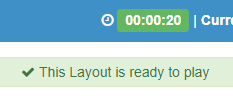
If you have added content, then you should see a message telling you that the Layout is ready to play.

You can see the duration of your layout timeline at the top of the Designer panel in the upper right-hand corner. You must remember that the default duration for items added to a timeline is 10 seconds. Every item you add into a Region adds 10 seconds on to the timeline (unless you set a different duration). So, in my example, since I have two images in one region so I have a 20 second duration.
You will want to preview the layout before you schedule it to run. It is always a good idea to preview your work. You can do that by clicking Preview Layout on the left side of the Actions panel.
This will open another tab in your web browser and allow you to see the layout, including content added to the regions, as they run through their timeline. Once you are done previewing your layout you may close the tab that was opened and return to your Designer.