To add content to the media library, start by clicking the Add Media button in the upper right hand corner of the window.

The Add Media window opens allowing you to add media and information about the media. Start by clicking the Add files button.
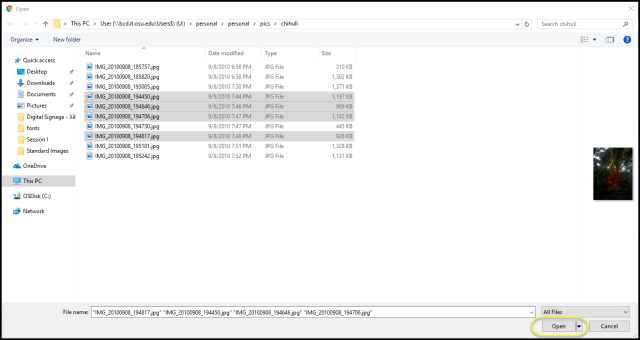
This will open the Open File Dialog box. Select as many files as you need and click the Open button in the lower right hand corner.
Next the Upload media window will show you each of the files that you have chosen to upload. You will want to add a descriptive name to each file. Once you have named each file you can click the upload button to the right for each individual file or alternatively you can click the Start Upload button at the top to upload all files.
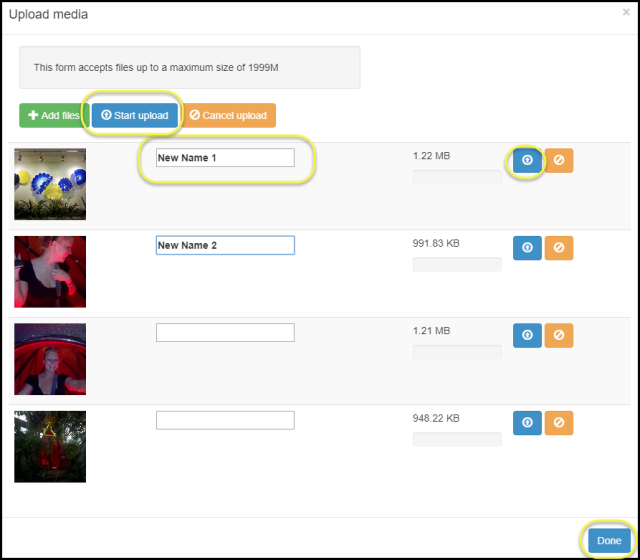
Once all of the media objects have been uploaded the Upload media window will show you each file and the uploaded size. Once all files have been uploaded click the Done button in the lower right hand corner and you will see all items within the Media Library.
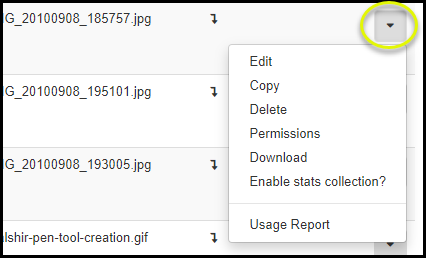
Each item that is uploaded can be edited to make it easier to find, have permissions set to control how it can be used, can be downloaded to have a local copy, deleted so it no longer exists in the media library and even have a usage report run to see where and how often it has been used in your layouts and campaigns. Click the down pointing arrow to the right of the media object you want to work with to see the menu options available.