This job aid will assist in understanding the differences between the e-Activity Proposal Report before and after the Workday implementation.
Expand the sections below to learn more about the key differences between legacy and Workday eActivity proposal reporting.
All e-Activity reports can be accessed from eTools
To access both the legacy reports and the Tableau reports, navigate to https://osp.osu.edu/, hover over the Resources tab, and then select eTools. Under the e-Activity heading, you will see links for both legacy data and tableau. You will also find a link for requesting access to the RAE, Ohio State’s Reporting and Analytics Environment, which is required to view e-Activity.
Multiple download options are available that affect the data downloaded
The Crosstab download option allows you to select either Excel or CSV outputs. The CSV option is the most useful for routine monitoring because all values are listed in each row, supporting filtering, sorting, and other Excel data functions.
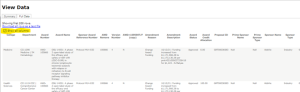
There are also two downloads of the report data accessible from the “Data” option of the Downloads tab. The Full Data tab includes the most detailed data available and will be the option many users will find more useful. Be sure to select “Show all columns” before clicking the “Download all rows as a text file” link. If you do not select “Show all columns” first, important information, such as the sponsor delta amounts, will not be included.
Org values are now known as cost centers
In the legacy reports, you could drill down on proposal data using the org value, whereas in Workday, org values have been mapped and renamed to cost centers. The ability to refine search results by these values remained unchanged.
A translation table is available if you need to review mapping from specific org values to new cost centers.
Data mapping was only intended to be current through go-live on 12/31/20, and mapping has not been updated since: https://fintranslator.osu.edu/translate
Award credits are now known as award allocations
In the legacy reports, the amount of intellectual contribution that a department or PI provided for a specific proposal was broken down into award allocations, whereas in Workday this function is called award credit allocation.
More expansive query functionality in Tableau e-Activity
In the legacy reports, once an ePA-005 is transferred, a version 1 proposal record would be created in PeopleSoft containing the data that the eTools query would pull.
In Workday, proposals can be queried through Tableau e-Activity data tool, providing a wider range of data points for you to review.
Two reports are now available – Summary Level and Detail Level
In Workday, you can pull either a Summary Level report or a Detail Level report. The Summary Level report can be used to answer high level questions, such as “how many proposals did we submit to NIH last year and for how much,” or “how many proposals did a particular PI submit last year?” The Detail Level report can be used to answer more complex questions and provides a lot of rich details from the proposal record.
Summary Level report information
The Summary Level report breaks data down by college (with the ability to expand further to look at cost center/department), the number of proposals submitted during a specified time period, cost share total, direct cost, F&A cost, sponsor total, and proposal total (which is the sum of the sponsor, direct cost, and F&A cost.)
You may choose to filter on criteria such as start date, end date, college, department, prime sponsor name, prime sponsor type, sponsor name, sponsor type, award proposal code, and PI name. Note that if you are searching for a specific sponsor(s), you must first deselect all, then enter the sponsor(s) name and select the checkbox for all that apply.
Lastly, you may hover over any data point to get additional insights into that data.
Detail Level report information
The Detail Level report provides significantly more data points when compared to the Summary Level and can provide insights into more complex questions.
It is recommended that you run this report for the time period you are looking for and download to Excel for further manipulation, as this will give you more flexibility on filtering your data.
To download this report, you will need to click into the dataset and then click out of the dataset, and then select the download button in the top toolbar. It is important that you follow this step, as the “Data” option you will need for the next step will be greyed out unless you click into and then out of the dataset first.
Click the “Data” option, and on the following page select the tab “Full Data,” and be sure to also select the box that says “Show all columns.” Click “Download all rows as a text file” to begin your download.
Once you have opened your Excel file, it is recommended that you add a filter row on the top of the data. From here, you can make the data into a table, or even create a pivot table, for further manipulation of the data.
Review the table below for specific information on the various fields that will be available to you in the Detail Level report.
Fields on the Detail Level report
| Column Name | Description |
|---|---|
| College | The college associated with the proposal. |
| Department | The department associated with the proposal. |
| Award Proposal Code / ID |
This code is generated when the ePA-005 is transferred into Workday. Entering this value into Workday will return the award proposal record. |
| Award Proposal Name | Name of the proposal. |
| Award Proposal Legacy Value |
All open award proposals with a proposal status of “pending” were converted into Workday. This field will show if the proposal is a legacy proposal or not based on if there is a GRT code in the Award Proposal Legacy Value column. The legacy proposals will be cleaned up once the award status is discovered. |
| Award Proposal Lifecycle Status |
Indicates if award has been submitted to sponsor or received by sponsor. If the proposal is funded, it will be marked as “award received,” whereas the proposal will be marked as “unfunded” if it is not funded or “withdrawn” if the proposal has been withdrawn from consideration. The default status is “Submitted to Sponsor/Pending.” |
| Prime Sponsor Name | This field should be blank unless proposal includes a prime sponsor. Due to system error, occasionally sponsor and prime sponsor will be the same value, in which case, you should ignore the prime sponsor value. |
| Prime Sponsor Type | Indicates if the prime sponsor is federal, private agency, state, etc. |
| Sponsor Name | The entity providing funding to Ohio State. |
| Sponsor Type | Indicates if the sponsor is federal, private agency, state, etc. |
| PI Employee ID | There may be multiple people with the same name, but Employee ID (EMPLID) is unique to the individual. You can filter by EMPLID on the Excel file. |
| Award Proposal Credit Allocation |
When a proposal is submitted, the amount of intellectual contribution given to the proposal dictates credit amount given to cost centers. This is codified on the ePA-005 prior to being transferred into Workday. Each cost center receiving an award proposal credit allocation will generate a separate row on the report. You may see a college/department which has “0” in this field – this will give them visibility into the proposal information in the PI Portal. |
| PI Name | The full name of the principal PI assigned to the proposal in the format of last name, first name. |
| Report Date | This represents the date in which the ePA-005 is transferred into Workday. In the legacy reports, this date represented the date in which the ePA-005 was transferred into PeopleSoft. |
| Award Proposal Start Date | The start date associated with the proposal. In most cases, this date will be after the report date. |
| Award Proposal End Date | The end date associated with the proposal. |
| PI First Name | The first name of the principal PI assigned to the proposal. |
| PI Last Name | The last name of the principal PI assigned to the proposal. |
| Award Proposal Cost Share Total | The total amount of cost share on a pro rata basis determined by the award proposal credit allocation. |
| Award Proposal Cost Share Total Amount | Total cost share of the proposal. |
| Award Proposal Line Extension Amount | |
| Award Proposal Sponsor Direct Cost | The total amount of sponsor direct cost on a pro rata basis determined by the award proposal credit allocation. |
| Award Proposal Sponsor Direct Cost Amount | Total sponsor direct cost of the proposal. |
| Award Proposal Sponsor F&A Cost | The total amount of sponsor F&A cost on a pro rata basis determined by the award proposal credit allocation. |
| Award Proposal Sponsor F&A Cost Amount | Total sponsor F&A cost of the proposal. |
| Award Proposal Sponsor Total | The total amount of F&A costs and sponsor direct costs on a pro rata basis determined by the award proposal credit allocation. |
| Award Proposal Sponsor Total Amount | Total F&A costs and sponsor direct costs of the proposal. |
| Award Proposal Total | The pro rata amount of all costs associated with the proposal. |
| Award Proposal Total Amount | The sum of cost share and sponsor costs. |