One-Time Offerings

Overview

One-Time Offerings are class proposals that are submitted and approved for one term only. Examples of one-time offerings are group studies, flexibly scheduled classes, study abroad, off-campus locations, and workshops. 

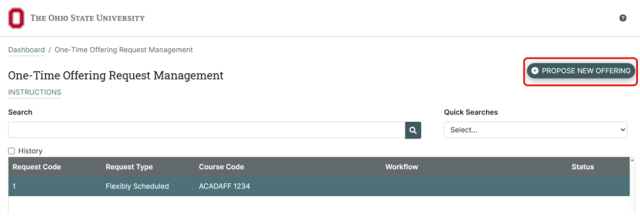
  1. To submit a one-time offering class to be built by the Registrar’s Office, navigate to the One-Time Offering tab on the CourseLeaf Dashboard and then click Propose New Offering.
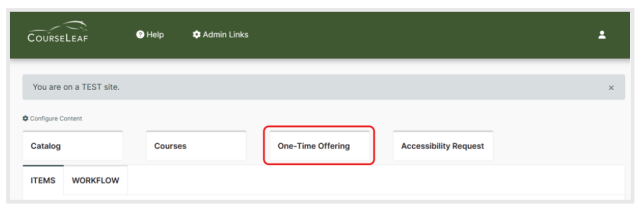
     

    Screenshot of a web interface for CourseLeaf showing navigation tabs for Catalog, Courses, One-Time Offering, and Accessibility Request. One-Time Offering tab is highlighted with a red border, and a notification banner indicates the user is on a TEST site.
    Screenshot of a web-based One-Time Offering Request Management system from Ohio State University, showing a search bar, quick search dropdown, and a table listing request details with columns for Request Code, Request Type, Course Code, Workflow, and Status. A prominent blue button labeled "PROPOSE NEW OFFERING" is located in the upper right corner, indicating functionality to submit new course offerings.
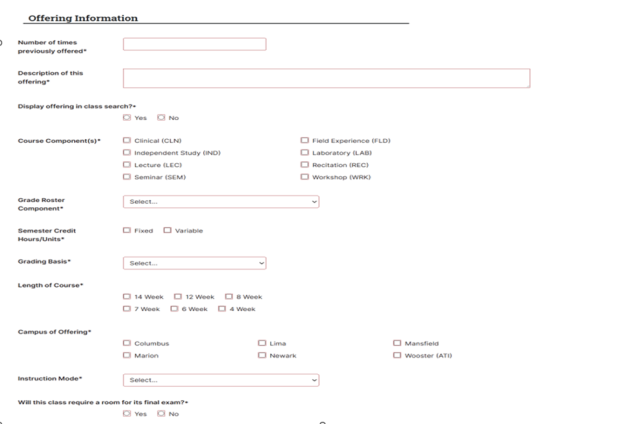
  2. Complete the form by filling in required information. Required fields are indicated by a red field outline and an asterisk (*). 
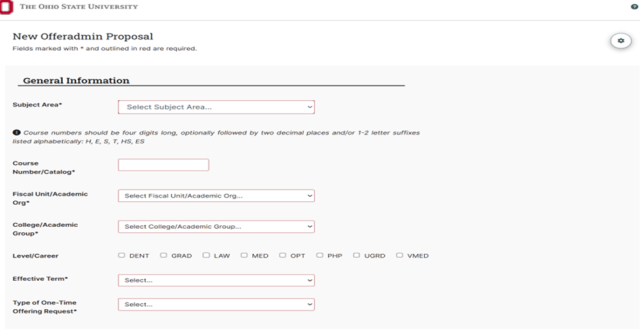
     

    Screenshot of a university course offering proposal form with sections for general information and offering details. Form includes dropdown menus, checkboxes, and text fields for subject area, course number, academic group, level, type, number of times offered, description, grading basis, semester credit hours, campus location, and instructor mode.
    Screenshot of a university course offering proposal form with sections for general information and offering details. Form includes dropdown menus, checkboxes, and text fields for subject area, course number, academic group, level, type, number of times offered, description, grading basis, semester credit hours, campus location, and instructor mode.
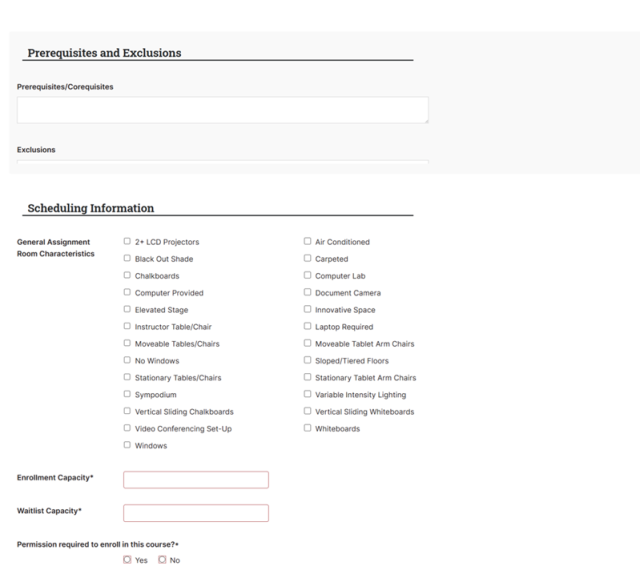
    Screenshot of a course scheduling form displaying sections for prerequisites, exclusions, and scheduling information. The form includes multiple checkboxes for room characteristics such as LCD projectors, air conditioning, and whiteboards, along with fields for enrollment and waitlist capacity and a permission requirement question.
  3. Select the correct one-time offering request type. Some types will cause different fields to display below. 
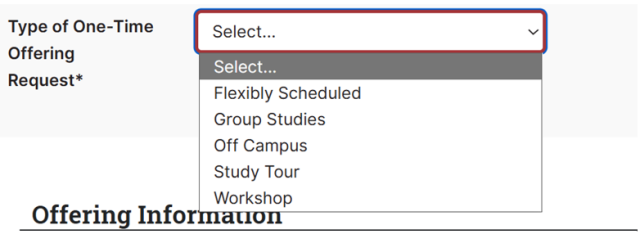


    Screenshot of a web form titled "New Offeradmin Proposal" showing dropdown menus for selecting "Effective Term" and "Type of One-Time Offering Request." The "Type of One-Time Offering Request" dropdown is expanded, displaying options including Flexibly Scheduled, Group Studies, Off Campus, Study Tour, and Workshop, with a red outline highlighting the dropdown area.
    • Selecting the Flexibly Scheduled request type will result in Class Start and End Date fields populating in the form below
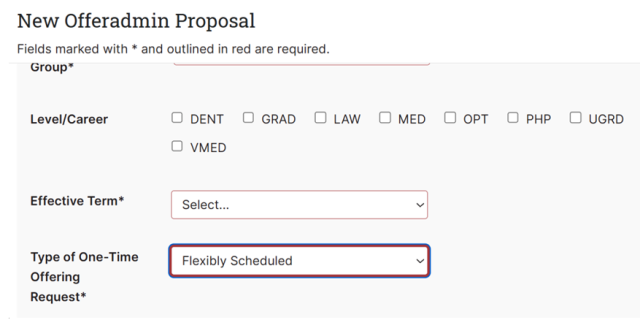
       

      Screenshot of a web form titled "New Offeradmin Proposal" showing dropdown menus for selecting "Effective Term" and "Type of One-Time Offering Request." The "Type of One-Time Offering Request" dropdown is expanded, displaying options including Flexibly Scheduled, Group Studies, Off Campus, Study Tour, and Workshop, with a red outline highlighting the dropdown area.
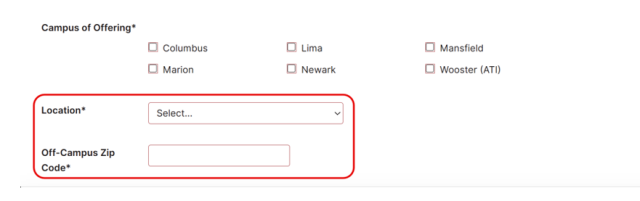
    • Selecting the Off Campus request type will result in Location and Zip Code fields populating in the form below
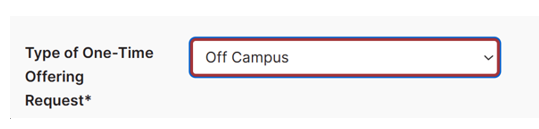


      Screenshot of a dropdown menu labeled "Type of One-Time Offering Request" with "Off Campus" selected. The menu is outlined in blue and red, indicating an active selection field.
      Screenshot of a web form section for selecting campus offerings and entering location details. It includes checkboxes for six campus options and dropdown and text input fields for selecting location and entering off-campus zip code, with red outline highlighting location inputs.


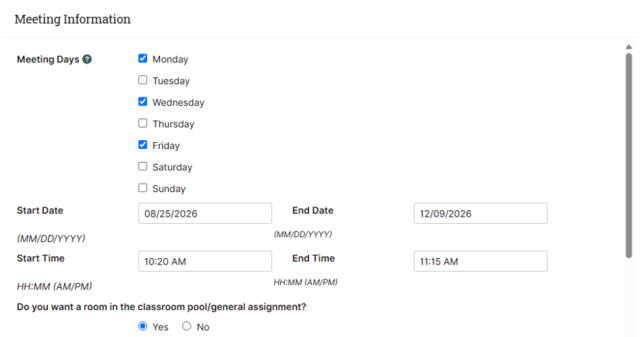
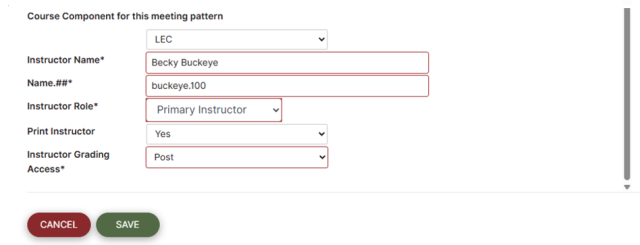
  4. To add Meeting Information for the class, click the plus (+) button. A new box will appear with Meeting Days, Times, and instructor information. Click Save to continue.

     

    Screenshot of a table titled "Meeting Information" displaying columns for Meeting Day, Start Date, End Date, Start Time, End Time, Instructor Name, and Instructor Role. A red box highlights a small circular icon with a plus sign on the right side of the table header.
    Screenshot of a table titled "Meeting Information" displaying columns for Meeting Day, Start Date, End Date, Start Time, End Time, Instructor Name, and Instructor Role. A red box highlights a small circular icon with a plus sign on the right side of the table header.
    Screenshot of a course component form showing fields for meeting pattern, instructor name, role, print instructor option, and grading access. The form includes dropdown menus and text inputs with "Cancel" and "Save" buttons at the bottom.
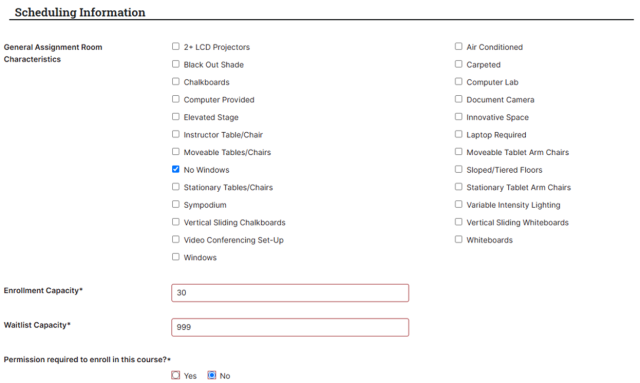
  5. If you have selected Yes to needing a room from the classroom pool, indicate any desired Room Characteristics as needed. Then enter the desired Enrollment Capacity and permission requirements. 
    Screenshot of a course component form showing fields for meeting pattern, instructor name, role, print instructor option, and grading access. The form includes dropdown menus and text inputs with "Cancel" and "Save" buttons at the bottom.
  6. Finally, enter the Course Details and attach the necessary documents for approval. 
    • At any time, you can choose to Save and return to your one-time offering form later.
    • To submit your one-time offering request to begin the Approval Workflow, click Start Workflow.
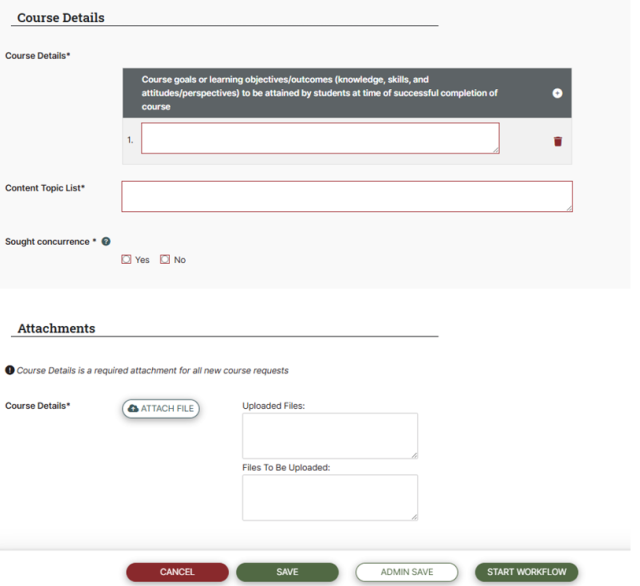
       

      Screenshot of a course request form with fields for entering course goals, content topics, and sought concurrence options. The form includes sections for attaching files, displaying uploaded files, and buttons labeled Cancel, Save, Admin Save, and Start Workflow for managing the submission process.