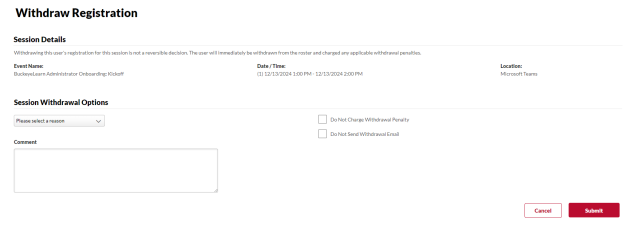
You may need to remove learners from rosters when they are unable to withdraw from a session on their own. For additional information take the Creating and Managing Instructor-Led Training online course, or visit Cornerstone's online help.
- Find your session from the Manage Events and Sessions Page.
Click the Roster button

on the session for which you want to email learners.
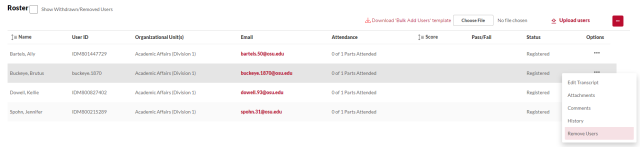
On the row of the correct learner, click the Actions icon under Options, then click Remove Users.
- Select a reason for the removal, and add comments, if desired.
Click the Submit button.