Learners must often be added to the roster when they are walk-ins to in-person training. For additional information, take the Creating and Managing Instructor-Led Training online course, or visit Cornerstone's online help.
- Find your session from the Manage Events and Sessions Page.
Click the Roster button

on the session for which you want to add users.
Click the Add Users link.

Search for and select the learner by clicking the Add button.
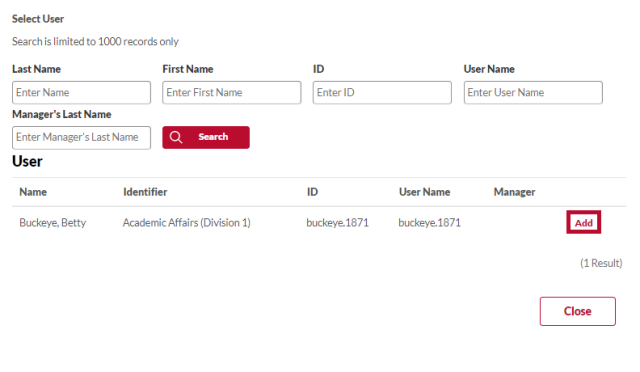
- Click the Done button to return the learners to the Session Roster page.
Uncheck the Send Emails box to prevent automatic registration emails from being sent, if needed.
Click the Add Pending Users to Roster button.

Learners are added to the roster in a Registered status.
