After a session is over, it is important to promptly submit the roster. Submitting the roster marks the training complete on a learner’s transcript and provides proof of attendance. For additional information, visit Cornerstone's online help.
- For smaller sessions, submit the roster using the checkboxes on the Attendance and Scoring page
- For larger sessions, submit the roster using a spreadsheet
Open the Roster
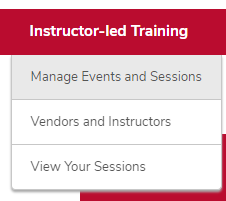
- Hover over the ILT tab.
Click Manage Events & Sessions.
Click the View Sessions button on the same line as your event.

- Click the Roster button on the same line as your session.
Click the Attendance and Scoring tab on the Session Roster page.

Submit the Roster
From the Attendance and Scoring Page
Use this method to submit rosters with a small number of users.
- For each learner, check or uncheck each box in the attendance column. If the learner did not attend the session, uncheck the box.
- If the session was scored, record the numerical score in the Score column for each learner.
For each learner, check or uncheck each box in the Pass column. If the learner did not attend the session, uncheck the box.

- Click the Submit Roster button.
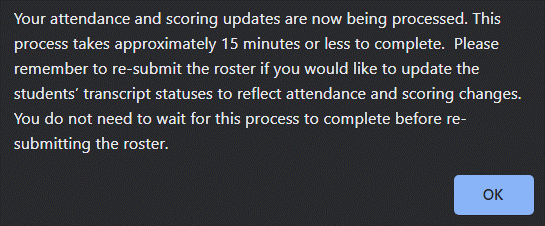
Click the OK button on the pop-up information window.

Using a Spreadsheet
Use this method to submit rosters with a large number of users.
Click the Download Roster link.

Save and open the roster in Microsoft Excel.
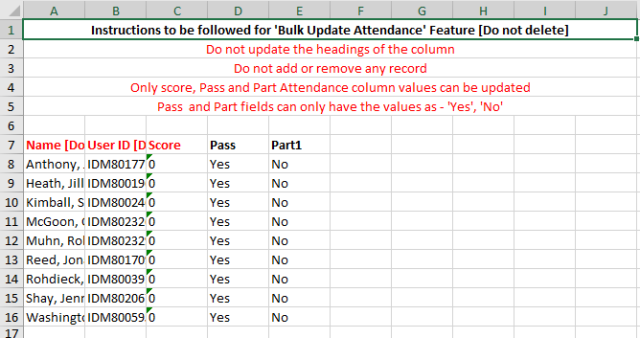
- If the session was scored, record the numerical score in the Score column for each learner.
- For each learner, type Yes or No in the Pass column. If the learner did not attend the session, type No.
- For each learner, type Yes or No in the Part column. If the learner did not attend the session, type No.
- Save and close the roster.
Click the Choose File button

.
- Select the completed roster.
Click the Upload Roster button

.
Click the Submit Roster button.
Click the OK button on the pop-up information window.

After the Roster is Submitted
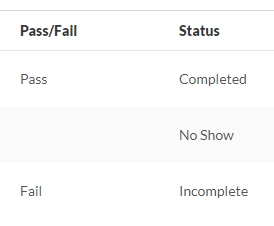
After the roster process completes, learners who were marked as attending will appear with a status of Completed. Learners who did not attend all parts will be marked as incomplete. Learners who were not marked as attending will appear with a status of No Show.