Setting availability for an event allows an administrator to define the learners who can see and request it. You are not required to set availability for an event. If you do not set availability at the event level, you will need to set it for each session.
Review each numbered area to learn more about the Availability page.
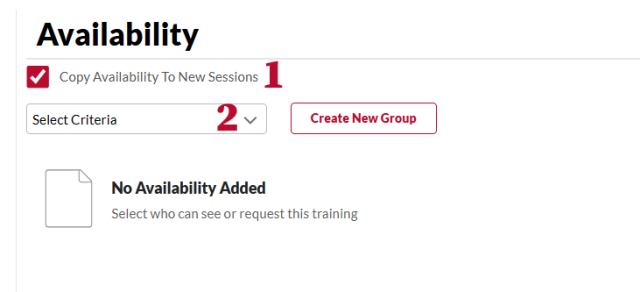
- Copy Availability To New Sessions: When checked, the availability set on this page will default into all sessions created for this event. If all or most sessions will have the same availability, it is a best practice to leave this box checked. You can change availability on sessions as needed. This option is checked by default.
- Select Criteria: Select the criteria for your availability, then click the search icon to select your criteria value. You may select multiple values at once. Click the Done button to return to the availability page. Contact your OU admin to review your area’s policies about the options for each criteria.