Create Video

A video learning object is an uploaded or embedded video. For additional information about materials, visit Cornerstone’s online help.

  1. Navigate to the Video Administration page.
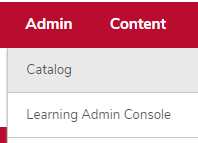
    1. Hover over the Admin tab.
    2. Click Catalog. 

      the admin menu expanded with Catalog circled
    3. Click the Video link in the Learning Objects section.  
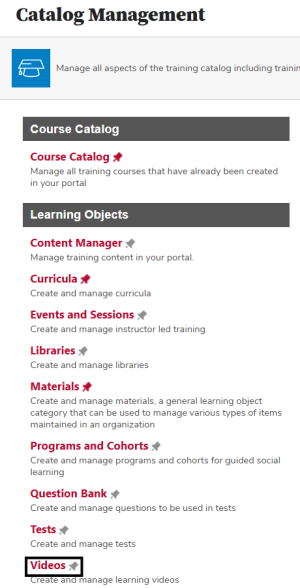
      the catalog management page with the Video link circled
  2. Click the Create a Video Course link to create a new video. 
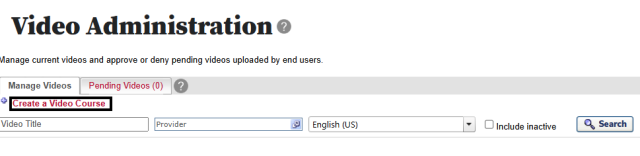
    the video administration page with the create a video course link circled
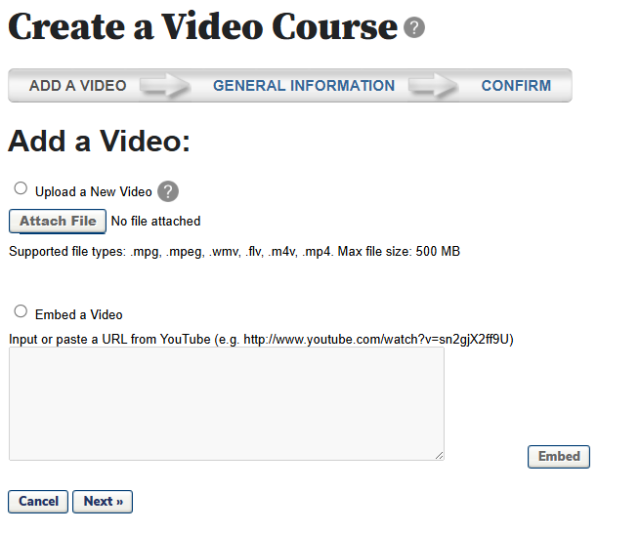
  3. Upload or embed the video.  

    the add a video page
     

    Helpful Note


    Select Upload a New Video if you will upload the video. Supported file types are .mpg, .mpeg, .wmv, .flv, .m4v, .mp4 with a maximum file size of 500 MB. Click the Attach File button 

    attach file button

    to upload the video. Select Embed a Video if you will link to a YouTube video. Paste the video's URL into the box, then click the Embed button

    embed button

    .

  4. Click the Next button.
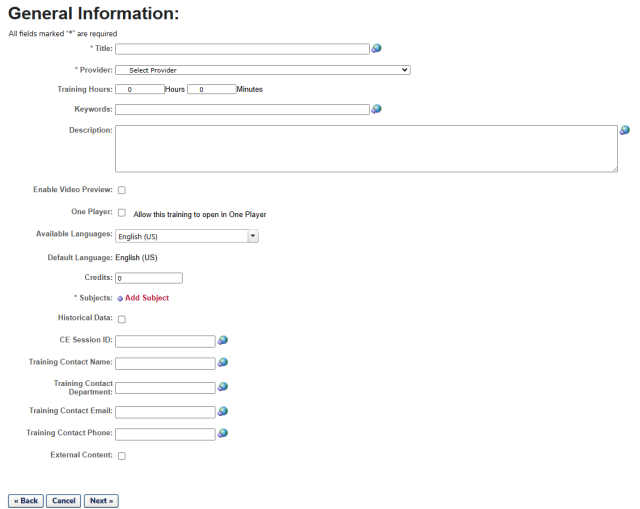
  5. Record the General Information.  

    the general information page
    1. Type the Title.
    2. Select the Provider. 


      Critical Note

      The provider cannot be changed after the video is created.

    3. Type the Training Hours.
    4. Add Keywords, if desired.
    5. Type the Description.
    6. Check the Enable Video Preview checkbox, if desired. 


      Helpful Note


      When this option is selected, a preview of the video is shown on the video's training details page. If you enable the video preview learners will be able to view the video without adding it to their transcript. Disabled by default.

    7. Add additional Available Languages, if desired.
    8. Select a Subject.
    9. Check the Historical Data checkbox, if desired.
    10. Type a CE Session ID, if desired.
    11. Type a CE Session ID, if desired.
    12. Click the Next button  

      next button

      .

  6. Review the Confirm page.
  7. Click the Finish button  

    finish button

    to complete your video creation.

 

Critical Note

You must complete creating your video, such as adding availability, from the video's course console page.