Static groups are lists of learners that once created, do not change unless updated manually. Common uses for static groups are:
- A learning assignment for a list of learners that was provided to you
- Limiting the availability of a course to a small group of learners as a pilot
- Reporting on a known group of learners who are out of compliance on training
For more information about groups, take the Creating and Managing Groups in BuckeyeLearn online course or visit Cornerstone's online help.
- Navigate to the Manage Group page.
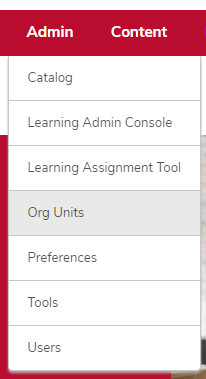
- Hover over the Admin tab.
Click Org Units.
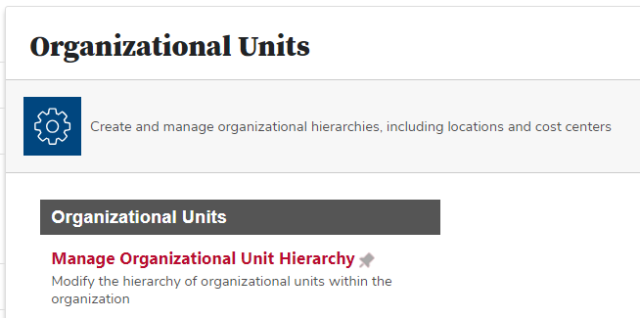
Click the Manage Organizational Unit Hierarchy link in the Organizational Units section.
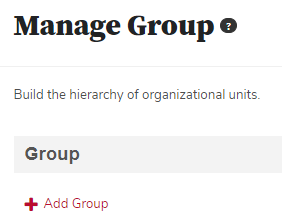
Click the Add Group link.
Define the group.
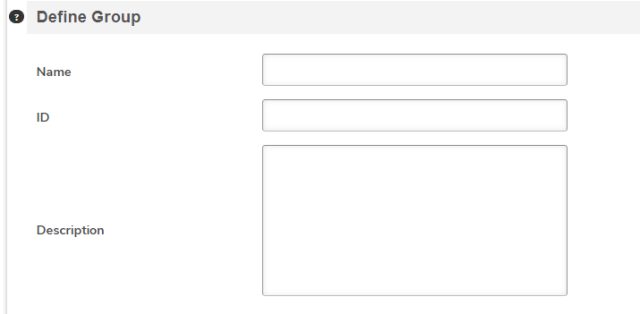
Type a Name.
Type an ID.
- Type a description.
Record the group details.
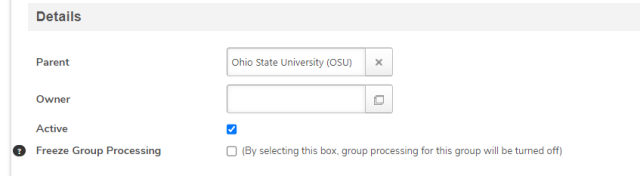
Select the Parent group.
- Select an admin account as the Owner.
- Uncheck the Active checkbox, if needed.
- Check the Freeze Group Processing checkbox, if needed.
Upload Users, if desired.

- Create a CSV spreadsheet using the CSV criteria on the Create Groups page.
- Click the Choose File button and select your file.
Click the Add button.
Add additional learners, if needed, by clicking the Select User icon

in the Group Criteria section.
Search for and select learners by clicking the blue plus icon

.
Click the Done button

to return the learners to the group.
Click the Save button

to save your group.