Create a Deep Link to a Learning Object’s Training Details Page

Create a deep link to a learning object’s Training Details page. Use this type of link to include in communications to learners about training that is available for registration. For additional information about deep links, visit Cornerstone’s online help.


Critical Note:

It is important to tell users of deep links that they should only use the deep link you provide or a go.osu.edu link that points to a deep link. If they do not, the link will not work and administrators and the BuckeyeLearn Support team will receive questions from learners. Never copy and paste a URL from a browser address bar. It will not work.

  1. Navigate to the Deep Link page.
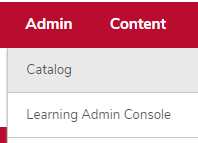
    1. Hover over the Admin tab.
    2. Click Catalog. 

      the admin menu expanded with Catalog circled
    3. Click the Deep Links link in the General Learning Section. 

      the catalog management page with the Deep Links link circled
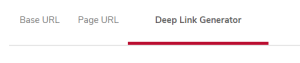
  2. Click the Deep Link Generator Tab. 

    the deep link page with the Deep Link Generator tab circled
  3. Select LO Details in the Page URL dropdown list. 
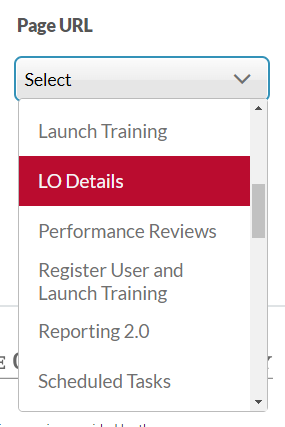
    the LO Details option in the dropdown menu highlighted
  4. Click the Add Training icon 

    the add training name and icon

      under Learning Object.

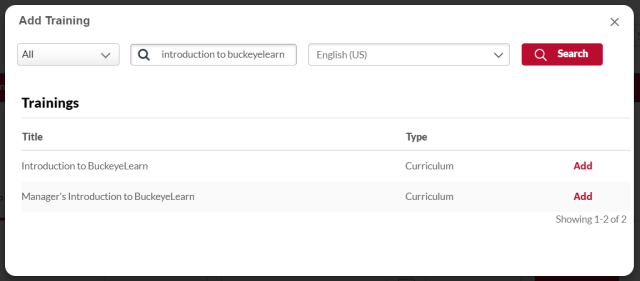
  5. Search for and select training.  

    the search page
    1. Select a type of learning object, if desired.
    2. Type all or partial training title in the Title field.
    3. Click the Search button 

      search button

      .

    4. Click the Add button 

      add button

       next to the correct learning object.

  6. Click the Generate Links button 

    generate links button

    .

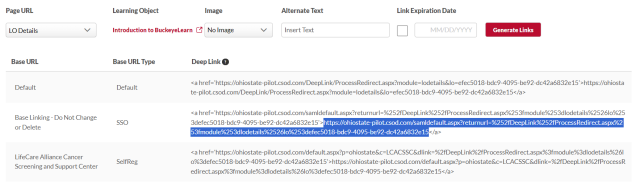
  7. Select the link from the “Base Linking - Do Not Change or Delete” delete row. 
     

    Critical Note:

    To select only the link, select the highlighted area between the “>” and the “</a>” 

    the deep link with the area between the “>” and the “</a>” highlighted