Add Learners to a Roster

Learners must often be added to the roster when they are walk-ins to in-person training. For additional information, visit Cornerstone's online help.

  1. Navigate to the Roster page.
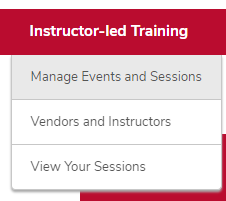
    1. Hover over the ILT tab.
    2. Click Manage Events & Sessions. 

      The ILT menu expanded with the Manage Events & Sessions option circled
    3. Click the View Sessions button on the same line as your event. 

      The Manage Events & Session page with the sessions link circled
    4. Click the Roster button on the same line as your session. 

      A session on the Session page with the roster button circled
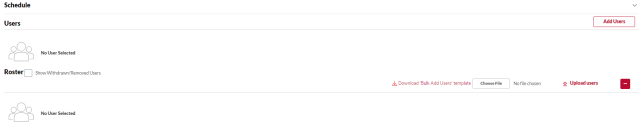
  2. Click the Add Users button. 

    The Session Roster page with the Add Users link circled
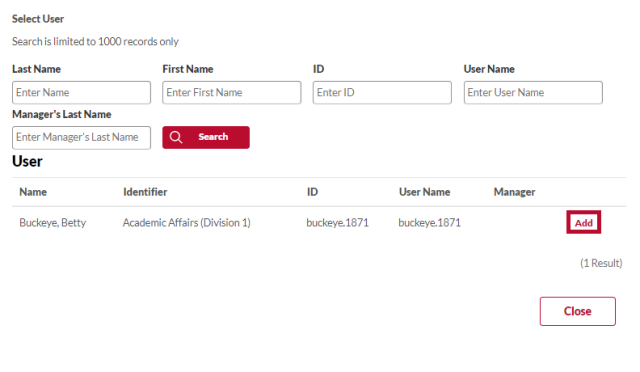
  3. Search for and select the learner by clicking the Add button.
     

    Helpful Note:

    You can search for and select multiple people. 

    The Search page with the add button circled
  4. Click the Done button to return the learners to the Session Roster page.
  5. Uncheck the Send Emails box to prevent automatic registration emails from being sent, if needed. 


    Helpful Note:

    This is recommended if you are adding users to a roster after a session is over.

  6. Click the Add Pending Users to Roster button. 

    The Session Roster page with the Send emails checkbox and Add Pending Users to Roster button
  7. Learners are added to the roster in a Registered status. 

    learner added to roster in registered status