Before you can add someone as an instructor to an event or session, they must be added to your vendor.
The vendor of an ILT is the university group that provides or sponsors a course. Each area may have multiple vendors. Vendors are used by learners to search for training and by administrators to organize and report on training. ILT administrators are constrained to vendors, while learning and OU admins have access to all vendors in their area. Instructors who have been added to a vendor can see all events and sessions within that vendor.
For additional information, visit Cornerstone's online help.
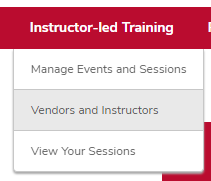
In the ILT menu, click Vendors & Instructors.
Click the Instructors link on the vendor you want to add an instructor to.

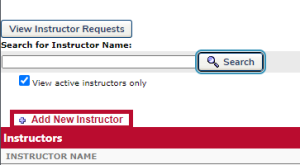
Review the instructor list, and if your instructor isn’t there, click the Add New Instructor link.
Click the search icon to search for the instructor’s name.
Click the Submit button.
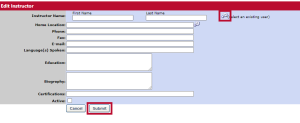
The instructor is added to the instructor list and can now be listed as an instructor for any event or session for that vendor. Instructors can be added to multiple vendors.