Users may use the PeopleSoft Student Information System to schedule classes as well as non-academic events. Access must be granted in order to request event space on campus.
Login to SIS: SIS-only users login , login using your lastname.# and password.
Schedule an Event
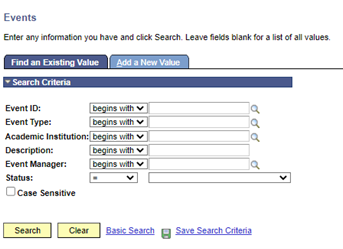
- Once logged into SIS, search Events and select the first result in the drop-down, "Events: Track Event Details".
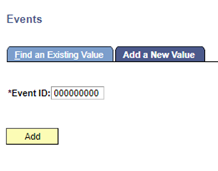
- Select Add New Value link.
The system will populate the Event ID field with a number after the event request is saved.
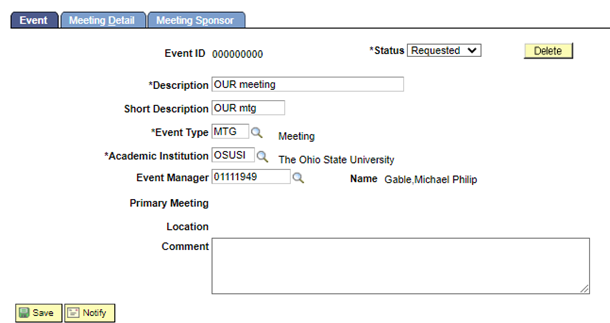
- Complete the following fields on the Event tab:
- Status (defaults to Requested when the request is new, and cannot be changed by requester)
- Description* (title of the event) required
- Short Description
- Event Type (default is Meeting)
- Academic Institution (do not change default)
- Event Manager (defaults to requester)
Comment (optional)
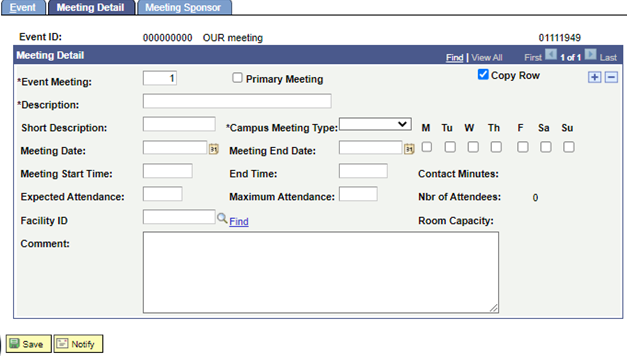
- Select the Meeting Detail Tab. Complete the following fields:
- Description
- Short Description
- Campus Meeting Type
- Meeting Start and End Date: Create a one-day event by selecting the same Meeting Start Date and End Date. The day of the week checkbox will default. When choosing a range of dates, select the days of the week in the range.
- Meeting Start Time and End Time.
- Expected Attendance
Use the Comment box to include special instructions or other email addresses of those involved with the meeting.
- Select the Find link next to Facility ID.
- The Search Option box will default to Fixed Start/End Time. See step 8 for flexible start time options.
- The General Assignment dropdown box will default to Yes. Yes should remain as this will return General Assignment rooms (which the Scheduling Office can schedule) in the results.
- For a list of General Assignment rooms available through the Scheduling Office, please visit the Office of the University Registrar.
- Fill in the Room Capacity boxes.
Select a range rather than entering an exact number in both fields.
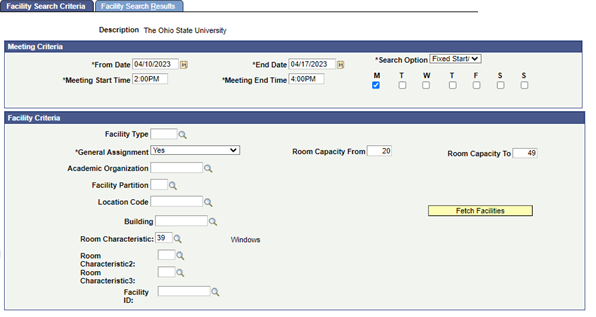
- Use the Room Characteristic boxes to specify needs for a room (optional).
Select the Fetch Facilities button.
The Facility Search Results page will display available rooms meeting the criteria.
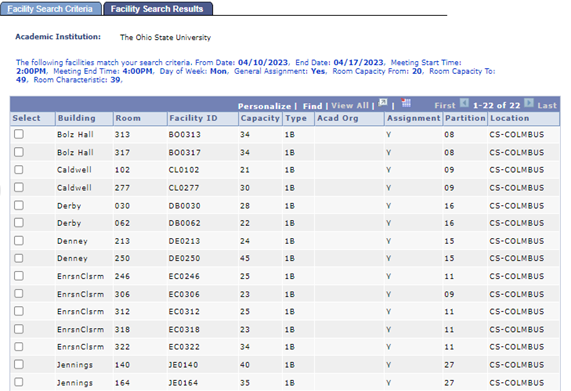
Select a checkbox for the desired facility for your event.
- Select OK.
You will be returned to the Meeting Detail tab and the room you selected will be populated in the Facility ID field. - For a flexible start time, change Search Option box to Meeting Length.
- From Time: Specify earliest the meeting can start.
- End Time: Specify the latest the meeting can end.
Meeting Length (Minutes) : Specify the desired length of the meeting in minutes.
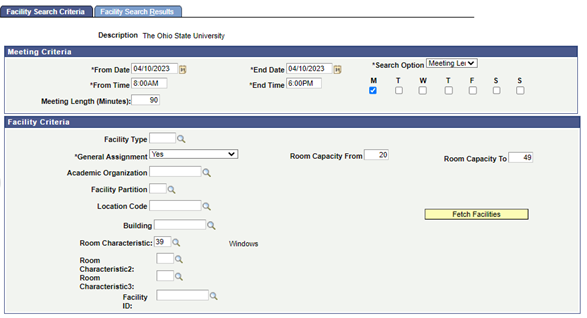
- Select the Fetch Facilities button.
The Facility Search Results tab displays. The far-right column will display the 90-minute time period in which the specified room is available between 8am and 6pm. Times listed are in military time. - Select a checkbox for the desired facility for your event.
Note if there are two or more times available for one room, clicking on the check box will select the earliest time for the space. To select a later time, make note of the time and manually adjust it on the Meeting Detail tab. - Select OK.
You will be returned to the Meeting Detail tab and the room you selected will be populated in the Facility ID field. To add more rooms to a request or to make multiple requests on one form, select the blue plus (+) sign in the top right corner of the Meeting Detail tab.
Leave the Copy Row check box checked to replicate the current data on the next row of request. The next row will have the same information with a blank Facility ID box to allow another room to be entered. The information (date, time, description,etc.) on the second row and all preceding rows can also be altered or adjusted as needed. Users are able to enter as many rows as needed on one request.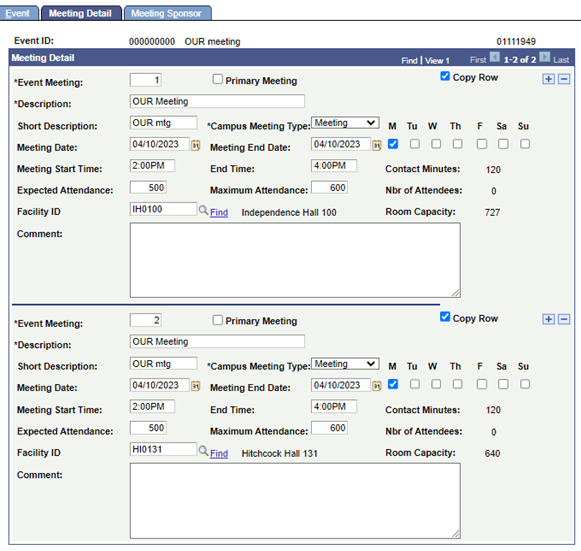
- Select the Meeting Sponsor tab.
- The Campus Coordinator will populate to the requester's name. This is also the person who will receive the event confirmation. Event confirmations are automatically sent at 8am the morning after an event has been approved by the Scheduling Office.
Please do not populate the Other Coordinator box. The Scheduling Office uses this box internally.
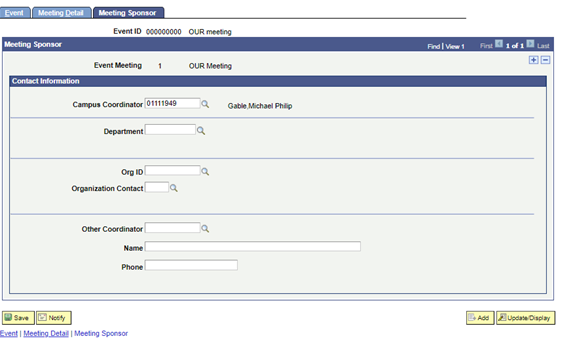
Select Save.
An Event ID (shown at top) is generated when the record is saved. This is how to know the event is requested and the Scheduling Office will approve in due time.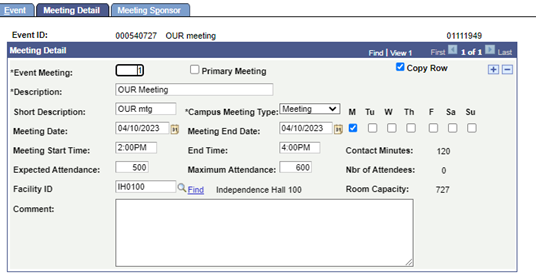
- Review requested events.
- Select a Status of Requested.
- Select Search.
- View the list of meetings that you have requested.
To see if your event has been approved, select a Status of Approved.
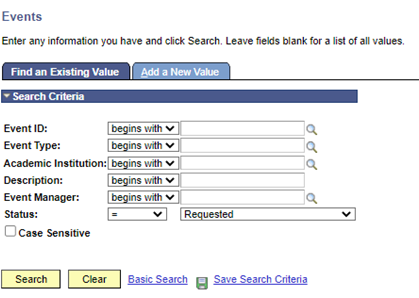
- Select an event to cancel.
- Change the Status to Cancelled.
You will receive a message asking if you are sure you want to cancel the event.
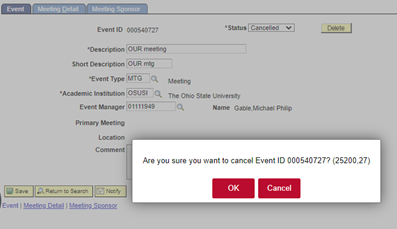
- Select OK to cancel the Event ID and then select Save.
- The room will be unscheduled, but the request remains intact.
- To approve an event in one of your department's rooms, you will need to request special access from the Scheduling Office. Once your access is processed, follow these steps:
- After saving your event request, navigate to the Meetings page.
Change the Status of the request to Approved in the top right corner.
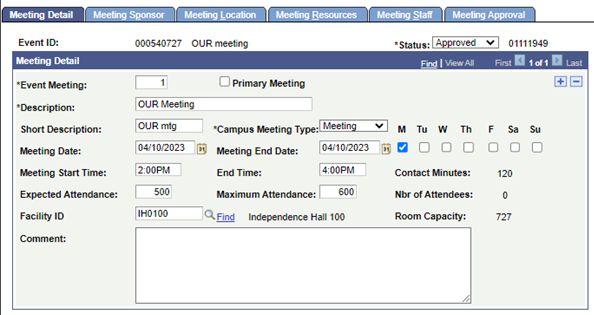
- Once an event is in Approved status, it will show on the Room Matrix.
Important Information
Approving events for departmentally owned spaces
- Departments will be granted the ability to schedule departmentally owned spaces upon request.
- The Scheduling Office will determine the level of access.
Requesting space for student organizations
- All student organization event requests MUST go through the Ohio Union Event Staff. Each term a number of classrooms and lecture halls are set aside for student organization activity, and the Ohio Union Event Staff manages the scheduling of these spaces.
Event approval timeline
- Events are approved in classroom spaces only after classroom needs have been met. This generally means events will be approved one week after the normal registration period has ended for said term. Specific dates for each term can be viewed on the Scheduling Office's website. Event requests submitted before this date will be put in an "On Hold" status and approved later.
- Event requests during final exam week will be approved after final exams have been placed.
- Academc classes take priority over non-class events. Events may be bumped or cancelled in order to meet class needs.
- OSU staff members may use our classrooms free of change. With this privilege, it is expected that users respoect the space. No food or drink is permitted in the classrooms, and the room should be left as you found it. Users abusing classrooms will be subject to consequences, including but not limited to paying for damages and/or loss of future use of classroom space.