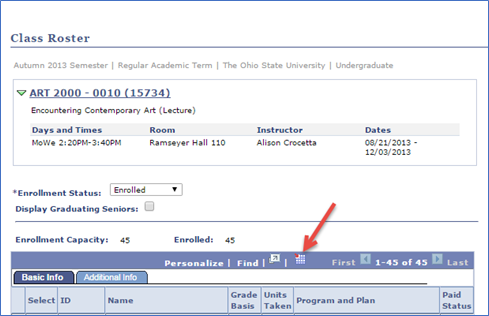
This section introduces the steps for viewing and printing class rosters.
At the completion of this section, you will be able to:
- View the total number of students enrolled in a class by their enrollment status
- View individual student information including Name, Student ID, Grading Basis, Units Taken and Primary Academic Program
- Export a class roster to Excel
Path.
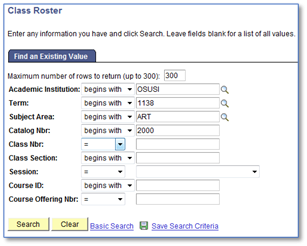
- Navigate to Class Roster component. Complete the following fields:
- Term
- Subject Area
- Catalog Nbr
- Class Nbr (optional)
Click Search.
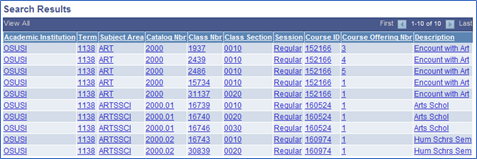
Click on the desired class.
Click the Enrollment Status drop-down list to select "All", "Enrolled", or "Dropped" students in this class.
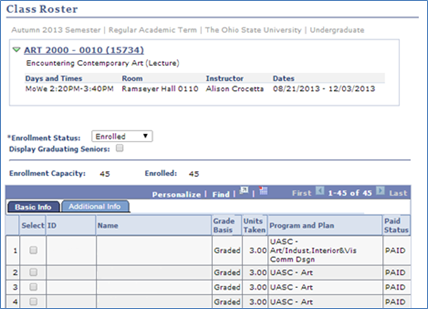
- Review the information for each student in the class.
- Click a column heading to re-sort the roster by that column.
- Click on the Class Subject Area, Catalog Number and Section Number (Class Number) to view Class Detail.
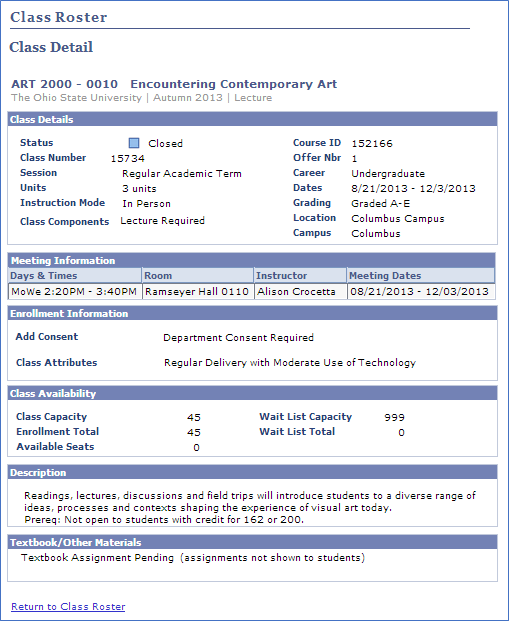
- Review Class Details.
- Click Return to Class Roster to return to the Class Roster page.
Export Class Roster to Excel.