This section introduces the steps for creating combined sections. Combined Sections of two or more courses that are taught concurrently (same room, days, times, instructor) and are combined into one class. Cross-listed courses and 5000-level Grad/Undergrad courses are the most common reasons to combine two or more classes.
At the completion of this section, you will be able to:
- Link two or more classes to a Combined Section ID number
- Modify or maintain data for scheduled Combined Sections
Class Meetings
- Enter classes that need to be combined on the schedule.
- All details on the Meetings tab must be identical, except the Facility ID can only be entered on one of the classes. If it is listed on both classes when entering the classes on the schedule, you will receive an error message when trying to save.
You can also fill out the Meetings tab for just one of the classes and leave the Meetings tab for all other classes blank. Once the classes are combined, the system will automatically populated all of the meeting information from the one class to the other(s).
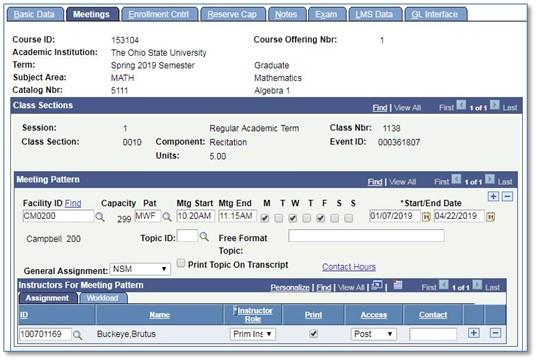
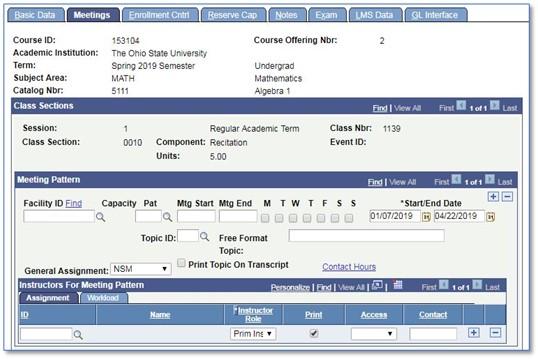
- Navigate to the Combined Sections Table page (Menu →Curriculum Management→Combined Sections→Combined Sections Table). Complete the following fields:
- Academic Institution
- Term
Session
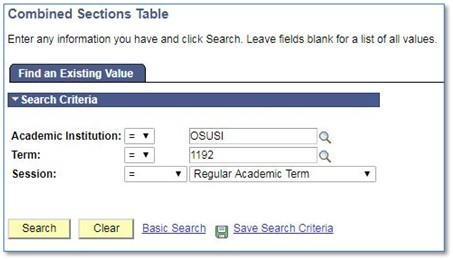
- Click Search.
- The search returns the Combined Sections Table. This table includes an entry for each pair or group of courses being combined.
- Click on any blue plus sign (+) to add a new Combined Sections entry.
A blank link will appear where a Description and Short Description of the Combined Sections can be entered. The Combined Sections ID will be automatically generated by the system (these numbers are sequential).
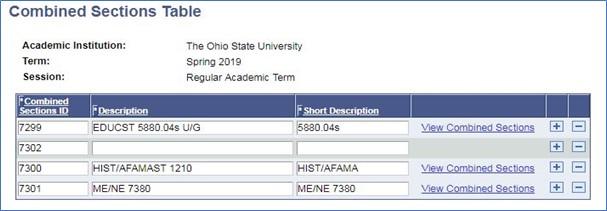
- Enter course information and click Save.
- After clicking Save, a View Combined Sections link will appear at the right of the entry. See Combined Sections ID 004 as an example.
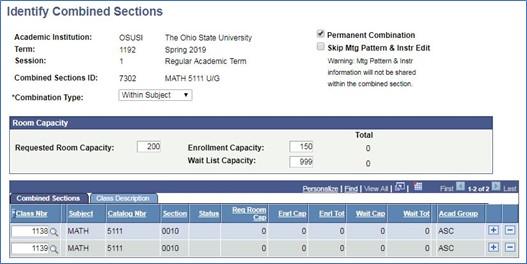
- Click the View Combined Sections link. Complete the following fields:
- Combination Type
- You can combine sections Within Subject, Cross Subject, or Both.
- Requested Room Capacity
- Enrollment Capacity
- This number overrides all limits set on individual sections (e.g. both sections have enrollment caps set to 100, but the Enrollment Capacity of the Combined Sections is 150. Only 150 total students can enroll, not 200.)
- Wait List Capacity
Class Numbers
- Combination Type
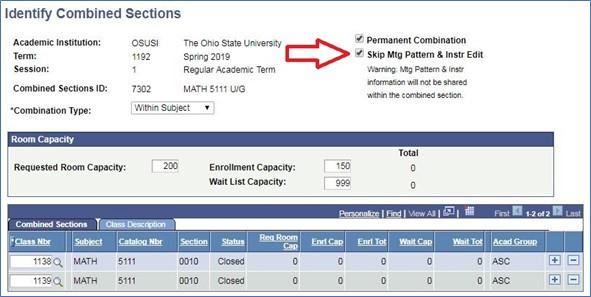
- After information is entered, click Save.
Classes now have the same meeting pattern information (room, days, times, instructors).
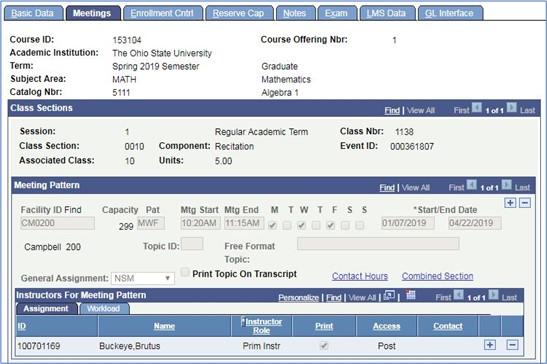
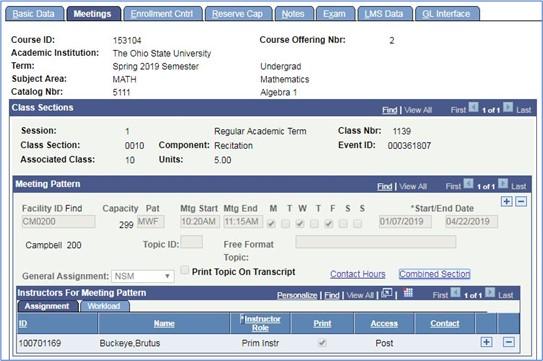
- To update meeting information for classes in a combined section, navigate to Schedule Class Meetings.
- Complete the following fields:
- Academic Institution (OSUSI, if not defaulted)
- Term
- Narrow the search with any or all of the following fields:
- Subject Area
- Catalog Nbr
- Academic Career
- Campus
Class Nbr
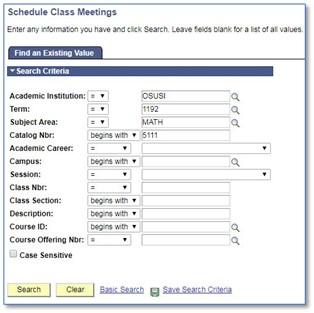
Click Search.

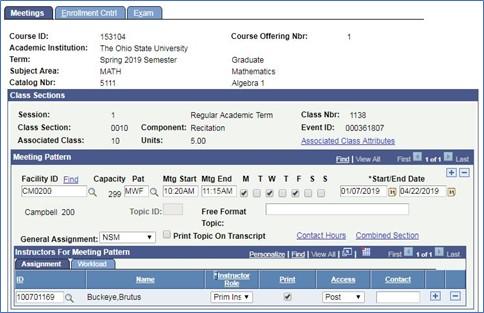
- Select one based on the Class Number or Class Section.
Update info on Meetings tab as necessary.
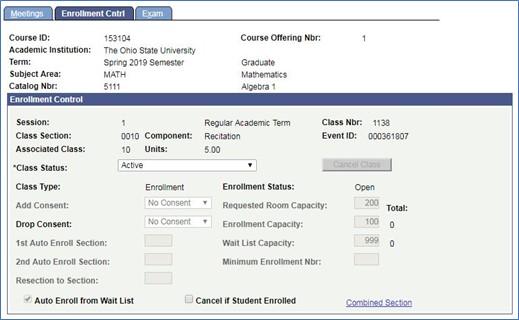
Click the Enrollment Cntrl tab to update Class Status.
Important Information
Making Changes to Combined Section
- Use Schedule Class Meetings to adjust meeting pattern information after courses have been combined.
Adjusting enrollment numbers for combined sections
- Enrollment and wait list capacities are controlled both at the section level and at the combined sections level.
- The enrollment capacity listed on the Combined Sections Table overrides what it listed for each individual section if the capacity is lower. For example, if both classes in the combination have a section capacity of 20 and the Combined Section Capacity is 30, the sections will both close once a combined total enrollment of 30 is reached.
Removing classes from the Combined Sections Table
- Sections can be removed from the Combined Sections Table by first deleting the rows of sections (clicking the blue minus sign) from within the Combined Section and clicking Save.
- Once sections have been removed, the combination can be deleted off the Combined Sections Table by deleting the row (click the blue minus sign) next to the Combined Section entry and clicking Save.
- If courses are removed from the Combined Sections Table, the meeting pattern information will be lost.
Searching for a class using the class number
- Use Schedule Class Meetings to search for a specific section by class number.