This section introduces the steps for searching for an available facility. Facilities are either "general assignment" or owned by an Academic Organization.
At the completion of this section, you will be able to:
- Find an available facility
Path.
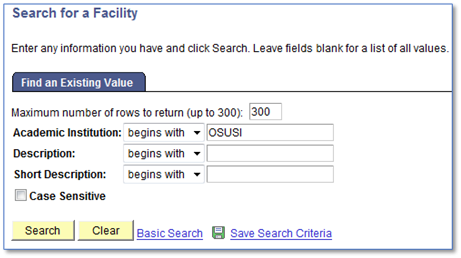
- Navigate to the Search for a Facility search component.
- Academic Institution (OSUSI, if not defaulted)
Click Search.
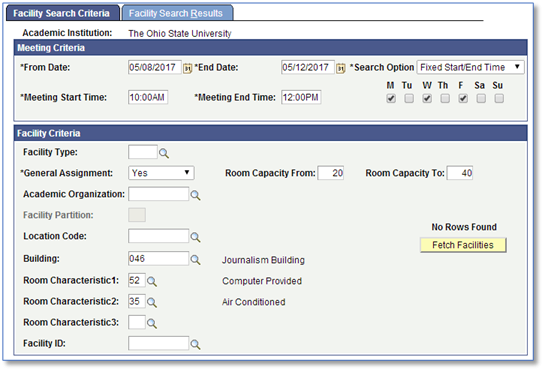
- Complete the following fields on the Facility Search Criteria tab.
- Search Option: Fixed Start/End Time used to find rooms available with a definite start/end time. For flexible time options, see Step 5 below.)
- From Date (mm/dd/yyyy)
- End Date (mm/dd/yyyy)
- Meeting Start Time
- Meeting End Time
- Select the appropriate meeting day(s)
- Facility Type (optional)
- General Assignment
- Yes searches only general assignment spaces
- No searches only department-owned spaces that may require department approval
- Room Capacity From
- Room Capacity To
- Building (optional)
- Room Characteristic 1 (optional)
- Room Characteristic 2 (optional)
- Room Characteristic 3 (optional)
- Search Option: Fixed Start/End Time used to find rooms available with a definite start/end time. For flexible time options, see Step 5 below.)
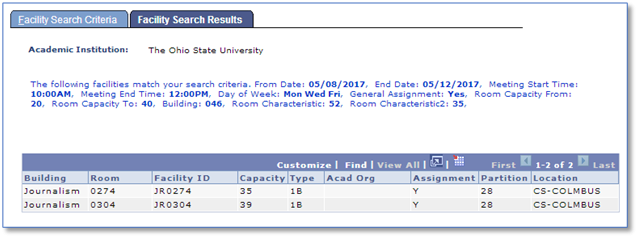
Click Fetch Facilities and view the results.
- Click the Facility Search Criteria tab.
- Change the Search Option to Meeting Length: To find rooms available with flexible Start/End time
- Enter the From Time, End Time, and select the day(s) of the week
Enter the desired Meeting Length (in minutes)
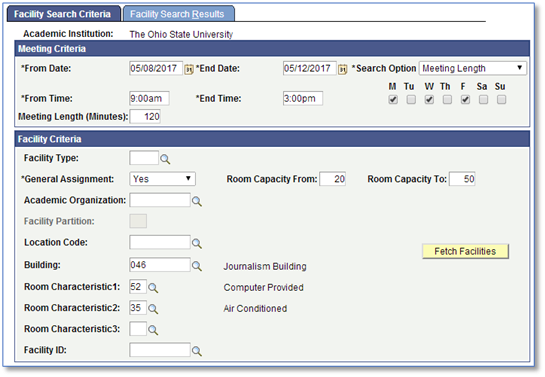
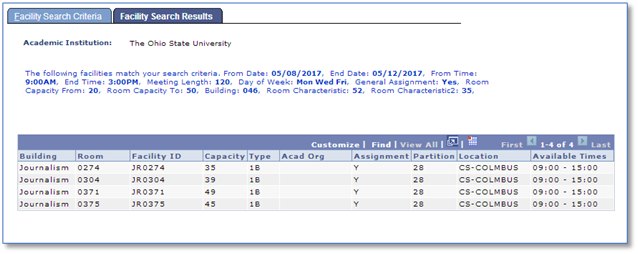
- Click Fetch Facilities and view the results.
The results will show rooms available during specified From and End times. Available time are listed in the far right column and in military time. (e.g. 3:00 pm = 15:00)
Important Information
Searching using a minimum and maximum capacity
- When searching for an Available Facility, be sure to enter a range for the Room Capacity From and Room Capacity To boxes to return results. Making these fields the same number will only return results for that specific capacity only.