Instructions from the Office of the University Registrar for replacing an existing advisor with a new advisor.
- Navigate to Student Advisor Upload Process page.
- Select the Search link.
Select the appropriate Run Control ID.
On the Batch Student Advisor Upload screen, select Update from the Run Options menu.
- Enter From ID (previous advisor ID)
- Enter To ID (new advisor ID)
- Select Run.
- When redirected to the Process Scheduler Request page, ensure the Run Student Advisor Process is chosen and select OK.
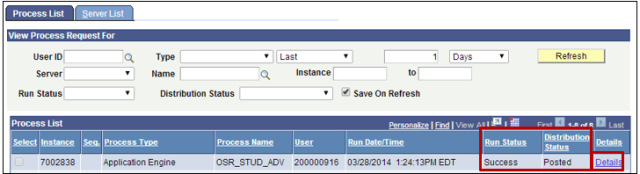
After selecting OK, SIS will redirect back to the Batch Student Advisor Upload screen. To check if the update was successful, select the Process Monitor link (located near the Run button link) open the Process List where you can view the process progress.

- Select the Refresh button link to view the current process status. Continue to Refresh until the process is finished. The process is finished when the Run Status is Success and the Distribution Status is Posted (Queued and Processing indicate the process is still running).
Once the process has finished, select the Details hyperlink from the Details column in the Process List section to open the Process Details.
On the Process Details screen, select the View Log/Trace link to access the files created.

- Select the ERR.txt link to view a report with detailed reasons why an advisor was not updated.
- Select the OSR_STDNT_ADVISR_Log.txt link to view a report of each successful update.
Important Information
The effective date for the new advisor will be the day the batch process is completed. If there is an existing effective date for the current date, the effective date will be moved to the next day.