Instructions from the Office of the University Registrar for manually adding and updating a student’s term activation, which is required for enrollment.
Performing a Manual Term Activation
Manual term activation is used when a student has not been activated through the batch activation process--most likely due to a rapid-admit process (regional campus or CED) or a stop-out by the student (returning to work with an advisor).
Term activating a student manually is only needed if you plan to add a class for a student that day or if you want to set credit hour limits different from the program default.
Do not term activate a student before the system process begins. Future term activations will be deleted before the daily processing begins.
- Navigate to the Term Activate a Student page.
- Enter Search Criteria then select Search.
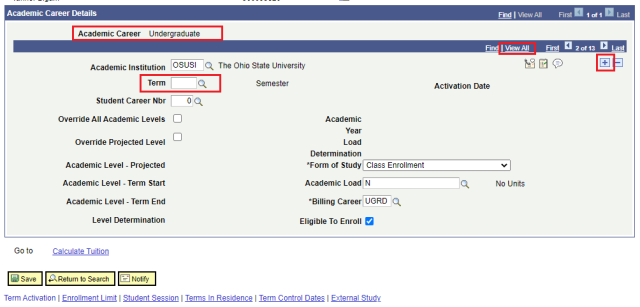
- Confirm the Academic Career to be activated is selected. If a student has or is enrolled in multiple careers, select View All in the Academic Career Details navigation to display all of their careers and select the one to be activated.
- If the Term field is blank, you can enter a term; if it is not blank, add a new row by selecting the Add a new row link (plus sign icon) to either enter the applicable term in the Term field, or select the Look up term link (magnifying glass icon) to search for the applicable term.
- Select the Save link button.
To activate an additional career, repeat Steps 3 through 5.
Update Term Activation Information – Enrollment Limit
- Navigate to the Term Activate a Student page.
- Enter Search Criteria then select Search.
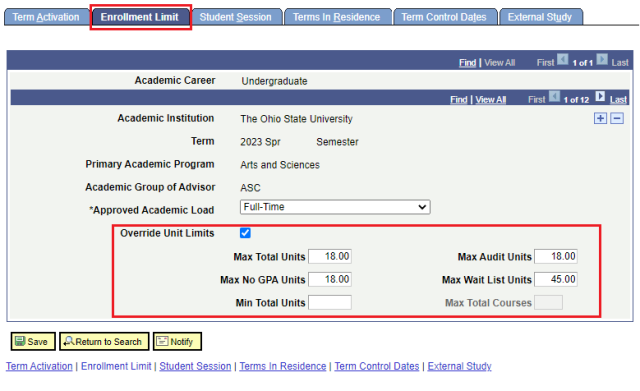
- Select the Enrollment Limit tab.
- Select the Override Unit Limits option. The various unit fields will become available for maintenance of the credit hour limits for the term.
- Update the unit fields as needed.
- Select the Save link button.