Instructions from the Office of the University Registrar for maintaining a student’s academic career. Instructions include how to add a career, add or change a program, plan or subplan, add a second program, plan or subplan, and how to change the campus of enrollment.
Add a Career
These instructions apply to adding a career to a student’s record.
- Navigate to the Student Program/Plan page.
- Select the Add a New Value tab to enter the ID (student’s OSU ID), the new Academic Career from the drop down pick list, and the Student Career Nbr.
- Select the Add button to add the career.
- Confirm or enter the Student Career Number.
- If this is the first career of this type for the student the number should be zero (0).
- If additional career is being added to an already existing the career, for example you are adding an undergraduate career for a student that already has an undergraduate career, you will need to update the Student Career Number.
- Follow steps 4 through 8 of the Add or Change a Program Plan or Sub-Plan instructions below to complete the process noting the following.
- Use ACTV as the Program Action (5b).
- The Admit Term determines the earliest term in which you can term activate a student for this academic career (5d).
- The Requirement Term will default to the Admit Term.
- Repeating the search will show the added career.
Add or Change a Program, Plan, or Sub-Plan
These instructions apply to adding a new Program, Plan, or Sub-Plan or changing an existing Program, Plan, or Sub-Plan. In both cases a new row will be added, and any previous entries will be maintained.
- Navigate to the Student Program/Plan page.
- Enter the student identification information in the Search Criteria then select the Search button.
- Select the Include History option when you search or on the Student Program page to view the history or make any updates to their program and plan information.
- Select the Search button to view their existing career or a list of available careers. If more than one career exists, select the appropriate career stack from the list presented.
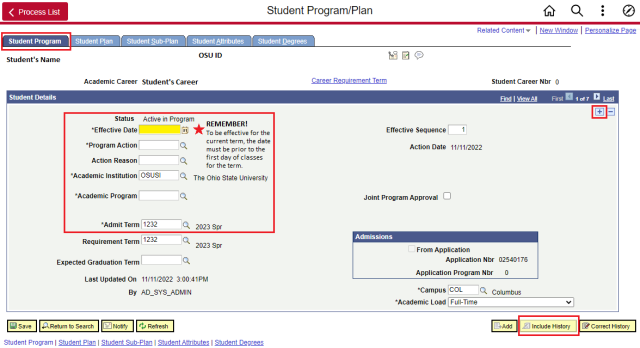
- On the Student Program tab add a row by selecting the Add a new row at 1 link (plus icon).
- Complete the following required fields on the Student Program page in the Student Details section:
- Effective Date – IMPORTANT: The current date will automatically be populated. For the change to be effective for a term, it must be dated prior to the first day of classes for the term.
- Program Action - Enter PRGC for a program change or enter PLNC for a plan or sub-plan change. Search for additional options by selecting the Look Up Program Action link (magnifying glass).
- Academic Program - The Academic Program must be in the same career as the first program.
- To add or update an approved Joint/Dual Academic Plan, select the Joint Program Approval option then enter the Dual Academic Program or select the Look Up Dual Academic Program link (magnifying glass icon) to choose the other program.
- Admit Term
The Expected Grad Term should not be filled in until the student has applied for graduation. Once it is populated, Financial Aid will adjust aid and lenders will be notified.
- Select Student Plan tab to enter the corresponding Academic Plan for this program. To search for a plan, select the field’s Look Up Academic Plan link (magnifying glass icon).
- Sub-plans are not required. Select the Student Sub-Plan tab to enter a corresponding Academic Sub-Plan for this plan.
- To save, select the Save button.
Add an Additional Program Plan or Sub-Plan
These instructions apply to adding a new Program, Plan, or Sub-Plan or changing an existing Program, Plan, or Sub-Plan. In both cases a new row will be added, and any previous entries will be maintained.
- Navigate to the Student Program/Plan page.
- Enter the student identification information in the Search Criteria then select the Search button.
Select the Include History option when you search or on the Student Program page to view the history or make any updates to their program and plan information. - Select the Search button to view their existing career or a list of available careers. If more than one career exists, select the appropriate career stack from the list presented.
- On the Student Program tab add a row by selecting the Add a new row at 1 link (plus icon).
- Complete the following required fields on the Student Program page in the Student Details section:
- Effective Date – IMPORTANT: The current date will automatically be populated. For the change to be effective for a term, it must be dated prior to the first day of classes for the term.
- Program Action - Enter PLNC for a plan or sub-plan change. You may also search for the Plan Change options by selecting the Look Up Program Action link (magnifying glass icon) to select it from a list.
- Action Reason – Enter RSRQ to designate is was a SR – Student Request. You may also search for the reason by selecting the Look Up Action Reason link (magnifying glass icon) to select it from a list.
- Select the appropriate Student Plan or the Student Sub-Plan tab.
- Select the Add a New Row at Row 1 link (plus sign icon) to add a new row.
- Enter the additional plan or sub-plan for this program. To search for either, select the field’s Look Up link (magnifying glass icon).
- Select the Save button.
- Select the View All link to view all plans or sub-plans. The primary one has the lowest sequence number. Sequence numbers are assigned in multiples of 10.
Change Campus Enrollment
Students are billed based on the campus where the student is registered for the majority of credit hours. Students who are taking half of their total credit hours for the term at a regional campus and the other half at the Columbus Campus will remain enrolled at the original campus. The Office of the University Registrar will update records at the beginning of each term.
Visit Multi-Campus Students for more information regarding the policy and The Campus Change Process to learn if changing from a regional campus to Columbus may be an option.
- Navigate to the Student Program/Plan page.
- Enter the student identification information in the Search Criteria then select the Search button.
Select the Include History option when you search or on the Student Program page to view the history or make any updates to their program and plan information. - Select the Search button to view their existing career or a list of available careers. If more than one career exists, select the appropriate career stack from the list presented.
- On the Student Program tab add a row by selecting the Add a new row at 1 link (plus icon).
- Complete the following required fields on the Student Program page in the Student Details section:
- Effective Date – IMPORTANT: The current date will automatically be populated. For the change to be effective for a term, it must be dated prior to the first day of classes for the term.
- Program Action - Enter DATA for a plan or sub-plan change. You may also search for the Plan Change options by selecting the Look Up Program Action link (magnifying glass icon) to select it from a list.
- Action Reason – Enter RCMP to designate It as SR – Campus Change. You may also search for the reason by selecting the Look Up Action Reason link (magnifying glass icon) to select it from a list.
- Change the Campus by entering the campus abbreviation or select the Look Up Campus link (magnifying glass icon) to select the correct campus from a list.
- Select the Save button.
Important Information
- The current date will automatically be populated as the Effective Date. For the change to be effective for a term, it must be dated prior to the first day of classes for the term.
- The Academic Plan will state the major and minor while the Academic Sub-Plan will state the concentration or specialization of the major.