Instructions from The Office of the University Registrar to setup favorites in SIS.
Path.
- Navigate to the page you want to set as a favorite.
From the Actions menu (Kebab Icon - three vertical dots) select Add to Favorites.
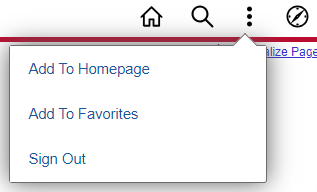
- A message will appear to confirm it was added. Select the OK button link to proceed.
Enter the Favorite Label then select the Add link.
- To access your favorites, select the NavBar menu (compass icon) then select the Favorites link (heart icon).
- To edit a favorite name or reorder how your favorites are listed:
- Select the NavBar menu (compass icon)
- Select the Favorites link (heart icon)
- Select the Edit Favorites link