Instructions from the Office of the University Registrar for maintaining service indicators. A service indicator is added to a student’s record to identify if there are either positive or negative service indicators on their record. An indicator will also indicate if a student is deceased. The instructions below detail how to view the indicator, as well as assign and release indicators for one student individually or for multiple students in batches.
View
- Navigate to the Manage Service Indicators page.
- Enter Search Criteria then select Search to view the Service Indicator Summary.
- Select a service indicator link from the Code column to access its details.
View Decedent Data
- Navigate to the Manage Service Indicators page.
- Enter Search Criteria then select Search to view the Decedent Data.
- View the following values:
- Date of Death
- Place of Death
- Death Certificate Nbr
- A DECEASED indicator will be added on all pages associated with the student.
Assign
Add an individual indicator
Add an individual indicator
- Navigate to the Manage Service Indicators page.
- Enter Search Criteria then select Search to view the Service Indicator Summary.
- Select the Add Service Indicator link (text or plus sign icon).
- On the Add Service Indicator page, add values in the fields listed below.
- Service Indicator Code – if needed, select the Look Up Service Indicator Code link (magnifying glass icon) to select from a list of options.
- Reason – if needed, select the Look Up Reason link (magnifying glass icon) to select from a list of options related to the Service Indicator Code chosen above. Once entered, the Description will automatically populate.
- In the Effective Period section, the following fields are required:
- Start Term - if needed, select the Look up Start Term link (magnifying glass) to select from a list of options
- Start Date – enter the date the service indicator takes effect
- If a comment is needed, add a comment in the Comments field located in the Comments section. Comments are not shared with students.
- Save by selecting the Save component and return link (OK button).
Add multiple Indicators by batch
- Navigate to Run Serv Ind and Stdnt Groups page.
- Select the Search link.
- From the Run Control ID, select SERV_IND_AND_STDNT_GRPS
- To add a new Run Control ID, select the Add a New Value tab, name the report, and select Add. You need only to add a run control the first time you run the report. After the run control is added, you can reuse it each time you need to run the report. Click Search on the Find an Existing Value tab to locate your Run Control ID.
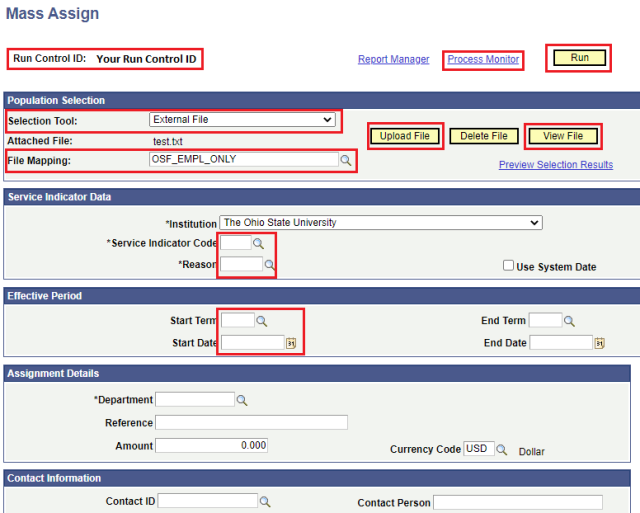
- In the Population Selection section, select External File as the Selection Tool.
- If not already created, create the Text File (.txt) containing the list of EMPLIDs on your personal computer. Learn how to Create a Text File for batch processing.
- Select the Upload File button then the Choose File link button to browse for the already created and saved text file. Once the file is located and selected, select Upload to upload the file.
- To view the details of the file that was uploaded, select the View File button. A new tab will open in your browser where the list of student IDs are listed.
- Select OSF EMPL ONLY as the File Mapping (text file must be uploaded first).
- In the Service Indicator Data section confirm or select The Ohio State University as the Institution and add values in the fields listed below:
- Service Indicator Code – if needed, select the Look Up Service Indicator Code link (magnifying glass icon) to select from a list of options
- Reason – if needed, select the Look Up Reason link (magnifying glass icon) to select from a list of options related to the Service Indicator Code chosen above. Once entered, the Department will automatically be populated in the Assignment Details section.
- In the Effective Period section, the following fields are required:
- Start Term - if needed, select the Look up Start Term link (magnifying glass) to select from a list of options
- Start Date – enter today’s date or a future date for the service indicator to take effect by either entering the date or selecting it from the Calendar Start Date link (calendar icon).
- If a comment is needed, add it in the Comments section field. Comments are not shared with students.
Select the Run button link to process the request.
- Select the Publish Assign Service Ind row then select the OK button.
- Select the Process Monitor link (located near the Run button link) to open the Process List where you can view the process progress.
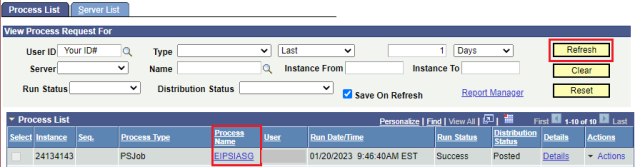
- Select the Refresh button link to view the current process status. Continue to Refresh until the process is finished. The process is finished when the Run Status is Success, and the Distribution Status is Posted (Queued and Processing indicate the process is still running).
Once the process has finished, select EIPSIASG as the Process Name to open Process Detail.
- Select the SCC_BAT_RPLY_Success link.
- Select the View Log/Trace link in the Actions section link to access the File List created.
- Select the *.stdout link from the Name column. A new browser tab will open. The success of your batch will only state if the job ended normally or resulted in a failure. There is no count or verification of EMPLIDs for the records included in the batch job.
Release
Release individual indicator
Permissions are required to remove a service indicator. If permissions allow following the steps below to remove a service indicator.
- Navigate to the Manage Service Indicators page.
- Enter Search Criteria then select Search to view the Service Indicator Summary.
- Select a service indicator link from the Code column to access its details.
- Once open, select the Release Service Indicator link (Release button). Removal will take effect once the OK link button is selected. The release button will only appear if you have access to remove the Service Indicator.
Release multiple indicators by batch
- Navigate to Run Serv Ind and Stdnt Grps page.
- Select the Search button.
- From the Run Control ID, select REL_SERV_IND_BATCH
- If needed, add a new Run Control ID, select the Add a New Value tab, name the report, and select Add. You need only to add a run control the first time you run the report. After the run control is added, you can reuse it each time you need to run the report. Click Search on the Find an Existing Value tab to locate your Run Control ID.
- In the Population Selection section, select External File as the Selection Tool.
- If not already created, create the Text File (.txt) containing the list of EMPLIDs on your personal computer. Learn how to Create a Text File for batch processing. [link “Create a Text File” to the newly created “Create a Text File for Batch Processing” file]
- Select the Upload File button then the Choose File link button to browse for the already created and saved text file. Once the file is located and selected, select Upload to upload the file.
- To view the details of the file that was uploaded, select the View File button. A new tab will open in your browser where the list of student IDs are listed.
- Select OSF EMPL ONLY as the File Mapping (text file must be uploaded first).
- In the Service Indicator Data section confirm or select The Ohio State University as the Institution and add values in the fields listed below:
- Service Indicator Code – if needed, select the Look Up Service Indicator Code link (magnifying glass icon) to select from a list of options
- Reason – if needed, select the Look Up Reason link (magnifying glass icon) to select from a list of options related to the Service Indicator Code chosen above. Once entered, the Department will automatically be populated in the Assignment Details section.
- In the Effective Period section, the following fields are required:
- Start Term - if needed, select the Look up Start Term link (magnifying glass) to select from a list of options
- Start Date – enter today’s date or a future date for the service indicator to take effect by either entering the date or selecting it from the Calendar Start Date link (calendar icon).
- If a comment is needed, add it in the Comments section field. Comments are not shared with students.
Select the Run button link to process the request.
- Select the Publish REL Service Ind row then select the OK button.
- Select the Process Monitor link (located near the Run button link) to open the Process List where you can view the process progress.
- Select the Refresh button link to view the current process status. Continue to Refresh until the process is finished. The process is finished when the Run Status is Success, and the Distribution Status is Posted (Queued and Processing indicate the process is still running).
Once the process has finished, select EIPSIASG as the Process Name to open Process Detail.
- Select the SCC_SI_RELS_Success link.
- Select the View Log/Trace link in the Actions section link to access the File List created.
- Select the *.stdout link from the Name column. A new browser tab will open. The success of your batch will only state if the job ended normally or resulted in a failure. There is no count or verification of EMPLIDs for the records included in the batch job.
Important Information
If service indicators exist, a Positive Service Indicator link (red star icon) or a Negative Service Indicator link (no icon) will be at the beginning of most pages in SIS. Selecting the link will take you directly to the Maintain Service Indicators page.