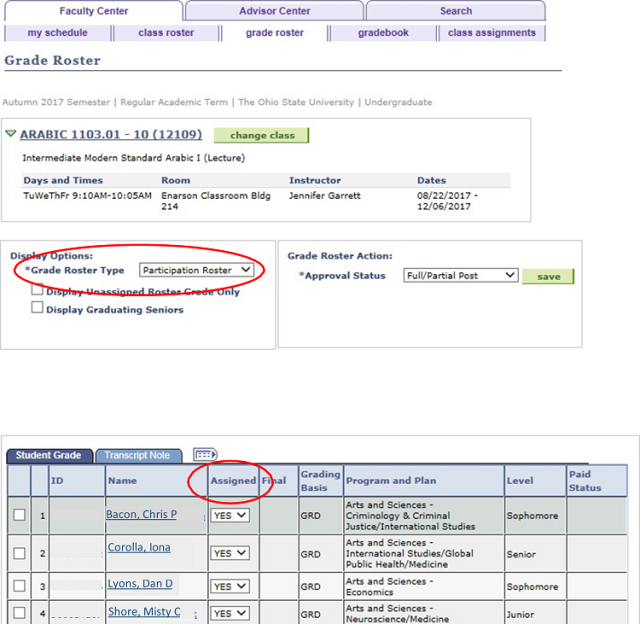
Instructions from the Office of the University Registrar for updating Participation Rosters.
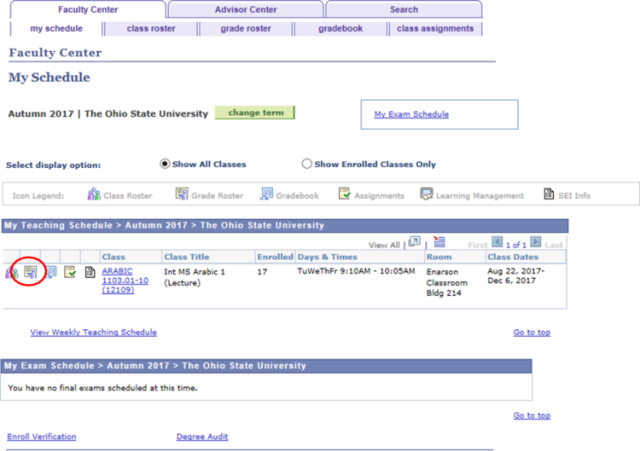
- Access the Participation Roster by navigating to the Faculty Center in Buckeye Link.
- Select the Grade Roster icon to access your Participation Roster.
- At the beginning of the term, the only Grade Roster Type available will be the Participation Roster noting the Assigned value for each student is defaulted to YES.
- If a student has not participated in the course, select the drop-down box and select NO.
Select the Save button to save the selected.